Event logs
Event log is used to download the errors and warnings generated in Claysys Appforms on the server. This is a server level error log and includes the errors across all the tenants.
Now, let’s take a detailed look at the Event Logs.
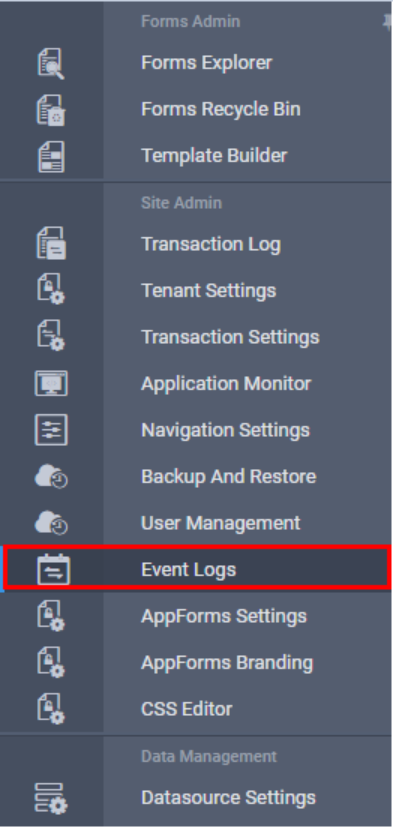
Event log link is available in the left navigation as shown in the image below.
The event log page appears as shown below.
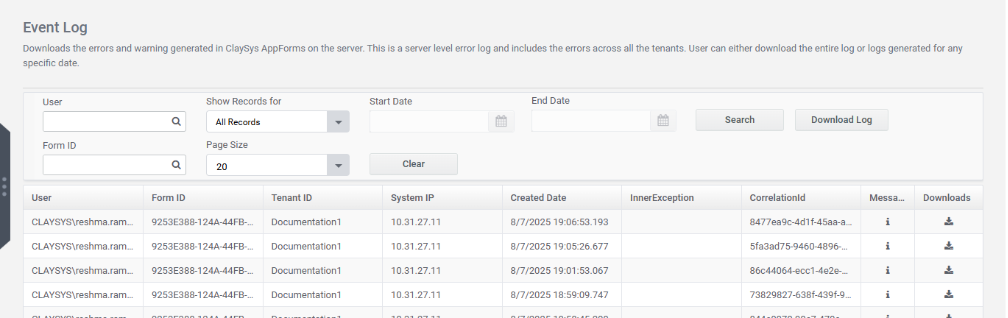
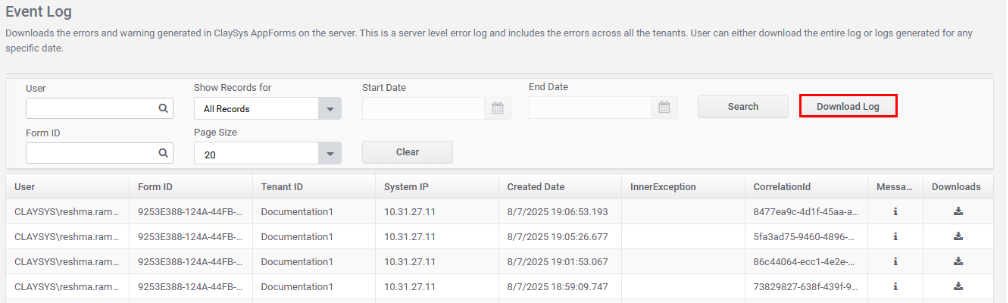
Users can filter records using a variety of criteria, including username, Form ID and page size. They also have the option to view all records or filter them by specific time intervals, such as the last 1 minute, 10 minutes, or 1 hour. For more detailed filtering, a custom date range can be set by entering a start and end date. These filtering options are accessible via the “Show Records For” combo box. Once the desired filters are selected, clicking the Search button will display the results in the grid based on the applied criteria. A Clear button is also provided to reset all applied filters. A Download log button is available to download logs based on filters as shown in the image below.
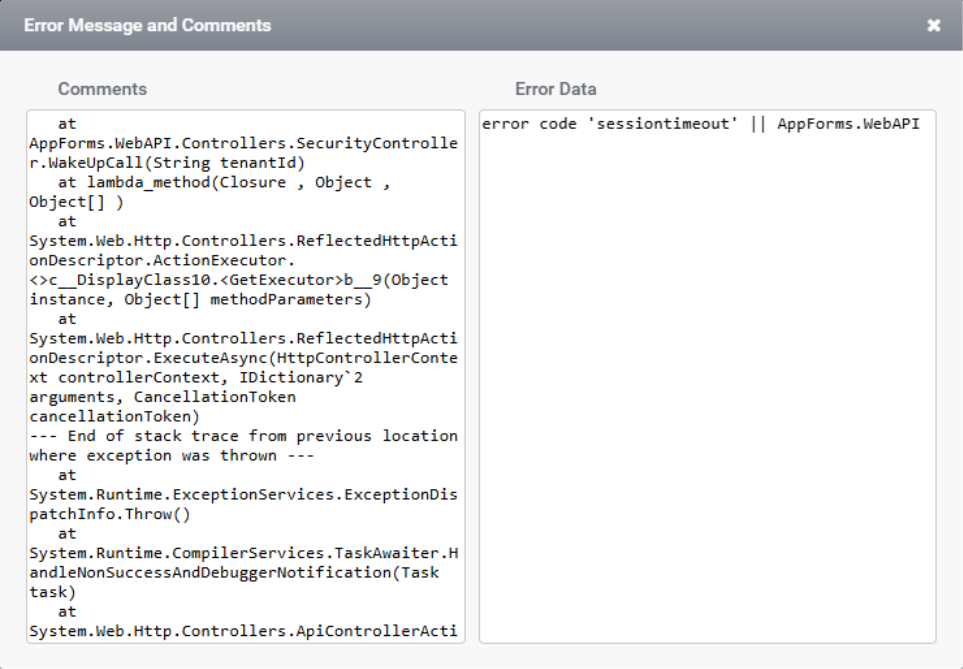
The message button displays information about the error, including error data and any associated comments. As shown in the image below, this is the message button.
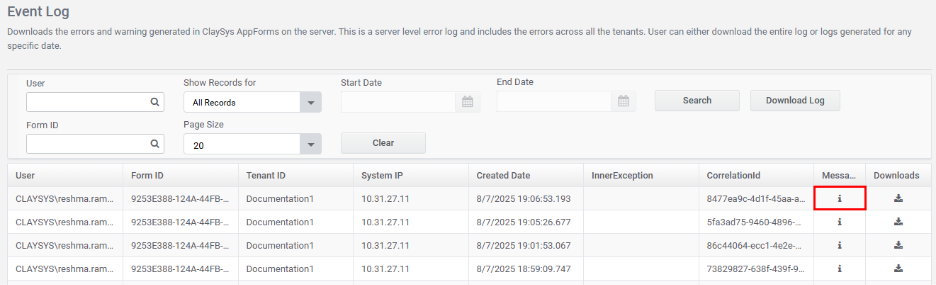
On clicking the message option, the Error message and comments window appears as shown in the image below.
Click on the download icon corresponding to the error to download specific log as shown in the image below.
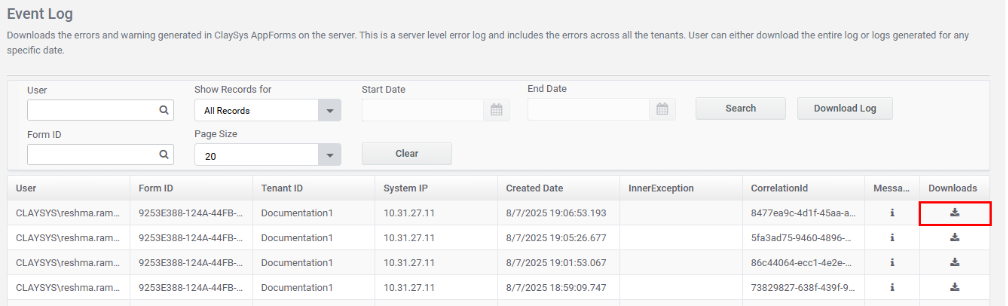
The log file will be downloaded to your system.
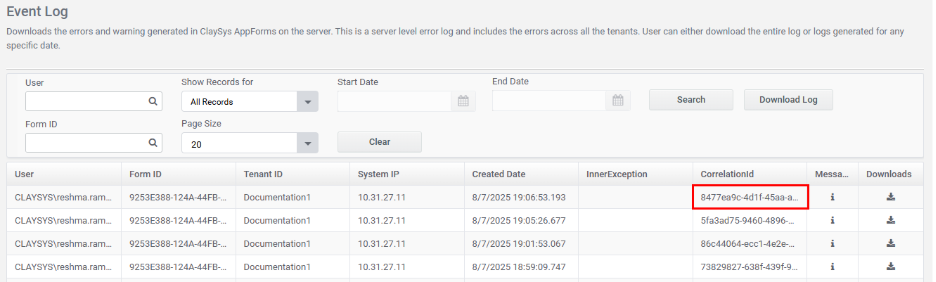
A correlation ID links together all logs and actions related to one specific process or request, making it easier to trace, debug, and monitor. The correlation ID of each log will be added corresponding to the log as demonstrated in the image below.