Application Monitor
Application Monitor is used to monitor the complete workflow of the forms created in AppForms. It tracks all the iterations and activities happening within a form during each instance of execution and displays them for analysis and review.
The results from the Application Monitor are primarily used by product support teams for troubleshooting and identifying issues within the application workflow.
To provide a more user-friendly experience for understanding application flow and rule execution, AppForms also provides a feature called the Rule Execution Monitor. This feature enables AppForms users to easily trace and understand how rules are executed within the application without needing deep technical troubleshooting knowledge.
Rule Execution Monitor
Rule Execution Monitor in AppForms serves as a powerful tool to oversee the entire workflow of forms created within the platform. It provides real-time monitoring of ongoing iterations, offering valuable insights into form performance. To leverage the benefits of Rule Execution Monitor, users need to follow specific setup steps outlined below.
Setting Up Rule Execution Monitor
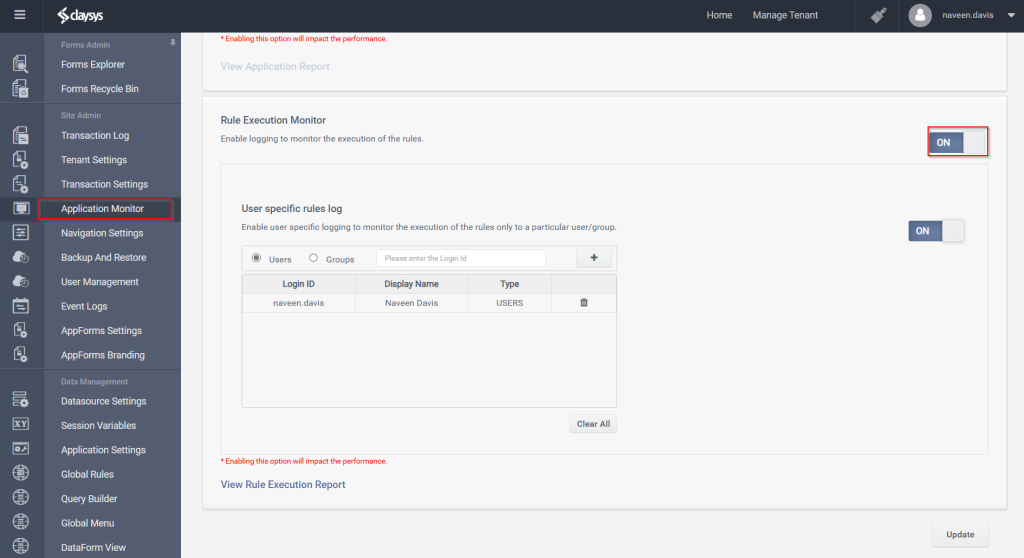
Accessing the Rule Execution Monitor in the designer interface is a straightforward process. Within the designer, navigate to the left link section and click on ‘Application Monitor.’ This action will direct you to the screen where the Rule Execution Monitor can be enabled. Toggle the ON button, and remember to click ‘Update’ to save the settings.
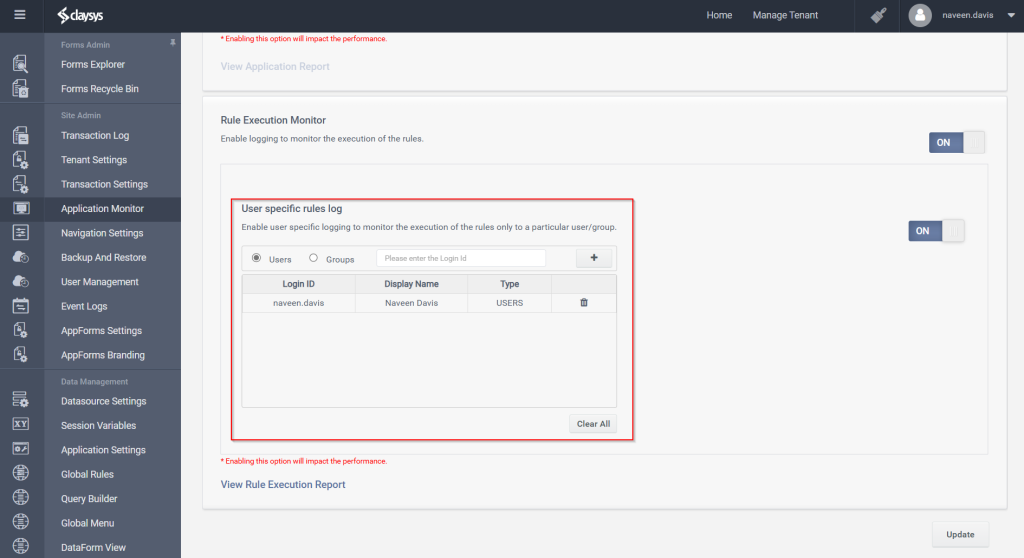
If you need to enable the setting for a specific user or user group, the ‘User specific rules log’ option can be activated. To add users or groups, use the search text box on the screen. Selected users can be cleared using the ‘Clear All’ button, or individual names can be deleted using the ‘Delete’ button available in the row line.
Clicking on the link “View Rule Execution Report” will redirect you to a different page where the entire flow is monitored. Each iteration is presented in the grid, and clicking on the ‘View Details’ link will provide a detailed overview of the iteration. It includes information on the time taken for each action, facilitating performance analysis of the form. The ‘Delete’ link can be used to delete a specific iteration, while the ‘Delete All’ link removes all iterations.
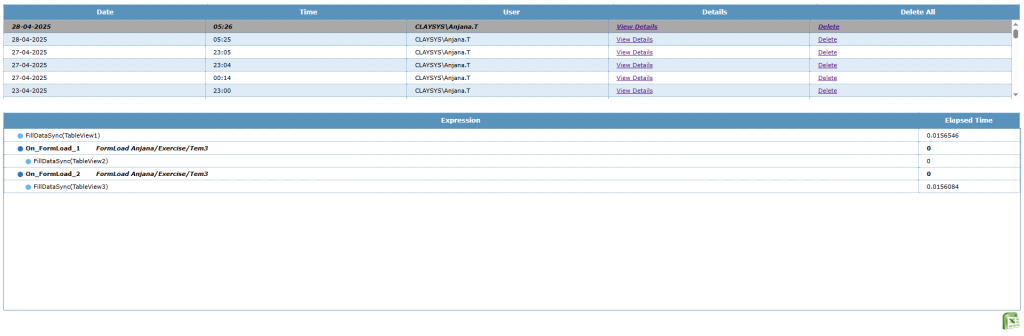
Clicking on the excel image button will download the report for detailed review and analysis.
Note: Properly configuring and utilizing the Rule Execution Monitor enhances form analysis and ensures effective monitoring of rule executions within the ClaySys AppForms environment.