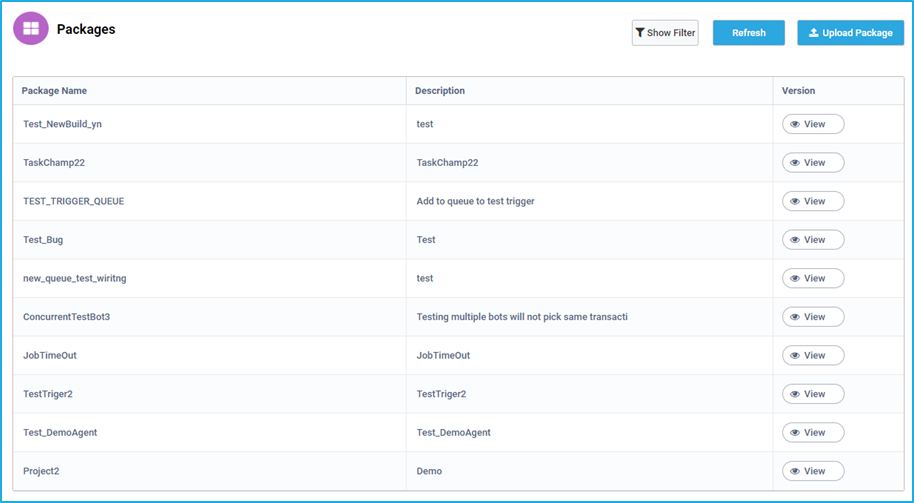
Packages

In Genie Studio, a package represents a fully developed project ready for deployment, encapsulating all its functionalities and configurations. Within the packages tab, users can access a repository of published RPA Genie projects, facilitating seamless job execution. The platform further streamlines workflow by enabling effortless migration of packages across environments, eliminating the need for redeveloping projects from scratch. Package versions evolve iteratively with each republishing cycle in Studio, ensuring that users always have access to the latest enhancements and fixes. When downloading a specific package version, the file is saved locally with the recognizable “.geniepack” extension, consolidating organizational resources for future utilization.

The Packages tab lists all the RPA Genie projects that were published through studio. The published projects will be reflected initially in this tab in the form of packages along with the name, version and description for ease of access. With the help of this tab, users would also be able to download or upload packages easily.These packages must be converted to processes in order to be run through the Bot Manager/Agent/Co-pilot.

The view button next to each package displays the version numbers corresponding to the package. Each time a project has been modified and republished in studio, a new version for the package will be available in this window.

  • To locally download any specific version of a package, the user can click on the download button. Once the download link is clicked, the package will be saved on the system which can then be migrated from one environment to another. Note that that extension of a package is “.geniepack”.
  • To upload a package, the user can select a package that is saved in their local system and upload it by clicking the Upload Package button at the top.
Machine

Machine is the physical or virtual platform where the robot runs such as a server machine. It provides the necessary environment for the robot to execute its tasks.

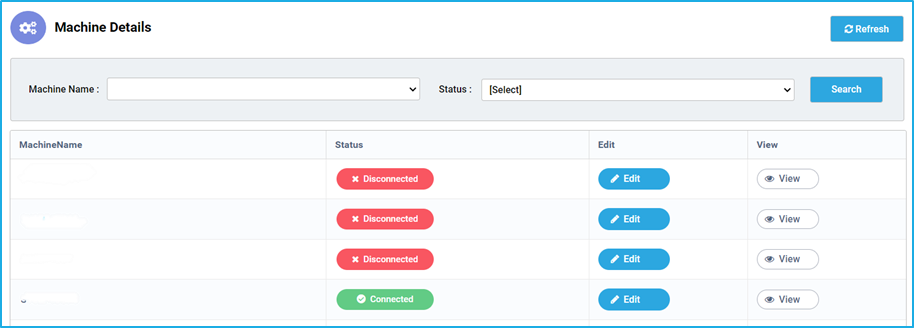
To access the Machines window, the user has to select the ‘Machines’ by hovering the ‘Robots’ tab of the Bot Manager. This tab shows the names of the machines and their current statuses. The Machine can be either in one of the state given below:

  • Connected: If the machine is connected to the bot, the status will be shown as Connected.
  • Disconnected: Due to any reason, if the machine gets disconnected from the bot, the status will be shown as Disconnected.
  • In-Maintenance: If a particular machine has been selected to undergo maintenance, then the status of that machine will be shown as “In-Maintenance”.

 The user have the ability to edit the machine and view details of a particular machine.

Users can search for a particular machine based on the Machine’s name and status.

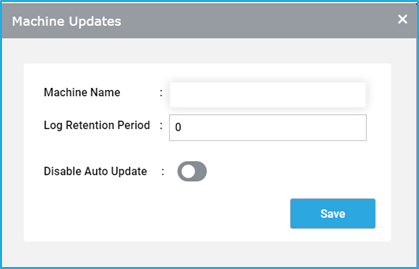
The ‘Edit’ option allows user to edit the machine details. On clicking the ‘Edit’ option for a particular Machine, a window pops up, where the Machine name, Log Retention period for the file system can be edited and enable/disable Auto Update. 

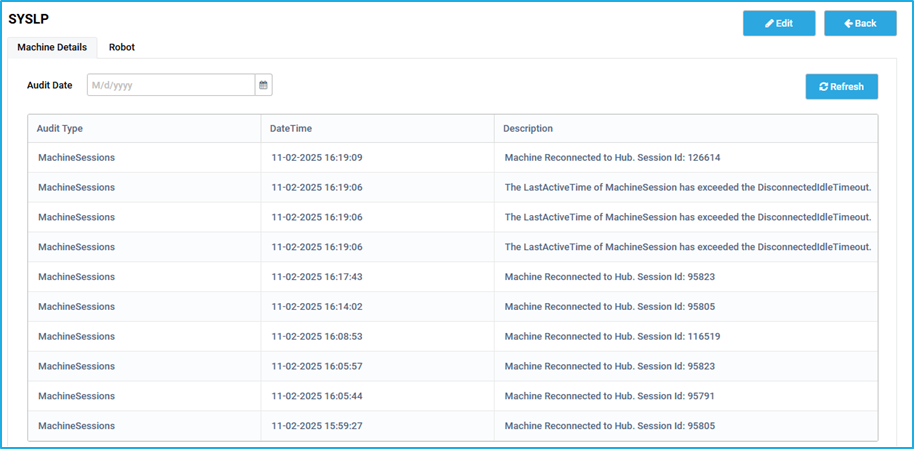
The View button will re-direct the user to a window with two tabs:

  • Machine Details: This tab has the complete logs of Machine events. In the table, the first column displays the AuditType of a particular machine event, the Second column displays the datetime of that event and the third column shows the description of that event.

  • Robot: This tab shows the robot name and the current status of that BOT. (Eg. Connected/Disconnected).

Robot Details

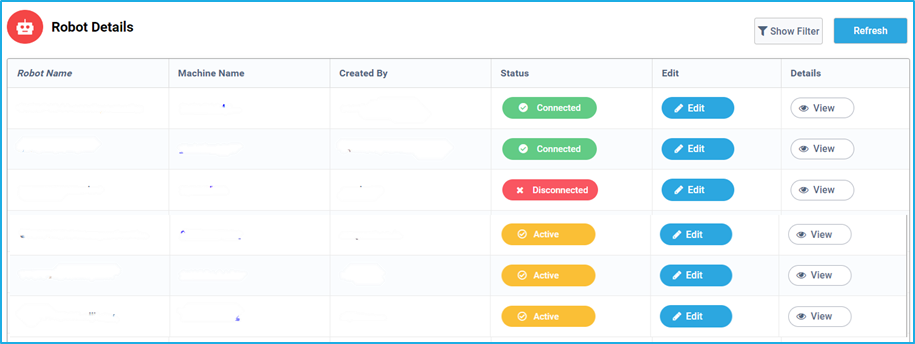
The Robot tab displays a table containing the Robot Details such as the Robot name, Machine Name, Created By, Status of each robot, Edit, and to view details.

  • Robot Name: This column displays the names of the robots that are available in the bot manager.
  • Machine Name: This column shows the names of the machines which are connected to the corresponding BOTs. On clicking the Machine name, it will navigate us to a window which displays the details such as the machine details and robot status for the particular machine to which the robot is connected.
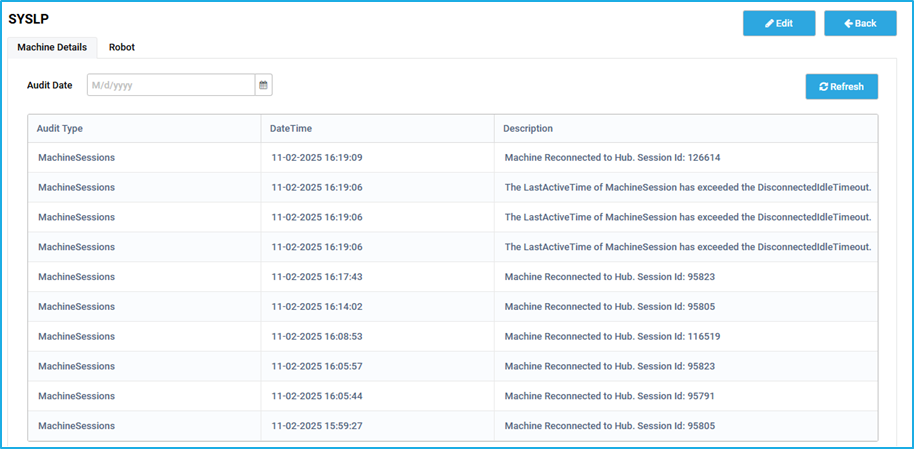
    • Machine Details- This Tab has the complete logs of the Machine events. In the table, the first column displays the AuditType of a particular machine event, second column displays the datetime of that event. The third column shows the description of that event.
    • Robot- The Robot Tab shows the Robot name and the current status of that BOT. (Connected/Disconnected).
  • Created By: This column displays all the names of the users who are using the BOTs. 
  • Status: This column displays the current status of the respective robots. The following types of statuses can be seen under the status column:
    • Connected: If the bot is connected to the bot manager using a specific service URL, the status will be shown as connected.
    • Disconnected: Due to any reason, if the bot gets disconnected from the bot manager, the status will be shown as disconnected.
    • Active: Once the copilot is quit from the system tray and the status of RPA Genie agent service is running, then state of the bot will be displayed as active. Note: The Bot need not be changed to the connected state manually if the active status is shown. If a job is scheduled at a particular time, then at the start time of the job, the status of the BOT will be changed to connected automatically with the help of the Auto-Login feature. 
    • In-Maintenance: If a particular Machine has been selected to undergo maintenance, then the status of all the robots under that machine will be shown as “In-Maintenance”.

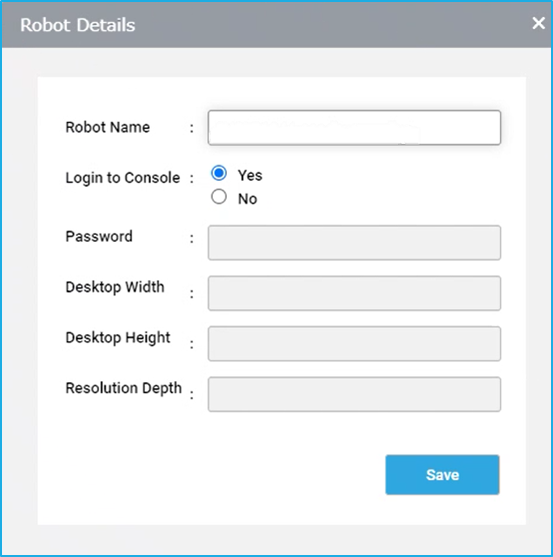
  • Edit: On clicking the Edit option of a particular Robot, a window pops up, where the robot settings can be configured.
    • Robot Name field allows to edit the name of the robot.
    • If the toggle button for Login to console is enabled, then the robot in the server machine has to be in the connected state. Whereas if it is disabled, using the password that the user provided, it will create an RDP session and will run the job via agent service in the server.
    • For any UI automation, the window settings such as desktop width, desktop height and resolution depth can be configured.
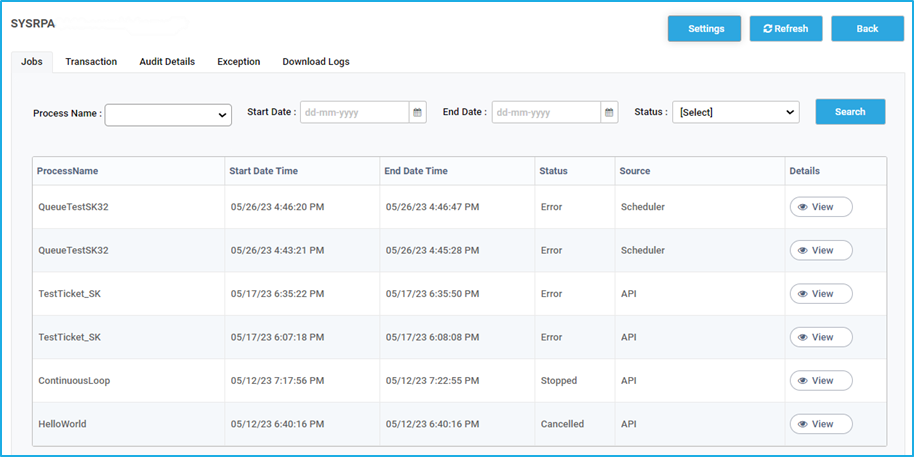
  • Details: Once we click on the view option for a particular robot, it takes us to a window consisting of a few sub-tabs. These sub-tabs have filters that can be applied for a quick search. These sub-tabs are as follows:
    • Jobs: This tab consists of a table that displays brief details of all the jobs such as Process Name, Start and End Date Time, Status and Source of any job that had been run through this BOT.To have a detailed information about the specific job, click on the corresponding ‘view’ button which will navigate to a window where the user will be able to have an in-depth understanding of additional job details regarding the activities used, transaction items details and exception details, if any. These can be accessed in the below sub-tabs:
      • Activities: Displays details about all the activities used for that job and whether those activities are executed or faulted.
      • Transaction: The transaction items that have been added to the queue are listed only if the queue is included in the workflow for that specific selected job. 
      • Exception: If the job gets faulted, then this tab shows the information regarding the DateTime, Source, Type and the Exception message of that exception. On clicking the ‘view’ button next to the exception message, detailed information about the exception can be checked. 
      • Note: This is the same window that opens up when we click on the view option for a specific job under the main jobs tab.
    • Transaction: This tab shows the details of all the Transaction items of each queue that was created to execute queue specific automation using this particular BOT. This table lists details of all the queue items such as reference, queue-name, start and end date time and status for any queue which was created and used by the bot. To have more information of a specific queue item, the ‘view’ option can be clicked to access the certain details such as the activities used, nested transaction, exceptions and transaction item details for any individual queue item.
    • Audit Details: This tab has the complete logs of a Robot’s events. In this table, the AuditType column displays the type of the events such as connection, machines, jobs, etc. The table also displays the DateTime and the description of that event (Robot Connected with bot manager/ Robot disconnected with bot manager). 
    • Exception: The Exception tab shows the complete logs such as Process Name, DateTime, Source, Type and Exception message of all the exceptions that have occurred for any jobs that were executed through this bot. On clicking the ‘view’ button next to the Exception, detailed information about it can be checked.
    • Download Logs: In this tab, the start and end date to download the logs can be specified. Also, screenshots and System Information can be included.

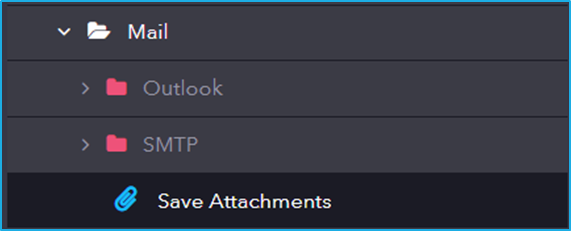
Sub Activity – Mail

It includes activities for sending, receiving, and managing emails, enabling automation to interact with email services for tasks such as composing, reading, and organizing messages.

The Mail category has the following sub activities:

Types of Robot

Robots can work in different modes, either autonomously (unattended) or in collaboration with human users (attended).

  • Attended BOT – Attended BOTs are the BOTs that are ready and activated by a person whenever they are needed to execute the process. These Robots need human supervision.  
  • Unattended BOT – Unattended BOTs are the BOTs that will operate on a pre-set schedule or as a trigger by logic in the process flow. These Robots don’t need to be supervised by humans.  

Robots

A Robot is an execution agent that operates automation processes developed in Genie Studio. For development purposes, a robot integrated with the Genie Studio can be used and for production purposes, the bot can be managed using the Genie Agent/Copilot.

By using an agent/Copilot, a user can manage the BOT either locally or they can manage the BOT from a centralized server by connecting the Agent/Copilot to the BOT Manager.

Show Filter

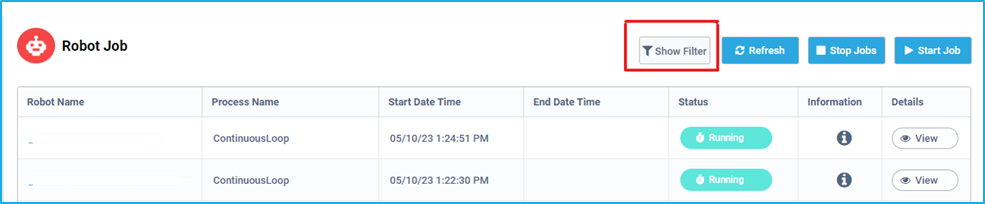
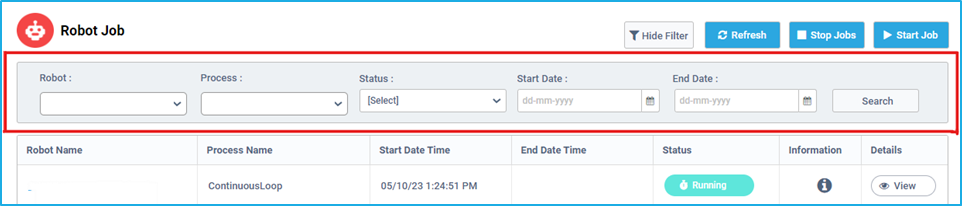
On clicking the “Show Filter” button, the fields such as Robot, Process, Status, Start Date and End Date will appear as shown in the below images:

It also consists of a search button, through which user can search for a job quickly based on the specified robot/process/status or the start and end times or a combination of them.

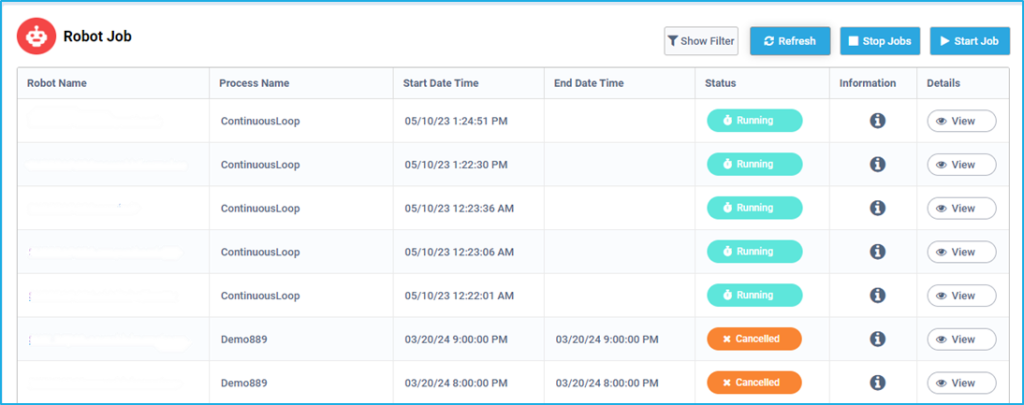
The “Refresh” button adjacent to the “Show Filter” button helps to reload the Robot Job window so that user can see the latest Jobs details.

Stop Jobs

The “Stop Jobs” button present on the ‘Robot Job’ window helps to stop the selected jobs which are in the running and scheduled state. 

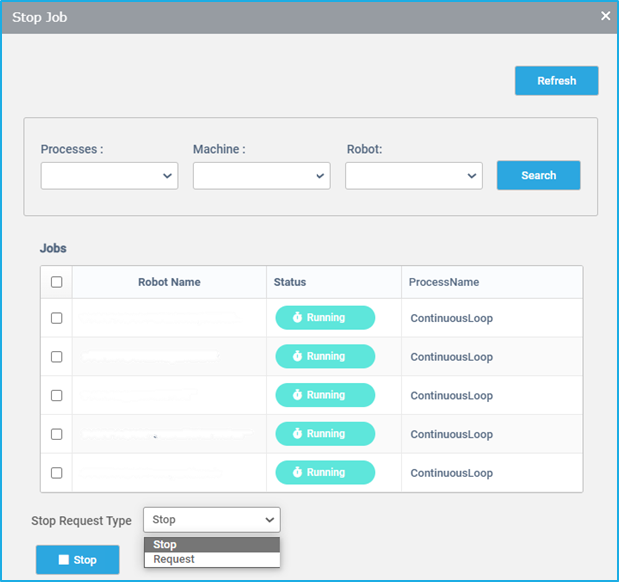
  • After clicking this button, the user will be taken to the “Stop Job” window, where they can locate their Processes, Machine, or Robots in which the job has to be stopped. Also, the “Refresh” button helps to refresh the window.
  • Select the method for stopping the Robot using the “Stop Request Type” option box.
    • Stop: In case of running job, if the user selects the “Stop” option, all the selected Jobs will be terminated immediately without completing the active transaction.
    • Request: If the user selects the “Request” option, all the selected Jobs will stop only after completing the active transaction i.e. the running transaction will get processed and all subsequent transactions will not execute, which will cause the job to be halted eventually.
  • Finally, click the “Stop” button at the bottom of the window after choosing an option from the “Stop Select Type” to stop the selected Jobs.

Note: If the selected jobs which are in the running state are stopped, the status will change to stopped. Whereas, if the selected jobs which are in the scheduled state are stopped, the status changes to cancelled.

Information and Details options

Information

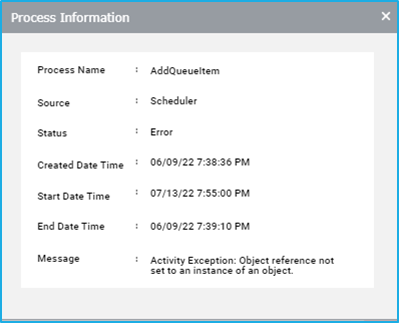
The information column provides a brief description of a particular job such as the process name, source, status, etc. If the status of the Job is shown as Error, the error message will be displayed in this window.

Detailed View

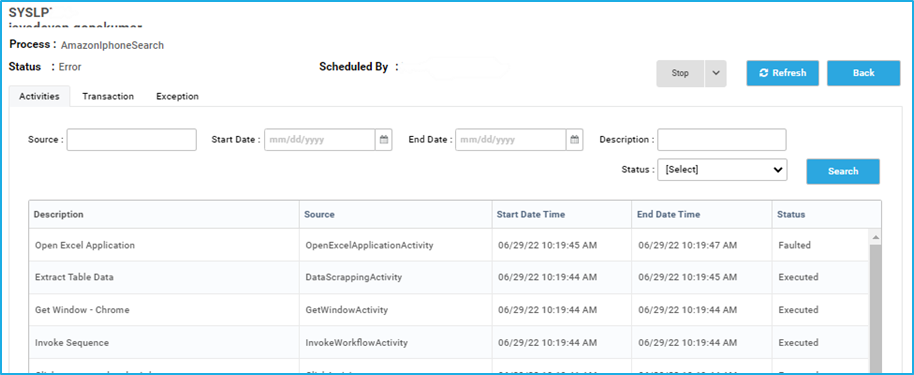
Each job has a View button which displays the detailed view of that Job. On clicking that button, the Bot name, Process, scheduler of the job and the status are displayed at the top.

There are three tabs:  

  • Activities: Each activity that was executed for a particular Job can be seen in the Activities tab
  • Transaction: If a job which involves a queue consists of queue items that are processed, then the queue item details will be listed in the Transaction tab. It also shows Transaction Count and there is a nested Transaction Refresh Button available on every sub-transaction page.
  • Exception: If the job gets faulted, then the Exception tab shows the information regarding the source, the type and the exception message of that exception. The detailed information about the exception can be checked by clicking the ‘view’ button next to the Exception.