Sub Activity – SMTP

SMTP includes activities for sending emails via the Simple Mail Transfer Protocol (SMTP), enabling automation to send messages through external email servers.
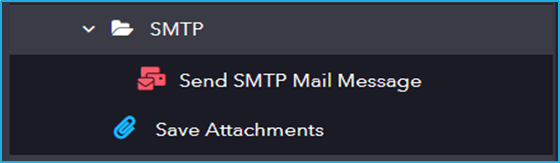
The SMTP category has the following sub activities:

Send SMTP Mail Messages: This activity is used to send and forward mail by using the SMTP Protocol.

Attachments Properties:

  • Attachments: Specify the file you want to attach to the email.

Authentication Properties:

  • Email: Specify the email account used to send the email.
  • Password: Specify the password for the email account used to send the email.

Host Properties:

  • Server: Specify the SMTP server address used to send the email.
  • Port: Specify the port number used for the SMTP server connection.

Email Properties:

  • Body: Enter the body content of the email message you want to send.
  • Subject: Enter the subject line of the email message you want to send.
  • IsBodyHtml: Select this option if the body of the email message is in HTML format.
  • MailMessage: The MailMessage object that contains the email to be forwarded.

Receiver Properties:

  • To: Enter the email addresses of the primary recipients. You can specify multiple addresses separated by commas.
  • Bcc: Enter the hidden recipients of the email message.
  • Cc: Enter the email addresses of recipients to receive a copy of the email.

Sender Properties:

  • From: Enter the sender’s email address.

Save Attachments: This activity is used to send and forward mail by using the SMTP Protocol.

Input Properties:

  • FolderPath: Specify the folder path where the attachments will be saved.
  • Message: Specify the MailMessage object that contains the attachments to be saved.

Output Properties:

  • Attachments Properties: Stores the retrieved attachment that is saved to the specified folder.
Sub Activity – Outlook

It includes activities for sending, receiving, and managing emails, enabling automation to interact with email services for tasks such as composing, reading, and organizing messages.

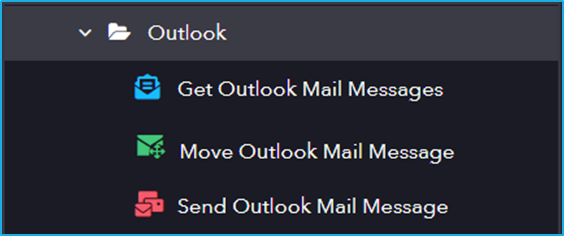
The Outlook category has the following sub activities:

Get Outlook Mail Messages: This activity is used to retrieve emails from Outlook.

Input Properties:

  • Account: Enter the email ID of the account from which you want to retrieve the mail messages.
  • MailFolder: Enter the name of the folder from which the specified mails are to be retrieved.

Options Properties:

  • Filter: Specify a filter string to narrow down the messages to be retrieved.
  • MarkAsRead: Select this checkbox to mark the retrieved messages as read.
  • OnlyUnreadMessages: Select this checkbox to retrieve only unread messages.
  • NewestFirst: Select this checkbox to retrieve the newest messages first.
  • Top: Specify the number of messages to retrieve from the top of the list.

Output Properties:

  • Messages: Stores the retrieved emails as a collection of MailMessage objects.

Move Outlook Mail Message: This activity moves Outlook mail to a specified folder.

Input Properties:

  • Account: Specify the mail ID of the account from which messages are to be moved.
  • MailFolder: Specify the name of the folder to which the emails should be moved.
  • MailMessage: Specify the MailMessage object that you want to move.

Send Outlook Mail Message: This activity allows the users to send and forward mail from a specified Outlook account.

Attachments Properties:

  • Attachments: Specify one or more file paths of attachments to be included in the email, in the form of an Array.

Email Properties:

  • Body: Enter the body content of the email message to be sent.
  • Subject: Enter the subject line of the email message to be sent.
  • IsBodyHtml: Select this option if the body of the email message is in HTML format.
  • MailMessage: The MailMessage object that contains the email to be forwarded.

Receiver Properties:

  • To: Provide the email addresses of the primary recipients as a single string, with multiple addresses separated by semicolons.
  • Bcc: Enter the hidden recipients of the email message.
  • Cc: Enter the email addresses of recipients to receive a copy of the email.

Input Properties:

  • Account: Specify the email ID of the account from which the message should be sent.
  • SendOnBehalfOfName: Specify the email address on whose behalf the email is sent.

Demo Project using Excel Activities (Part 2)

The URL of the demo project is given below where users can learn about these activities in a better manner. 

Steps:

  1. Read the data from an Excel file using the “Read Range” activity. 
  2. Preview the DataTable obtained from the “Read Range” activity using the “Preview DataTable” activity. 
  3. Read the value of a specific cell from the Excel file using the “Read Cell” activity. 
  4. Display the cell value in a message box. 
Activities Used“Open Excel Application, Read Range, Preview DataTable, Read Cell, Message Box”
Video Linkhttps://www.youtube.com/watch?v=9WJlwFEH5iQ&list=PLwFA5laAhcEJ7sVztHRNXDdXffy2odMvv&index=11&t=2s

Demo Project using Excel Activities (Part 1)

The URL of the demo project is given below where users can learn about these activities in a better manner. 

Steps:

  1. Create a test Excel file on the desktop. 
  2. Open the website – ‘https://crypto.com/price/‘ which consists of different cryptocurrencies and their details in a table format. 
  3. Extract the table from the website using the “Extract Data Table” activity and assign it to a variable of DataTable type. 
  4. Open the previously created Excel file using the “Open Excel Application” activity. 
  5. Create a new sheet in the Excel file using the “Set Active Sheet” activity. 
  6. Write the extracted DataTable to the Excel file using the “Write Range” activity. 
  7. Write a value to a specific cell in the Excel file. 
  8. Remove the data from the Excel file using the “Delete Range” activity. 
Activities Used“Get Window, Extract DataTable, Open Excel Application, Set Active Sheet, Write Range, Write Cell, Delete Range, Close Workbook”
Video Link https://www.youtube.com/watch?v=EWod0PCLywI&list=PLwFA5laAhcEJ7sVztHRNXDdXffy2odMvv&index=9&t=11s

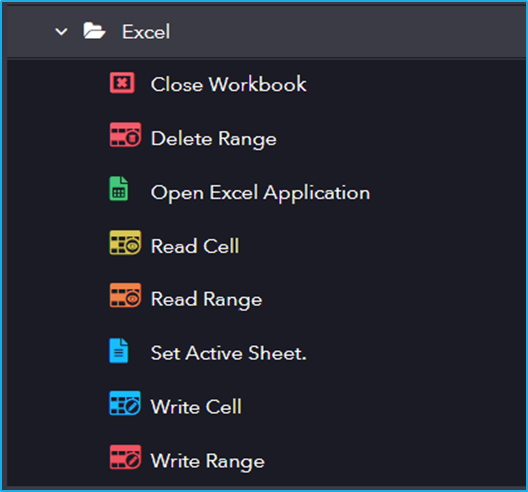
Sub Activity – Excel

Excel includes activities for interacting with Excel files, allowing automation to read, write, and manipulate data within spreadsheets.

The Excel category has the following sub activities:

Close Workbook: This activity can be used to close an open Excel workbook.

Input Properties:

  • Workbook: Specify the Workbook to close. Only ExcelWorkbook variables are supported.

Delete Range: This activity allows the users to delete a specified range of cells in an Excel workbook

Input Properties:

  • Workbook: Provide the Workbook from which the range should be deleted.
  • Range: Specify the range to delete. Only string values are supported.
  • ShiftOption: Specify the direction to shift the cells in the deleted range.

Open Excel Application: This activity allows the user to open an Excel file of a specified path.

Input Properties:

  • WorkbookPath: Enter the path of the Excel workbook you want to open.
  • CreateNewFile: Select the checkbox to create a new Excel file in the specified location.
  • Visible: Select the checkbox to open the specified Excel file in the foreground. If not selected, all actions will be performed in the background.
  • AutoSave: If selected, the Excel file will be saved automatically.
  • Workbook Framework: Click the drop-down menu to choose the workbook type to create, based on the selected category.

Output Properties:

  • WorkbookWindow: Stores the entire information from the specified Excel file in an ExcelWorkbook variable.

Read Cell: This activity allows the user to read cell from Excel Workbook.

Input Properties:

  • Workbook: The ExcelWorkbook variable can be obtained from the Open Excel Application activity.
  • Cell: Specify the cell to read from the Excel file.

Output Properties:

  • Result: Stores the value retrieved from the specified Excel cell.

Read Range: This activity reads the value of a specified range of cells from an Excel file.

Input Properties:

  • Workbook: The ExcelWorkbook variable can be obtained from the Open Excel Application activity.
  • Range: Enter the range you want to read from the Excel file.
  • Include Header: Select this checkbox to include the column headers with the specified range.

Output Properties:

  • Result: Stores the extracted data from the specified Excel range in a DataTable variable.

Set Active Sheet: This activity can be used to create a new sheet or set an Excel spreadsheet as active to perform some operations.

Input Properties:

  • Workbook: The ExcelWorkbook variable can be obtained from the Open Excel Application activity.
  • SheetName: Specify the sheet name that should be set as the active sheet.
  • CreateNew: Select this checkbox to create a new sheet in the specified Excel file.

Write Cell: This activity is used to write a value into a specified cell in the Excel Workbook.

Input Properties:

  • Workbook: The ExcelWorkbook variable can be obtained from the Open Excel Application activity.
  • Cell: Specify the cell to write to. If the cell already contains data, it will be overwritten.
  • Value: Enter the value to be written in the specified cell.

Write Range: This activity writes the data from a datatable variable into a specific range of cells in an Excel workbook.

Input Properties:

  • Workbook: The ExcelWorkbook variable can be obtained from the Open Excel Application activity.
  • Range: Enter the range you want to read from the Excel file.
  • Data: Enter the starting cell of the range where the data should be written.
  • Include Header: Select this checkbox to include the column headers with the specified range.

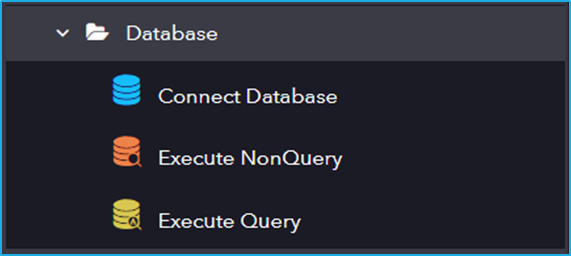
Sub Activity – Database

It involves connecting to a database and executing query and non-query operations to retrieve, insert, or update data within automation workflows.

The Database category has the following sub activities:

Connect Database: This activity is used to Connect to a database by using a connection string.

Connection Properties:

  • ConnectionString: Specify the connection string to establish a database connection.
  • Provider: Name of the database provider used to connect to the database.

Output Properties:

  • Connection: Stores the established database connection.

Execute NonQuery: The ExecuteNonQuery activity enables you to execute SQL statements such as INSERT, UPDATE, or DELETE data in a given database.

Connection Properties:

  • ExistingConnection: Specify a previously established database connection from the Connect Database activity.
  • ConnectionString: Specify the connection string used to establish a database connection.
  • Provider: Name of the database provider used to connect to the database.

Input Properties:

  • SqlText: The SQL command to be executed. This field is determined by the CommandType property.
  • CommandType: Select how the SQL command is interpreted (e.g., Text, StoredProcedure).
  • Parameters– Collection of named parameters bound to the SQL command.

Output Properties:

  • AffectedRecords: Returns the number of rows affected by the execution of the SQL command.

Execute Query: This activity is used to execute query operations on a database.

Connection Properties:

  • ExistingConnection: Specify a previously established database connection from the Connect Database activity.
  • ConnectionString: Specify the connection string used to establish a database connection.
  • Provider: Name of the database provider used to connect to the database.

Input Properties:

  • SqlText: The SQL command to be executed. This field is determined by the CommandType property.
  • CommandType: Select how the SQL command is interpreted (e.g., Text, StoredProcedure).
  • Parameters: Collection of named parameters bound to the SQL command.

Output Properties:

  • Datatable: Stores the result of the executed SQL command in a DataTable variable.

Demo project using Workflow Activities

The URL of the demo project is given below where users can learn about these activities in a better manner.

Steps:

1st Sequence: Sum of two variables. 

  1. create two separate variables of integer data type. 
  2. Use multiple assign activity to assign separate values to each variable created in the first step. 
  3. Drag and drop an assign activity. In the ‘To’ field create a new variable of integer type which will represent the sum of other two integer variable. In the “value” field, provide the 1st and 2nd variable name with “+” in between.  
  4. Use a message box to display the result of the new variable. 

2nd sequence: ForEach Activity 

  1. Create a variable of array list data type and add five elements in the Default Value. (e.g. [“A”, “B”, “C”, “D”, “E”]) 
  2. Drag and drop the ForEach activity. In the ‘Condition’ field add the variable that was created in the first step. 
  3. Use a message box to display each element. To see each element, add the ‘Output’ variable (varItem) of ForEach activity in the ‘Input’ field of the message box. 

3rd Sequence: Break Activity 

  1. Inside the For Each, use a decision activity. In the ‘Condition’ field add a condition to check if a particular element exists.  
  2. If the element exists, use the “break” activity to exit the ForEach activity. 
  3. Use a message box to display elements. 

4th Sequence: Replace “break” with “continue” 

  1. Remove the “break” activity under the decision activity and drag and drop “continue” activity. 
  2. Save the changes and click on the “Play” button. The element specified in the condition field will be skipped, and the process will proceed to the next one. 
  3. Use a message box to display elements. 

5th  Sequence: Create a new sequence

  1. Drag and drop Assign activity. In the ‘To’ field create a new variable called varCounter of integer type, in the ‘Value’ field add value as 1. 
  2. Use the loop activity and give a condition such that as long as varCounter is less than or equal to 5, it will display the value of varCounter. 
  3. Use a message box to display the value. 
  4. Drag and drop another Assign activity to Increment the value of varCounter by 1 in each iteration. In the ‘To’ field add varCounter and in the ‘value’ field add varCounter+1. 

6th Sequence: Throw Error and Retry Sequence activity

  1. Drag and drop the “Throw Error” activity below outside the loop activity in the 5th sequence.  
  2. In the ‘Message’ field write “Retrying the Sequence”. 
  3. Under the On Error block, drag and drop “Retry the Sequence”. In the ‘No. of retries’ field you can give any number (In the video its 2). It will retry the sequence after handling the error. 

7th Sequence: Invoke Sequence  

  1. Use the “Invoke Sequence” activity in the main sequence (4th Sequence) to integrate with the 5th  Sequences. 
  2. Below the Invoke Sequence, use a Write Line activity to confirm the process completion. 

Activities Used“Multiple Assign, Assign, Message Box, For Each, Break, Continue, Loop, Decision, Throw Error, Retry the Sequence, Invoke Sequence, Write Line”
Video Link https://www.youtube.com/watch?v=tt8DURwe_x0&list=PLwFA5laAhcEJ7sVztHRNXDdXffy2odMvv&index=38

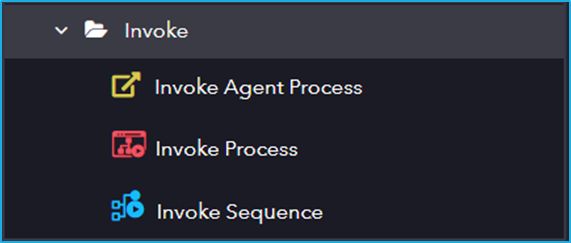
Sub Activity – Invoke

This includes activities for executing other processes or sequences within an automation project.

The Invoke category has the following sub activities:

Invoke Agent Process: Invokes the specified process from the agent.

Input Properties:

  • Process Name: Name of the process to be invoked.
  • Arguments: A list of parameters that are passed to the invoked workflow at runtime.

Invoke Process: This activity can be used to execute a process within another sequence.

Input Properties:

  • Process: Name of the specified process that is to be executed.
  • Parameters: A list of parameters that are passed to the invoked process at runtime.

Invoke Sequence: This activity can be used to execute a sequence within another sequence.

Input Properties:

  • Sequence: The name of the sequence in the specified process to be executed.
  • Variables: A list of parameters that are passed to the invoked workflow at runtime.

Sub Activity – Debug

This includes activities for troubleshooting and monitoring automation execution. These activities help developers track workflow behaviour and identify issues efficiently.

The Debug category has the following sub activity:

Write Line: This activity uses a line of text in the output panel.

Input Properties:

  • Text: The content you want to write to the Output panel.