Total Transaction Overview

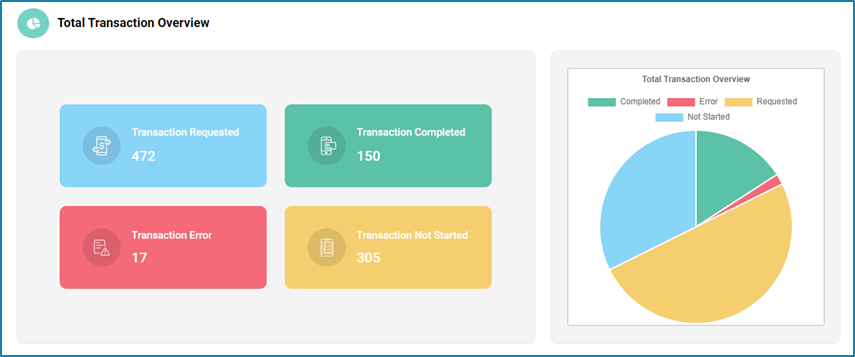
The Total Transaction overview section includes the summary of all the items that are added to the queue and the robot transactions. This section is all about the Queue transactions and it is categorized into four parts as follows: 

StatusDescription
Transaction RequestedTotal transaction in queues.
Transaction Not startedNew transactions in queues.
Transaction ErrorThe total number of transactions that failed, were abandoned, or stopped.
Transaction CompletedCompleted transaction in each queue

User will be able to compute the number of transactions in a queue based on the completed, requested, error and not started statuses.
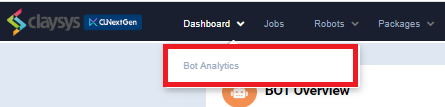
Bot Analytics

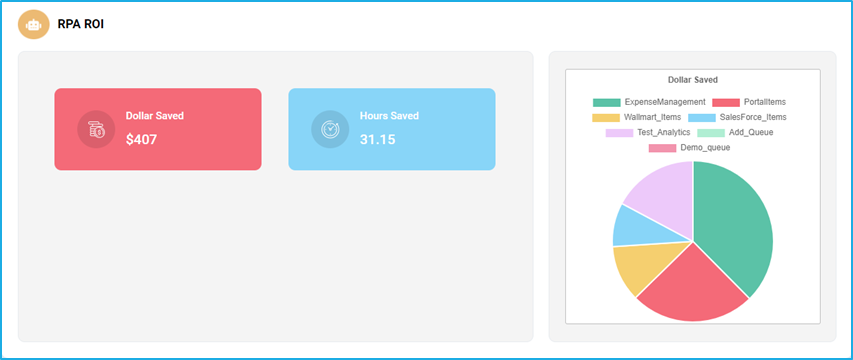
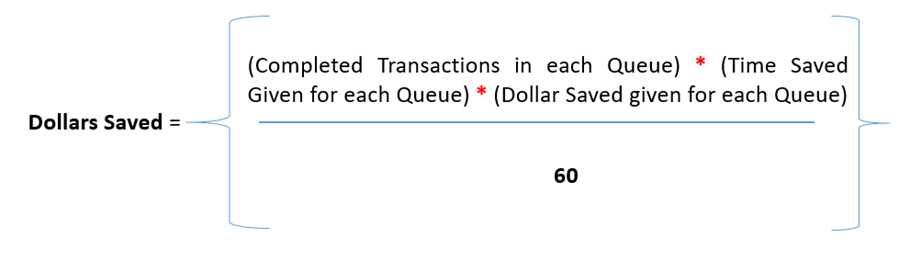
Bot Analytics is another option under the Dashboard. This is a business dashboard that completely depends on the Transactions and Queue Items. It will give an estimate of the dollars saved and hours saved.

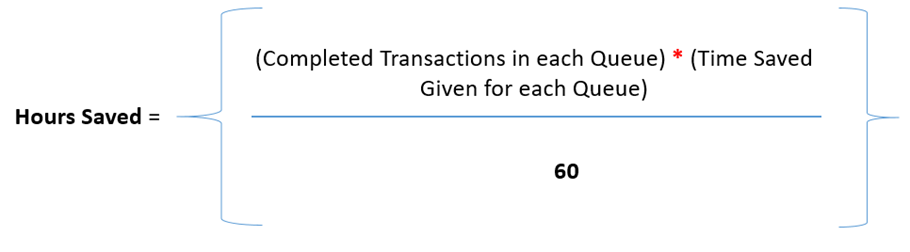
The following equations are used to calculate the Dollars saved and Hours saved, respectively

Activity – System

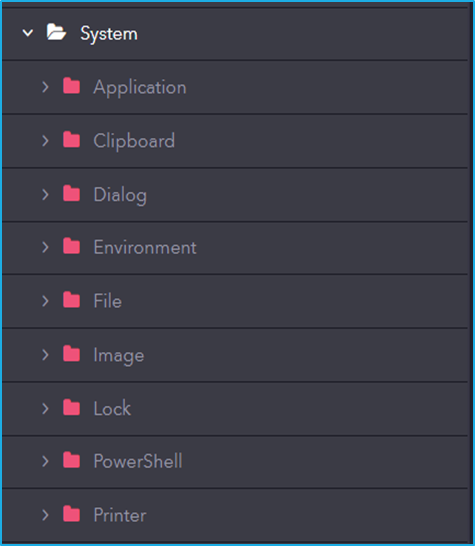
The system includes activities for interacting with the operating system, managing files and folders, executing commands, handling clipboard operations, and configuring system settings to support automation workflows.

Activity – Bot Manager

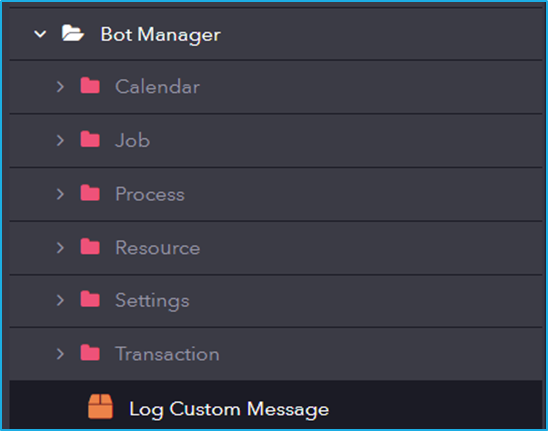
Bot Manager provides functionalities to manage, schedule, and monitor bots within the automation environment, ensuring efficient execution and resource utilization.

Activity – Programming

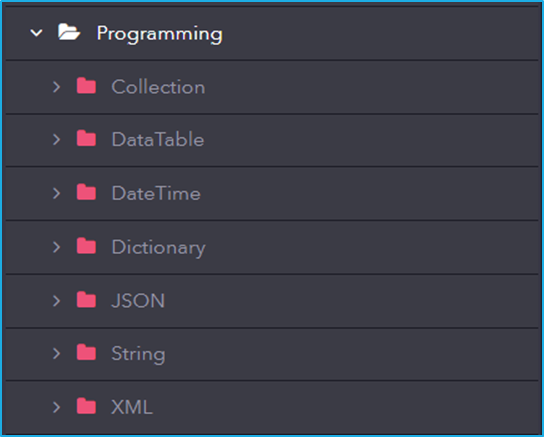
Programming includes activities for managing data structures like collections, dictionaries, data tables, JSON, strings, and XML. It supports efficient data handling, including accessing key-value pairs, iterating collections, performing date/time calculations, and parsing or manipulating data formats.

Under Programming, we will be able to find activities in which manipulation of various data types is possible (ArrayList, DataTable, String, etc).

Sub Activity – Windows

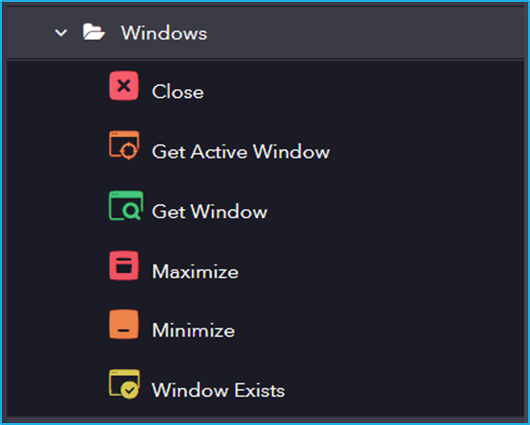
Windows includes activities for managing application windows. It allows automation to interact with resize, minimize, maximize, and verify window states.

The Windows activity has the following sub activities:

Close: This activity closes a specified Window.

Element Properties:

  • Window: Window variable that holds the window you want.

Get Active Window: This activity helps to retrieve the current active Window and performs multiple actions within it.

Output Properties:

ActiveWindow: Window variable that has found an active window.

Get Window: This activity helps the user to get the specified window that is already opened.

Window Properties:

  • Parent Window: The parent window to start searching form.

Output Properties:

  • Window: Window variable that has found active window.

Maximize: This activity maximizes the active window.

Window Properties:

  • Window: A window variable that holds the window you want to maximize.

Minimize: This activity minimizes the window.

Window Properties:

  • Window: A window variable that holds the window you want to minimize.

Window Exists: This activity checks whether a particular window exists or not.

Window Properties:

  • Parent Window: The parent window to start searching form.

Output Properties:

  • Exists: It indicates window exists or not.
  • Window: Window variable that stores the window if window exists.

Sub Activity – Screen Scraping

Screen Scraping activities for extracting structured data from application screens. It enables automation to retrieve table data efficiently from UI elements.

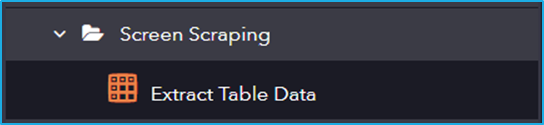
The Screen Scraping activity has the following sub activity:

Extract Table Data: This activity allows the users to extract the data from the screen and save it into a structured datatable.

Configurations:

  • Element: This field supports only UI element variable returned by another activity.
  • Selector: String of code that uniquely identifies a specific UI element on a webpage or application.
  • Options: Click the button to launch the Data Scraping Configuration Wizard.

Output Properties:

  • Data: The scrapped information is stored in a DataTable variable.

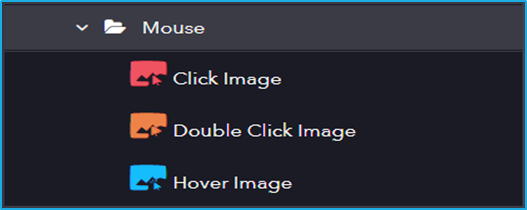
Sub Activity – Mouse

Simulates mouse actions (click, hover, etc.) on images found within the user interface.

The Mouse activity has the following sub activities:

Click Images: This Activity searches for a particular image inside a UI element and clicks it.

Element Properties:

  • Element: This field supports only UI Element variable returned by another activity.

Options Properties:

  • Mouse Button: Click action by the mouse button (left or right).
  • Cursor Position: Displacement of the cursor position according to the option selected from the drop-down (Center, TopLeft, TopRight, BottomLeft, BottomRight).

Image Properties:

  • Image: The image variable to locate and click.
  • Accuracy: Indicates the accuracy for the image search.

Double-click Images: This activity will search for the specified image and double-click on it.

Input Properties:

  • Element: This field supports only UI Element variable returned by another activity.
  • Mouse Button: Click action by the mouse button (left or right).

Image Properties:

  • Image: The image variable to locate and double click.
  • Accuracy: Indicates the accuracy for the image search.

Hover Image: This activity involves hovering the cursor over the indicated UI element.

Input Properties:

  • Element: This field supports only UI Element variable returned by another activity.

Image Properties:

  • Image: The image variable to locate and hover over.
  • Accuracy: Indicates the accuracy for the image search.

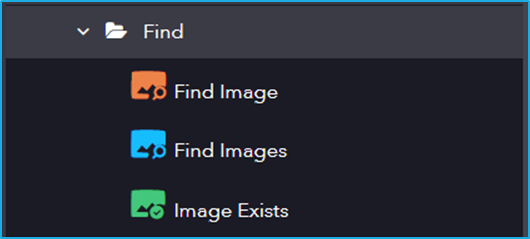
Sub Activity – Find

The Find locates images within the user interface to support automation tasks.

The Find activity has the following sub activities:

Find Image: This activity waits for an image to appear in a UI Element and returns a UI element with the clipping region set to the bounding element.

Element Properties:

  • Image: The image variable to be located.

Image Properties:

  • Accuracy: Indicates the accuracy for the image search.

Output Properties:

  • BoundingElement: Element variable which stores the found UI Element.

Find Images: This activity is used to find multiple occurrences of the same image on a web page.

Element Properties:

  • Image: The image variable to be located.

Image Properties:

  • Accuracy: Indicates the accuracy for the image search.

Output Properties:

  • BoundingElement: Element variable which stores the found UI Element.

Images Exists: This activity is used to check whether an image exists or not.

Element Properties:

  • Accuracy: Indicates the accuracy for the image search.

Image Properties:

  • Image: The image variable to be located.

Output Properties:

  • Found: Boolean variable which indicates whether the image exists or not.