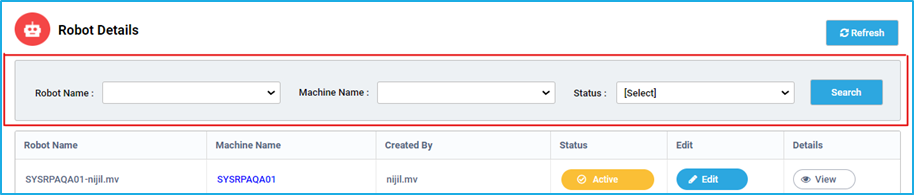
The “Show Filter” button helps to filter the robot based on the Robot Name, Machine Name, Status and Tags. The “Search” button can be clicked after entering the required data in the respective field(s).
The “Refresh” button which is present, helps to reload the Robots Details window so that the latest robot details can be viewed.
The Build 8 of RPA Genie has been released on 13 May 2024. This release notes lists out all the additional features, fixes and improvements that have been made to RPA Genie when compared to Build 7.x.x. The first version of RPA Genie is 8.1.0.0 and the final version is 8.6.0.0. Below you will find the comprehensive details about the features and updates for different versions of Build 8. Our relentless efforts are directed at enhancing its capabilities to deliver the best possible automation experience, exceeding expectations and enabling our users to reach new levels of productivity and efficiency.
RPA Genie Release Update (Version 8.1.0.0)
Release Date: May 13, 2024
Features
Chrome Extension: RPA Genie can use this extension to work coherently with the normal Chrome browser to enable smooth detection of UI elements and provide users with opportunities for seamless development of web-based automation using RPA Genie Studio.
Note: A few users are experiencing an issue where the Chrome extension rarely disables itself, which may affect the running automation that uses it. Our team is actively working on a fix. However, automations using Genie Chrome are functioning without any issues.
Java Extension: RPA Genie can use this extension to work coherently with Java-supported sites to enable smooth detection of UI elements and provide users with opportunities for seamless development of web-based automation using RPA Genie Studio.
Genie File System in Project: Enables Genie Studio to use a File system for storing and managing project development. In other words, a user will be allowed to create a project in the local file directory based on the versioning tool he/she chooses. Currently, there are 2 versioning tools: –
Genie TFS for creating a project in the DB.
File-System for creating a project in the local File Directory.
Conditional Breakpoint: The execution of the workflow will pause if the condition provided by the user in the conditional breakpoint is satisfied.
NuGet Package Manager: It allows the users to load a package source from ‘nuget.config’ where the user will be able to add, delete, update and create default package source.
Advanced Project Publish: Allows the user to publish the package independent of projects by selecting the available packages in the Bot manager or the user can publish the package with a new name.
Project Snapshot: It enables the user to capture the source code and the history of the project and is used while creating a new project to obtain a copy of snap projects.
Activity Tray in RPA Genie Studio: Activity tray allows the user to start, pause or stop the process from the tray. The user will be able to visualize which activity is being executed currently in the form of a small pop-up window at the bottom of the screen.
New Activities in RPA Genie Studio:
Extract Data Table V2: Added remove an empty row, make the first row a header and save options.
New window – tab and window: Using this activity, the user can either open a new tab in the existing window or open a new window.
Move Window: This activity will change the position and dimensions of the indicated window.
Get window position: Retrieves the bounding rectangle of a specified UI element
Row Exists: This activity will allow verifying the existence of a specific row in the tabled data structure while executing the automation processes.
Column Exists: This activity will allow verifying the existence of specific column in the tabled data structure while executing the automation processes.
Open UserBrowser: This activity will be available in the studio after installing the Chrome extension. ‘Open UserBrowser’ is used to directly open the Chrome and get the browser window with selectors. It also functions as a get window. If we have an existing window open in the background, then we can use it by enabling “Attach existing window” property.
New Enhancements – RPA Genie Studio
Lazy loading for variable and argument Expression Editors during the sequence opening process.
The Variables/Arguments value field can be edited only by double clicking on it and the field will be locked upon clicking elsewhere.
Listing Frequently used activities
While hovering over the “+” sign between two activities in the designer panel, shows a list of frequently used activities for convenience. Users can then select the desired activity from the list to incorporate it into the project.
Image optimization settings
In this version of Studio, you can set the image display size by specifying the height and width, which will determine how the UI activity images are displayed in a compressed size.
All new – RPA Genie Co-Pilot
This is the version 2 of RPA Genie Co-pilot.
Effortlessly navigate and control processes through the favorites window.
Via the settings tab, users can manage themes, shortcuts, zoom levels and more.
Users can access our Genie Extensions through the Extension Manager tab.
In the About section, users can easily visualize details about their robot and machine configurations.
Users can effortlessly filter their processes through the sorting feature.
Receive ‘Take Online’ notification upon service restoration.
New Enhancements – Bot Manager
Item Tagging
“Tags” are used to control access centrally to organize, track usage and manage access to various items in BOT Manager. The administrator can tag related items and other users can view them by filtering each section.
Keep RDP session Alive
The ‘Keep RDP Session Alive’ property helps to keep the robot sessions in connected state, preventing the robot from being logged off when no jobs are present. This is particularly useful for short-duration RDP creations, as it reduces the load on the system and improves performance.
When the ‘Keep RDP Session Alive’ feature is disabled, the session will be logged off after the job is finished, and the robot state will remain active.
‘Refresh last schedule datetime’ check box in Time scheduler and Maintenance mode trigger
‘Refresh last schedule datetime’ in Time scheduler and Maintenance mode trigger to update the last schedule column field as null to run the trigger again. This help to tackle the trigger behavior according to the user need.
BMT Queues Dashboard Enhancement
With the new hamburger button all the actions like view, edit, and delete are accessible under one click.
The Queue dashboard now includes an extra column named ‘Error,’ presenting the count of errors associated with the respective queue.
With the addition of three distinct columns “In Progress”,” Pending” and “Error”, it is easy to keep track of the transactions, eliminating the need to navigate to specific queues to monitor the status of individual items.
Delete Queue Item – Allows the user to delete the Queue item directly from the BMT
BMT Job Dashboard enhancement
The filter results and the condition persist unchanged even after navigating to a different area and returns back.
The Retry option is disabled for completed and new queue items.
Trigger update on trigger execution
Skipping the first instance of creating and updating a time scheduler issue is fixed.
For standardizing Special character Entry is Restricted in Queues and Resources
Can create Queue with characters only support _ as special character, this change will not affect the existing Queues with special characters.
Resource can be created with characters, only support _ as special character, when editing the resource, it will support all the special characters.
New Enhancements – RPA Genie Service
Import-Export Update with Service Audit
When a new item (Process, Queue, Resource, NuGet, etc.) is added or modified from Import-Export, details such as the item type, name, and the user that uploaded the file can be viewed from the service audit and the specifications about the file uploaded can be seen from the view tray to the right of it.
Synchronize API to Process Queue Item
Users can now process the queue using available robots and retrieve transaction information once the transaction is processed.
Inbuild Health Monitoring
Server Agent monitoring will monitor the SQL and the API connectivity on server machines.
Agent Service monitoring will monitor the API connectivity on Robot machines.
All New – NuGet Packages
File Extension
By using the File Extensions activities, the user will be able to convert a file to byteArray, base64 string and convert byteArray, base64 string to a file.
DataTable Extension
Single platform for data-table operations. Added a new activity called ‘DeleteDuplicateRow’ for deleting the duplicate rows from the DataTable.
Pdf Activities
Added a new activity called Pdf protect in which the user can restrict future modifications.
Excel Extension.
Added a new activity “Copy Sheet” that duplicates the current sheet with the given name.
IIS Activities
By using the IIS Activity, the user will get the details about IIS websites.
Task Scheduler Activities
By using the Task scheduler NuGet, the user will be able to add the task into the task scheduler and also fetch the details of the task from the task scheduler.
Cryptography Activities
By using the Cryptography activities, the user can encrypt information or data into a code and also helps to decrypt a text.
Teams Activities
This NuGet package enables users to send messages to a Teams channel using a webhook URL.
Impersonation Activities
With this NuGet package, a user can open an application or process as a different user.
All New – Admin Console
RPA.Genie.Adminstrative.Tool Enhancement
This allows the admin to change the logging level and crypto service to encrypt and decrypt the items in RPA Genie Service.
Other Enhancement – Migration
RPA Genie leverages have been migrated from .NET Framework 4.6.1 to .NET 6 core for enhanced performance and improved efficiency.
Note: This update includes significant changes. Before deployment in production environments, we recommend that it’s essential to thoroughly review and test the Execute PowerShell activity to ensure compatibility with existing workflows.
Deprecated Items
RPA Genie Agent
Robot Alerts for Unattended Automation
Health Monitor, Data Retention as separate EXE
PowerShell activity with PowerShell script version 5.
Index option in switch tab activity
RPA Genie Release Update (Version 8.1.3.0)
Release Date: July 23, 2024
Top Fixes and Improvements
Fixed: The issue where the “Open Browser” activity would fail during automation via Genie Chrome when the Chrome extension was enabled has been fixed. Previously, users had to manually disable and re-enable the Chrome extension to ensure smooth execution of Genie Chrome automation.
Fixed: The issue where queue items remained in the “In Progress” state for more than 24 hours without transitioning to the “Abandoned” state has been fixed.
Fixed: Enhancements made in the script to support SQL server 2016 and above.
Fixed: Issue in listing SSL Certificate during the service Installation.
Fixed: Unable to start the Job from BMT with registered BOT when the robot status is active- and no robot session.
Fixed: Open UserBrowser activity listed in Background process.
Fixed: Enhancement of the working of Recurring hourly trigger.
RPA Genie Release Update (Version 8.2.2.0)
Release Date: September 06, 2024
Features
Virtual Desktop Bot (Picture-in-Picture)
The Virtual Desktop Bot feature of RPA Genie enhances the user experience of executing attended automation in a distinct desktop session while concurrently interacting with desktop applications in the primary environment.
Bot Manager Mailer activity
This activity will send SMTP mail from the robot or the server
Permission set for Robots in Bot Manager
This feature will help to manage the Bots based on the given set of permissions.
Activity Search Engine in studio
This feature enables the users to search by activity name to identify the ‘Activities’ used within the project.
Please note: Search functionality will be further optimized and refined in upcoming versions.
Other Enhancement – Genie .Net 8 Migration
RPA Genie service, studio, and Appforms Extension has been migrated from .NET 6 to .NET 8. This migration brings enhanced performance and improved security.
Top Fixes and Improvements
Improved: When a sequence is checked in frequently used activities on hover is disabled
Improved: Permission set fixes in BMT security
Improved: Enhancement in Kill Process activity.
Improved:BMT SMTP Server setting modification
Improved: Download logs enhancement- Now a standard user can also download the logs from BMT.
Fixed: Data Redundancy Error In Robot Transaction.
Fixed: View button alignment breaking when we update the status with a long content reason with HTML format.
Fixed: Get Queue Item Details Get Deadlock if executed in more than one instance.
Fixed: Priority not considered while prevent parallel job checked in Time Trigger
Fixed: SMTP SSL validation as an Option in AppSettings.json
Fixed: Unable to load image from Genie file explorer
Fixed: Restore issue in holiday calendar without description
Fixed: Release note not reflecting after restoring process using import-export.
Fixed: Is editable issue in restoring resources using import-export.
Fixed: Ui Explorer crashes when load children is used.
Fixed: Unable to restore Nuget packages using import-export.
Fixed: Default Nuget url in Nuget packages not updated.
Fixed: Nuget Manager crashes when an invalid URL is provided.
Fixed: XML scroll issue fixed
Fixed: Deleted process reappearing after build upgrade.
Deprecated Items
Interval time in robot alerts in BMT (Robot alerts work for attended automation only, so to notify that added note in the BMT.
RPA Genie Release Update (Version 8.2.3.0)
Release Date: September 26, 2024
Top Fixes and Improvements
Fixed: NuGet script was not getting created during the execution of the NuGet service.
RPA Genie Release Update (Version 8.2.4.0)
Release Date: October 25, 2024
New Feature
Custom RDP port: This feature enables the user to specify a custom RDP port number for unattended automation.
RPA Genie Release Update (Version 8.2.8.0)
Release Date: January 06, 2025
New Feature
Java Extension: The following activities will appear in Studio under Java Application after installing the Java Extension:
Get Selected Item: This activity returns the details of the selected item’s AccessibleContextNode object, including its name, role, X-axis, Y-axis, height, and width.
Get Supported Actions: This activity returns a collection of actions supported by the Java selector.
Get Table Cell Details: This activity returns the details of a specific table cell based on the Java selector, along with the row index and column index.
Get Table Details: This activity returns the details of the table associated with the Java table selector.
Perform Action: This activity performs the actions supported by the Java selector.
Select Item: This activity selects an item based on the name and index of the Java selector.
Toggle Element: This activity performs the toggle action supported by the Java selector.
Top Fixes and Improvements
Improved: Code-level improvements for a more controlled and smoother robot shutdown.
RPA Genie Release Update (Version 8.2.9.0)
Release Date: March 27, 2025
Top Fixes and Improvements
Fixed: Save issue in Resource module of BMT
Fixed: Save issue in Process module of BMT.
Fixed: Items per page in BMT getting changed after refreshing.
Improved: Display of resource names in the search filter dropdown.
Fixed: BotManagerMailer activity fails to send emails when only the “To” field is configured.
RPA Genie Release Update (Version 8.3.1.0)
Release Date: May 12, 2025
New Enhancements – Bot Manager
SMTP Azure OAuth Authentication and selecting SMTP Authentication: Added support for SMTP Azure OAuth authentication and the ability for users to select the authentication type for SMTP settings.
New Enhancements – RPA Genie Studio
Bot Manager Mailer activity V2: This activity now supports sending SMTP emails from the robot or server using Azure OAuth authentication.
Send STMP Mail Message activity V2: This activity now supports sending SMTP emails using Azure OAuth authentication. Users can also configure the activity by selecting the authentication provider (Azure OAuth, Basic Auth, or Anonymous).
RPA Genie Release Update (Version 8.6.0.0)
Release Date: January 05, 2026
Top Fixes and Improvements
Fixed: PowerShell execution on Windows 11 machines.
Fixed: Edge driver auto-download URL issue following changes to the Microsoft Edge driver path.
Fixed: Queue trigger priority execution issue.
Improved: Redis cache handling between the load balanced services.
Improved: Connection stability between Agent Service and Genie Service using a retry initializer.
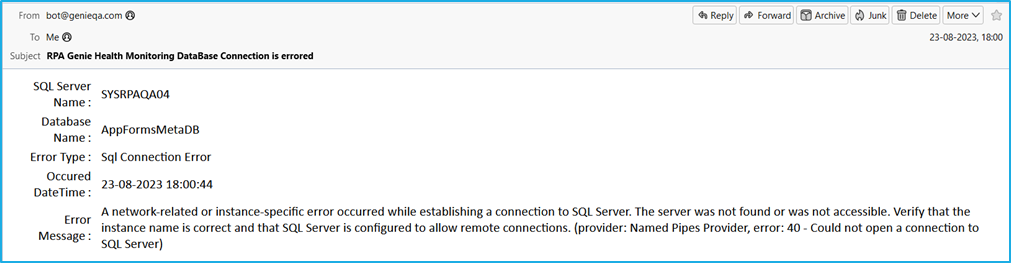
RPA Genie Health Monitoring Tool is a standalone service which is responsible for monitoring Genie Database and Genie Service connections to which the BOT Manager is connected. This is a new tool that helps in monitoring all the BOT machines connected to a particular BOT Manager which runs in the background and needs to be installed separately. It will notify the user through an Email if any of the connections are down.
Role of RPA Genie Health Monitoring Tool
It has been observed on various occasions where the BOT service and its database were not working as expected in the client machines. During these instances BOTs are throwing different errors and BOT will not be able to perform the automation. Our team has identified the root cause of the different scenarios where the BOTs can be down.
There are three main common cases where the BOT may stop working or throw errors. The first one is when the BOT machine is down, the second would be when someone may accidentally kill the particular service/process. In these two scenarios, the BOT manager will act effectively and push the notification to escalate the same. However, if the BOT Manager itself goes down, we wouldn’t get any notifications regarding the status of the services and the database. Here, the team took up this issue and introduced the RPA Genie Health Monitoring Tool.
How to configure RPA Genie Health Monitoring Tool?
Step 1
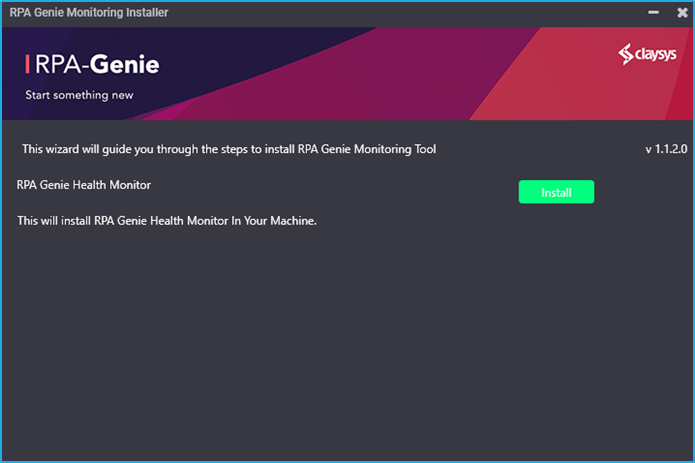
RPA Genie Health Monitoring Tool has a separate installer file for configuring the service, which can be downloaded to a specific location in your system. After downloading the installer file, double-click and open it. A window named “RPA Genie Health Monitoring Installer” will appear as shown in the image below. Click on the “Install” button.
Step 2
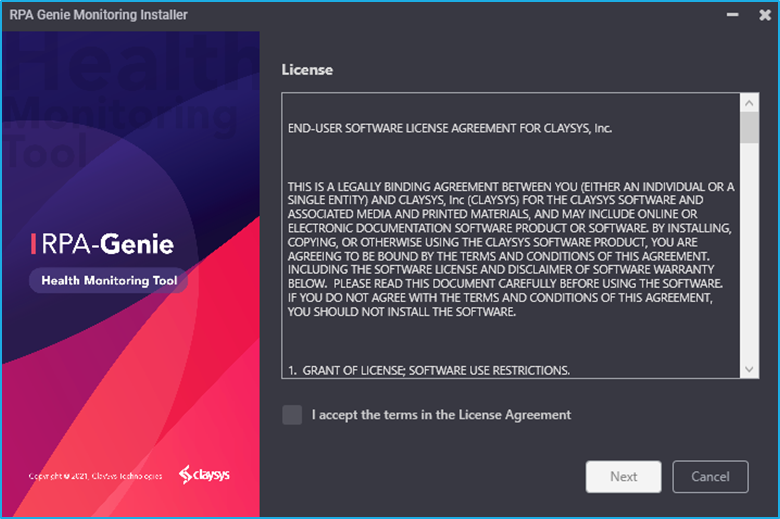
Check the License Agreement checkbox and click on the “Next” button to continue.
N.B: – License agreement is described in the box under License header.
Step 3
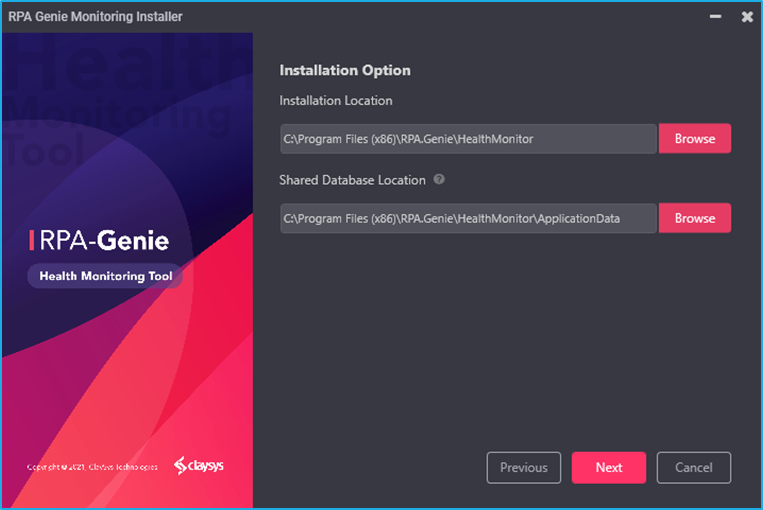
Installation Location: Give the location to which the Health Monitor Tool needs to be Installed.
Shared Database Location: In order to avoid duplicate notifications from each of the BOT machines while installing Health Monitoring Tool on multiple BOT machines, we will need to store the log file into a centrally shared Database location which is accessible to all the BOT machines.
Click on “Next” to continue.
Step 4
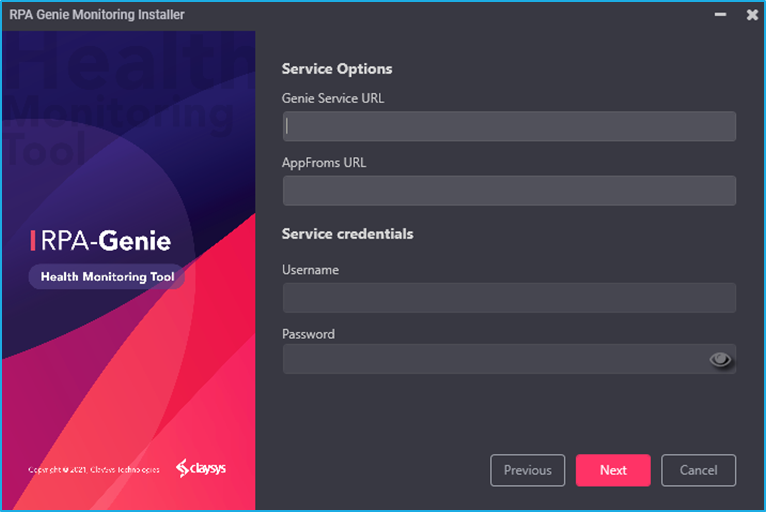
Under the “Service Options” page, you need to provide the following details:
Genie Service URL: Provide the required Genie Service URL.
AppForms URL: After providing the Genie Service URL, click on the “AppForms URL” field. Now, this field will be auto-populated with the corresponding AppForms URL. If not, manually provide the AppForms URL.
Service Credentials: If the AppForms is configured with Forms Authentication, provide a user name and password through which the service can connect to AppForms.
Step 5
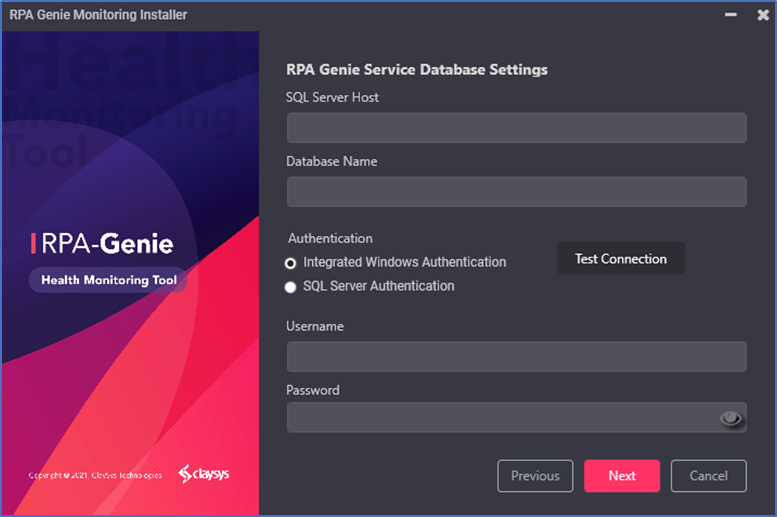
The Genie Database acts as a comprehensive storage system for storing all the metadata associated with a particular application or system. For effective data management, retrieval, and manipulation for various processes and functionalities, it preserves key information about data structures, configurations, and relationships within the application.
The following fields of the RPA Genie Service Database Settings page are editable by the users:
SQL Server Host: The Genie Database SQL Server Host of the RPA Genie Service should be entered in the SQL Server Host field.
Database Name: The Genie Database Name of the RPA Genie Service should be entered in the Database Name field.
Authentication: In the Authentication field, the user is able to test the connection of Integrated Windows Authentication and SQL Server Authentication.
N.B: – If Windows authentication is selected provide the AD username and password. However, if it’s SQL authentication, provide the corresponding SQL username and password.
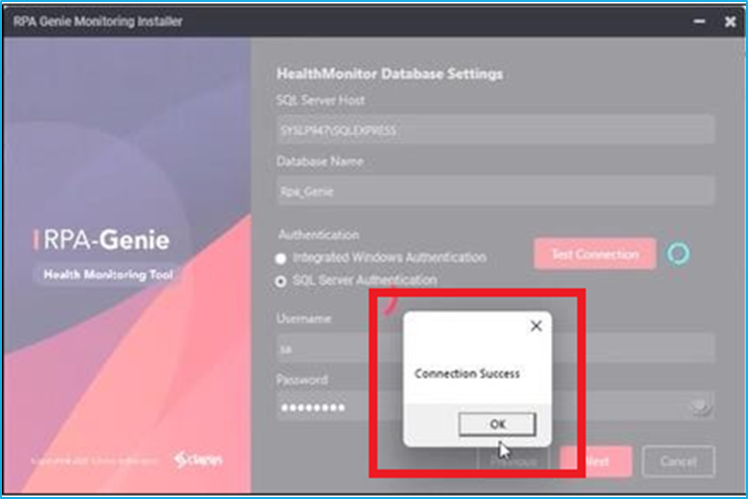
After providing all the required details, click on “Test Connection”. If the connection is successful, then a pop-up message, “Connection Success” will be displayed as shown in the image below and you can click on “OK” to proceed further. Click on the “Next” button to continue.
Step 6
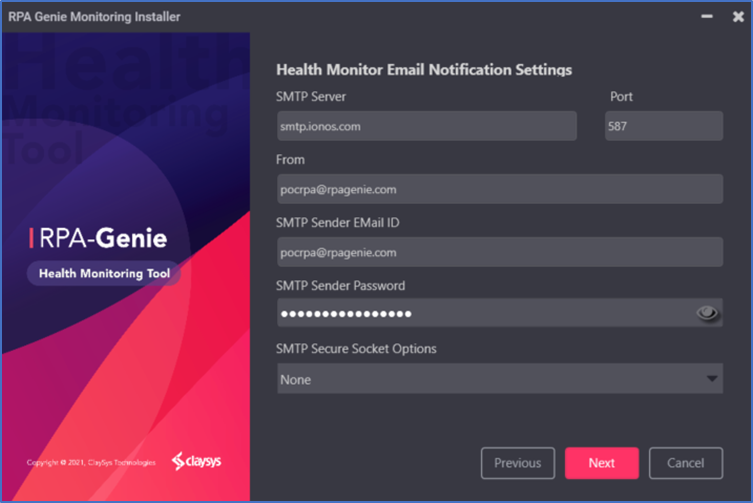
If the Notification settings are already added to the BOT Manager, then the fields in the Health Monitor Email Notification Settings page will be auto populated. If not, you can provide the respective SMTP details which the service will use to send out email notifications. Here, you can fill the SMTP Server details, SMTP port and From Address. Next, you will be able to configure SMTP Sender Email ID and Password. Finally, select the SMTP Secure Socket option from the available dropdown list.
Step 7
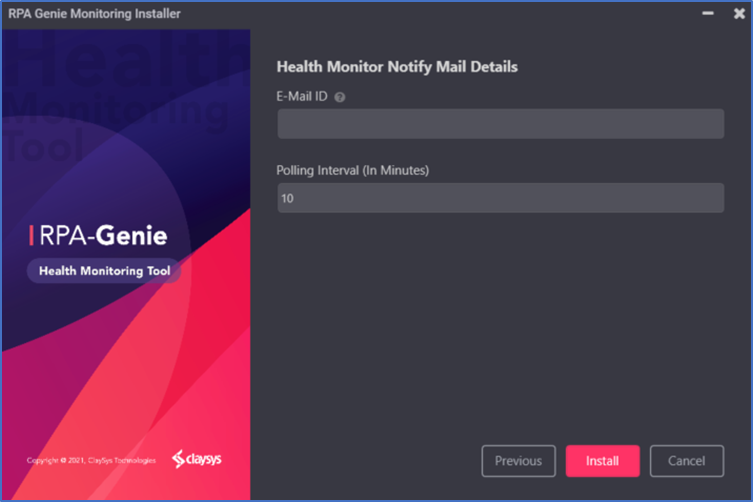
In the Health Monitor Notify Mail Details page, you can provide the Email ID to which the notification has to be sent. You can also give multiple Email IDs separated by comma. Polling Interval is the interval in which the application will be checking for the status of the Service and Database. Default polling interval would be 10 minutes. Click on the “Install” button to install the application.
N.B: – Polling Interval can be changed according to user preference.
Step 8
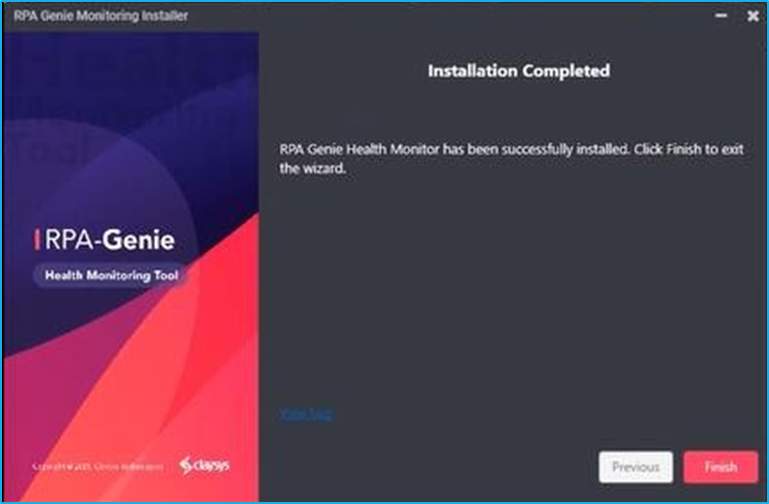
Finally, click on the “Finish” button to complete the installation.
Step 9
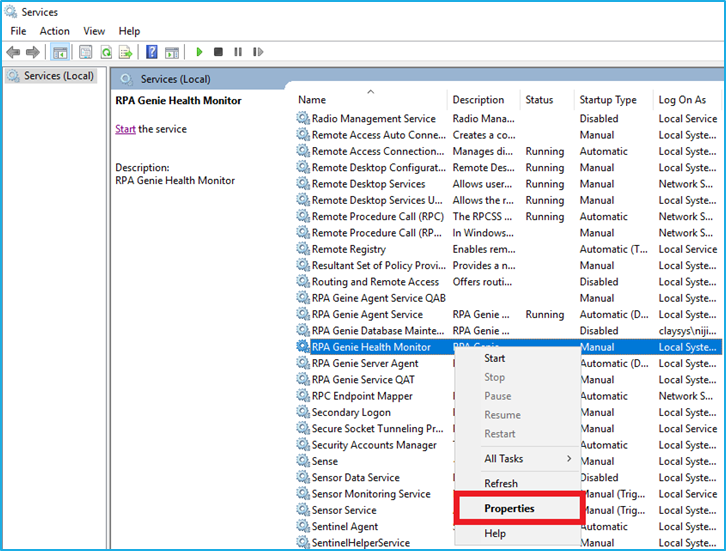
Go to “Services” window and right-click on “RPA Genie Health Monitor”, select “Properties” from the given options.
Step 10
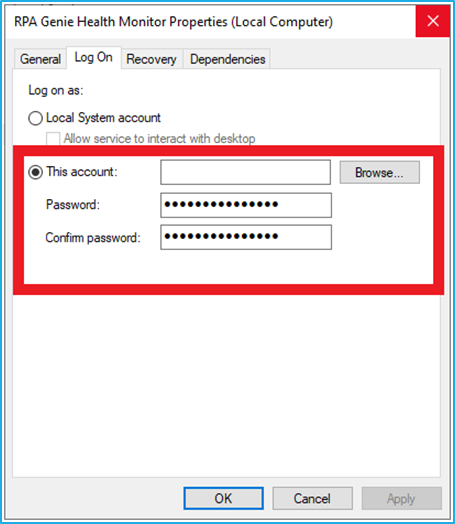
Navigate to “Log On” section and choose “This account”. You can manually provide the Service account along with the domain. Also, fill the “Password” and “Confirm Password” field. Click on “OK”.
N.B: – A service account is a user account that’s created explicitly to provide a security context for services that are running on Windows operating systems. The security context determines the service’s ability to access local and network resources.
Step 11
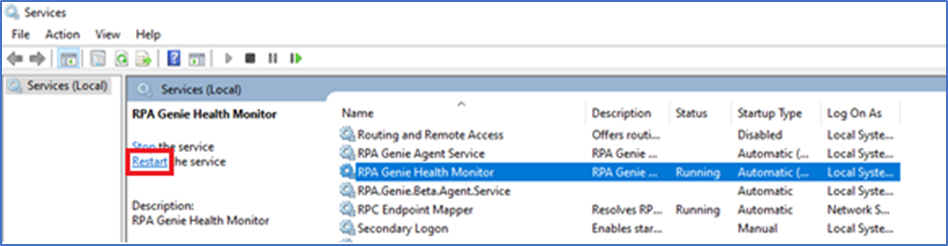
Click on the service and select the restart option.
N.B: – Make sure the status of the service is “running”.
The RPA Genie Administrative Console is a diagnostic tool that can assess functionality, guide users about the status of a particular functionality, and let users review and modify the settings that regulate the way RPA Genie Service operates. It will be installed at the same time as the RPA Genie service and will be available on the Genie Server.
Welcome Page
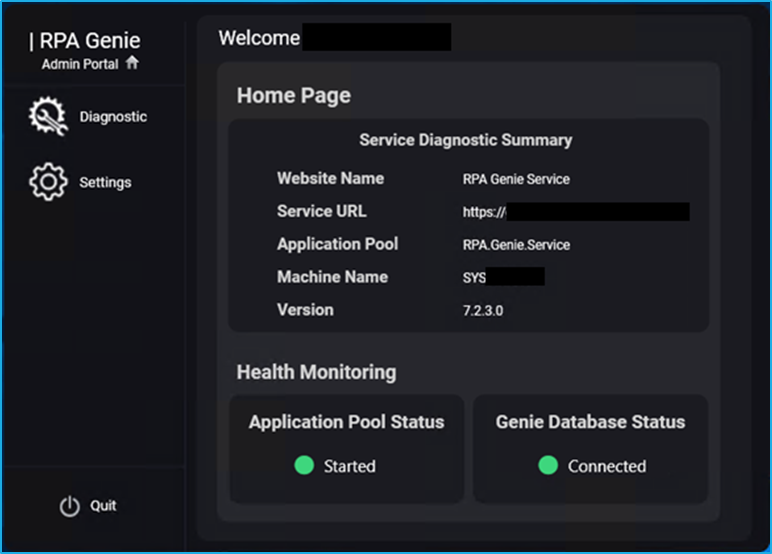
In the “Home Page” of the RPA Genie Admin Console, we can view the Service diagnostic Summary and Health monitoring status.
In the “Service Diagnostic Summary” section, the following fields can be seen:
Website Name: In this field you can see the Website name of the RPA Genie Service.
Service URL: This field displays the Service URL of the RPA Genie Service.
Application Pool: The field shows the Application Pool name of the RPA Genie Service.
Machine Name: This field will display the user Machine name where the RPA Genie Service is deployed.
Version: The currently installed version of the RPA Genie Service will be shown in the Version field.
The “Health Monitoring” section includes the following fields:
Application Pool Status: The Application Pool Status for the RPA Genie Service will indicate whether the Application pool has Started or Stopped.
Genie Database Status: The status of the connection between RPA Genie Service and the Genie Database (i.e., Connected or Disconnected) can be checked by the user through this field.
Diagnostic Page
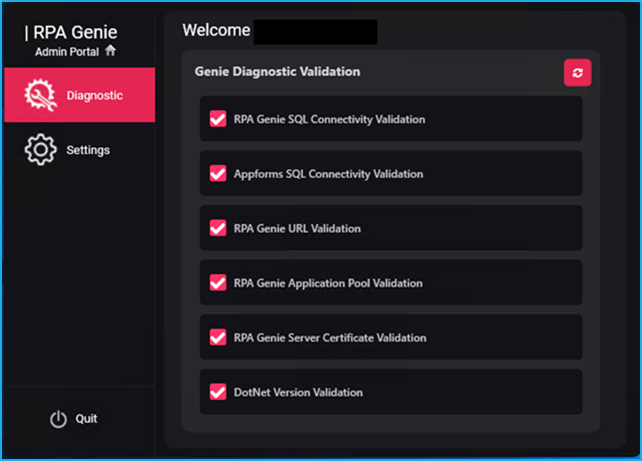
The user will be redirected to the Genie Diagnostic Validation when they click on the “Diagnostic” section of the RPA Genie Admin Console, where six primary validations are listed, as follows:
RPA Genie SQL Connectivity Validation
AppForms SQL Connectivity Validation
RPA Genie URL validation
RPA Genie Application Pool Validation
RPA Genie Server Certificate Validation
DotNet Version Validation
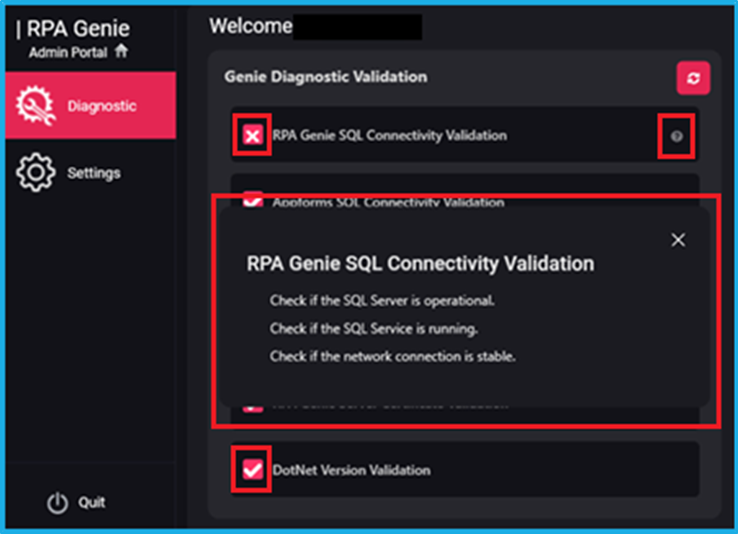
The (tick mark) next to each validation indicates that there have been no validation errors. But if any of the validations has a (cross mark) next to it, then the user can check the error by simply clicking on that particular (question mark) icon. Next, a wizard will appear and suggest possible resolutions as illustrated below:
As shown in the above figure, an error has occurred when RPA Genie SQL Connectivity was being validated. On clicking the (question mark) icon, a pop-up wizard will be displayed with a list of all possible solutions.
The following list of potential fixes has been provided for each validation if any of the validation is unsuccessful:
RPA Genie SQL Connectivity Validation
Check if the SQL Server is Operational.
Check if the SQL Service is Running.
Check if the network connection is stable.
AppForms SQL Connectivity Validation
Check if the SQL Server is Operational.
Check if the SQL Service is Running.
Check if the network connection is stable.
RPA Genie URL validation
Check if the RPA Genie Service site is running.
RPA Genie Application Pool Validation
Check if the RPA Genie Application Pool is running.
Check and validate the RPA Genie Application Pool User Credentials.
RPA Genie Server Certificate Validation
Check if the Certificate bound with the Genie Service is Valid.
Check if the Certificate is Expired.
DotNet Version Validator
Check if the dot net core version is updated or not.
Settings Page
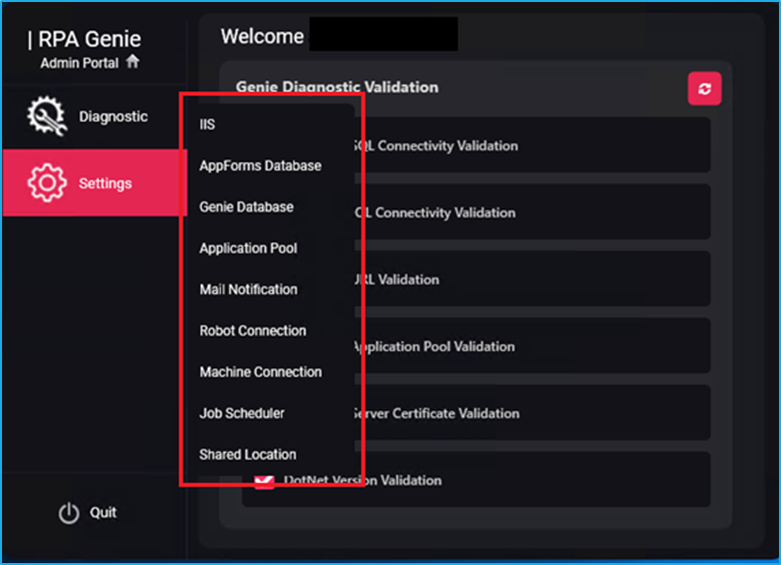
We can access a list of options in the RPA Genie Admin Console by clicking on the “Settings” tab, as illustrated in the image below.
IIS
IIS, or Internet Information Services, is a web server software by Microsoft that is used for Windows servers. It is utilized to host and manage websites, web applications, and services.
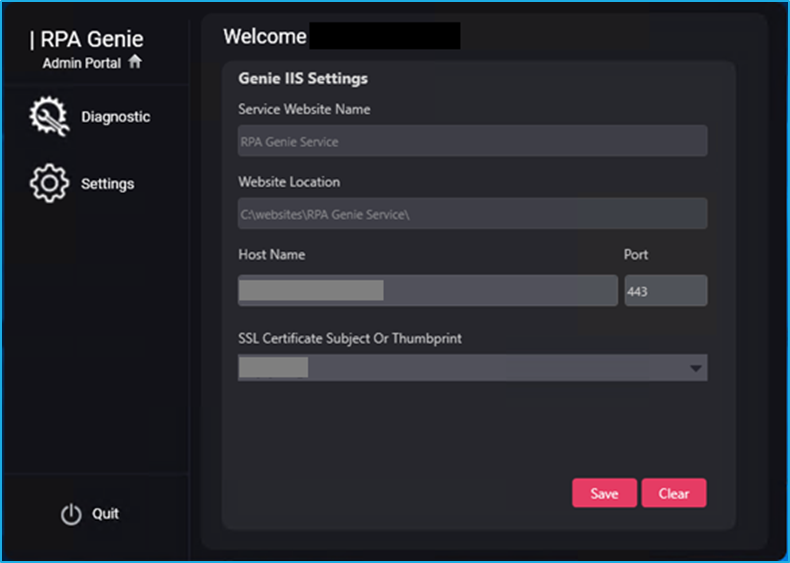
From the IIS page of RPA Genie Admin Console, users can configure the following fields:
Service Website Name: The website name of the RPA Genie Service will be displayed in this field.
Website Location: The location of the RPA Genie service that is installed on your machine will be displayed in the Website Location field.
Host Name & Port: The hostname and port number of the RPA Genie Service can be visible in this field.
SSL Certificate Subject or Thumbprint: In the SSL Certificate dropdown list, the user can see all the available certificates in the user Domain and also can bind any of the certificates with the IIS Settings of RPA Genie Service.
AppForms Database
Authentication methods are stored and managed centrally in the AppForms DataBase. It enables us to securely store and access authentication information, such as usernames and passwords, which can be used to confirm the legitimacy of users accessing applications or systems while improving security and access control.
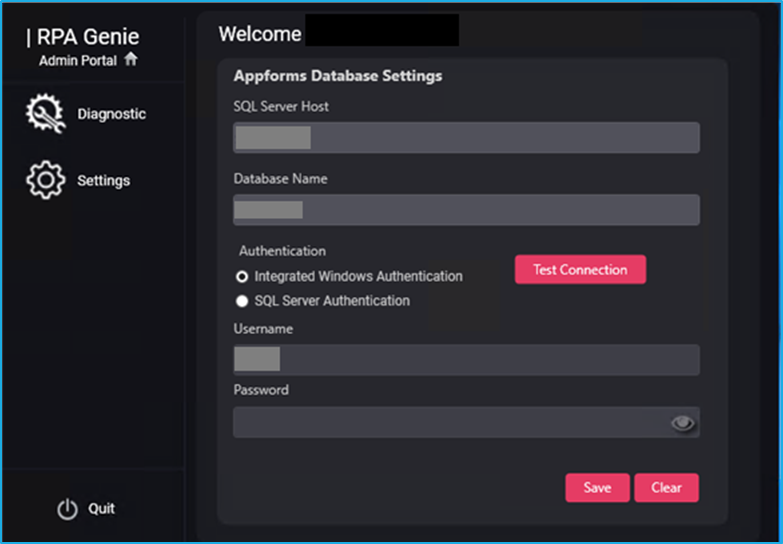
The RPA Genie Admin Console’s AppForms Database page allows the user to make changes to the following fields:
SQL Server Host: This shows the AppForms Database SQL Server Host of the RPA Genie Service.
Database Name: The AppForms Database Name of the RPA Genie Service is shown in this field.
Authentication: The user can test the AppForms’ database connection as well as the connections for Integrated Windows Authentication and SQL Server Authentication in the authentication field.
Username: The username of the user connected to the AppForms Database is displayed in the Username field.
Password: The user’s password connected to the AppForms Database is displayed in a masked format in this field.
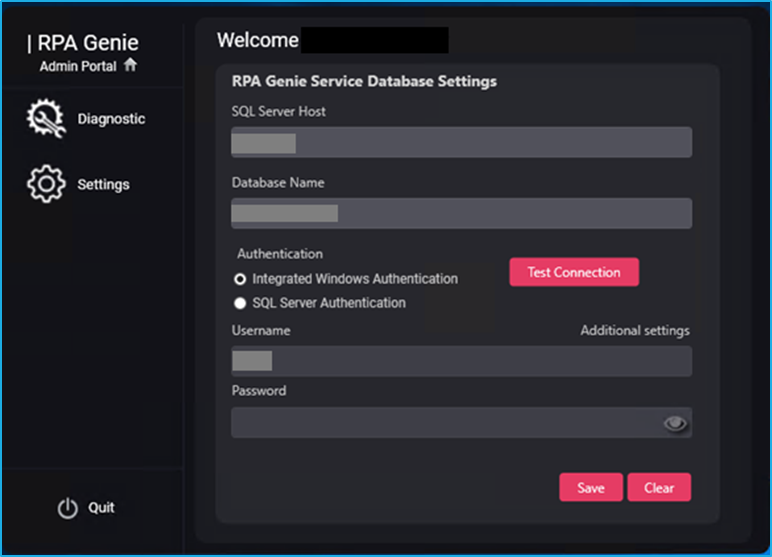
Genie Database
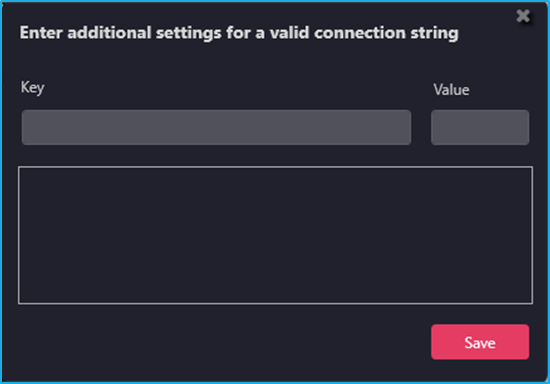
Additional Settings Wizard:
The Genie Database acts as a comprehensive storage system for storing all metadata associated with a particular application or system. For effective data management, retrieval, and manipulation for various processes and functionalities, it preserves key information about data structures, configurations, and relationships within the application.
The following fields of the Genie Database page are editable by the users:
SQL Server Host: The Genie Database SQL Server Host of the RPA Genie Service will be shown in the SQL Server Host field.
Database Name: The Genie Database Name of the RPA Genie Service will be shown in the Database Name field.
Authentication: In the Authentication field, the user will be able to test the Database Connection of the Genie and can test the connection of Integrated Windows Authentication and SQL Server Authentication.
Additional Settings: By clicking on the additional settings, the user will be able to add additional properties to the connection string in the form of a Key value pair.
Username: The Username of the user connected to the Genie Database can be seen in the Username field.
Password: The user’s password connected to the Genie Database will be shown in a masked format in this field.
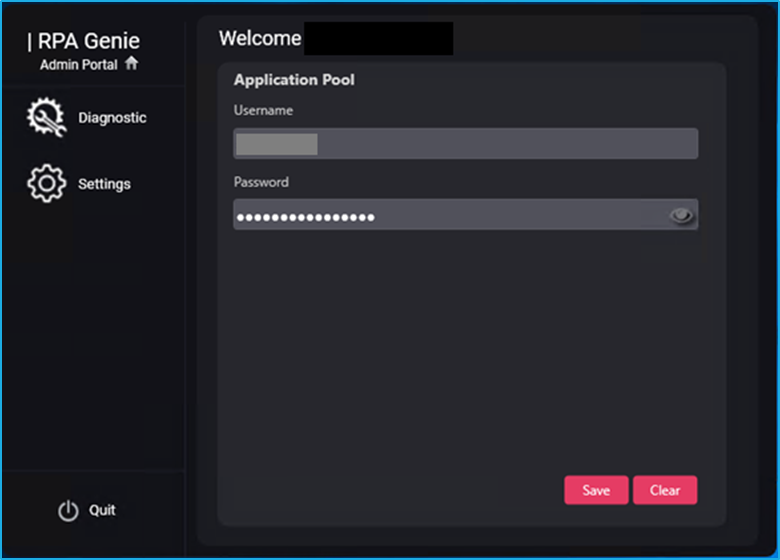
Application Pool
An application pool is a feature of the web server software (like IIS on Windows) that isolates and maintains web applications by giving them their own process space and resource allocation. Through the Application Pool page users can configure the username and password.
Username: The Username of the application pool identity of the RPA Genie Service Application Pool will be shown in this field.
Password: The Password of the application pool identity of the RPA Genie Service Application Pool will be shown in a masked format in the Password field.
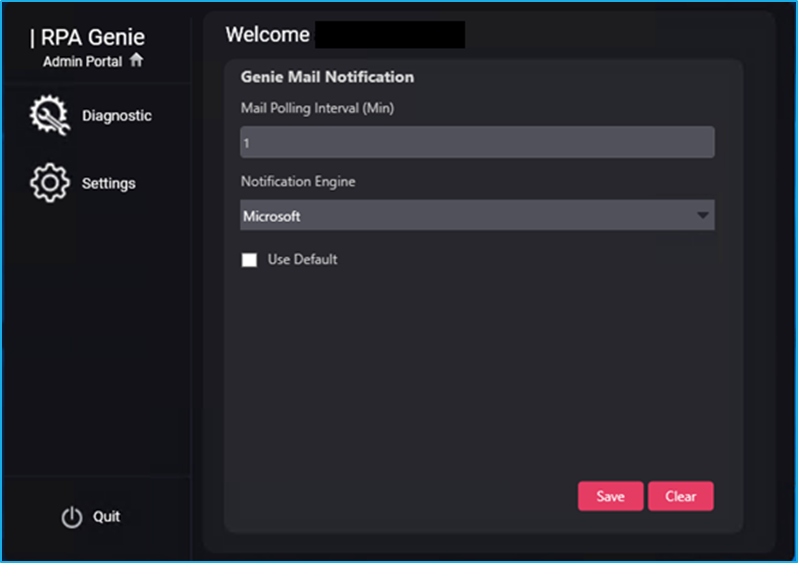
Mail Notification
The Mail Notification page provides users with the ability to customize email-related settings. These settings help users to tailor their email notifications according to their preferences and needs.
Mail Polling Interval (Min): Mail Polling Interval refers to the frequency specified in minutes at which an email must be sent to the client if an issue occurs in the service configuration or app settings of the RPA Genie Service.
Notification Engine: Users have the option to choose their mail notification engine, which can either be Microsoft or MailKit, from a dropdown menu for accessing their emails.
If the “Use Default” checkbox is checked, then the default credentials will be used to send the mail through the Microsoft server. If it is unchecked, then the mail is sent with the respective SMTP credentials provided in Bot Manager. This is only applicable to Microsoft SMTP Server.
Robot Connection
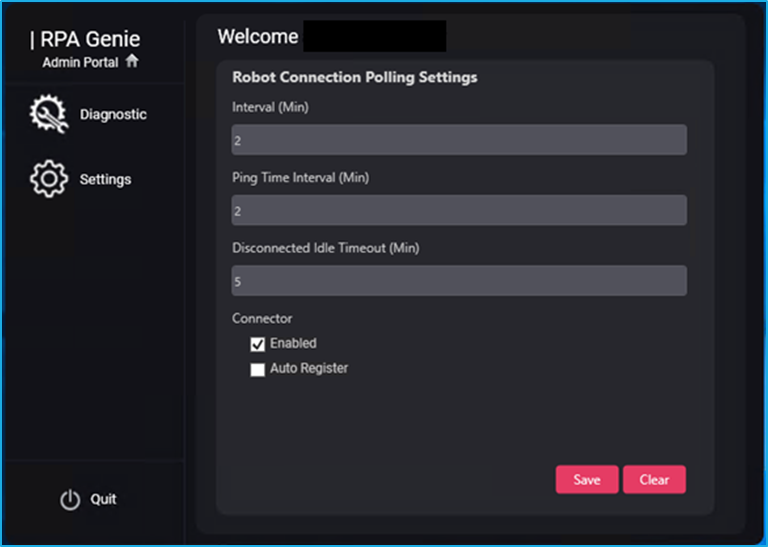
A robot connection configuration defines the connection frequency, ping intervals, and idle timeout parameters used by a robot to communicate with a Service URL. Additionally, it controls how robots interact with the Service URL, determining whether they can connect automatically or whether they must manually register.
The Robot Connection page enables the user to customize the following fields:
Interval (Min): This field specifies the number of times (in minutes) that a robot connects to the Service URL.
Ping Time Interval (Min): The frequency or time interval (in minutes) at which a service notifies the user whether or not a robot is still connected to the service URL.
Disconnected Idle Timeout(Min): The time limit up to which the Bot tries to re-establish the connection with the RPA Genie Service. After the specified time limit the status of the Bot will change to disconnected.
Connector: Connection with the robots to the Service URL will be established only if the “Enabled” checkbox is checked. Using this feature, we can restrict the robots from getting connected to the Service URL. Whenever the user opens the Copilot or the Agent it will automatically enroll or sign up, if the “Auto Register” feature is enabled without performing manual registration or input of personal information.
Machine Connection
Machine connection refers to the process of establishing and managing the network connection between a machine and a designated Service URL. Users can configure settings like connection frequency, disconnection idle timeout, and unique identifiers from the Machine Connection page to enable communication and data exchange between the machine and the designated service.
Interval (Min): The frequency or time interval (in minutes) at which a machine establishes a connection with the Service URL.
Disconnected Idle Timeout (Min): The interval (in minutes) after which the machine’s state will be marked as disconnected once the machine gets disconnected from the Genie Service.
Device Id
Machine ID: A machine ID is a unique code or a number assigned to a computer or device, serving as a unique identifier for the system.
Machine UserId: This field creates an individual identifier for a particular computer or device by combining the machine name and username, which are separated by a hyphen.
Job Scheduler
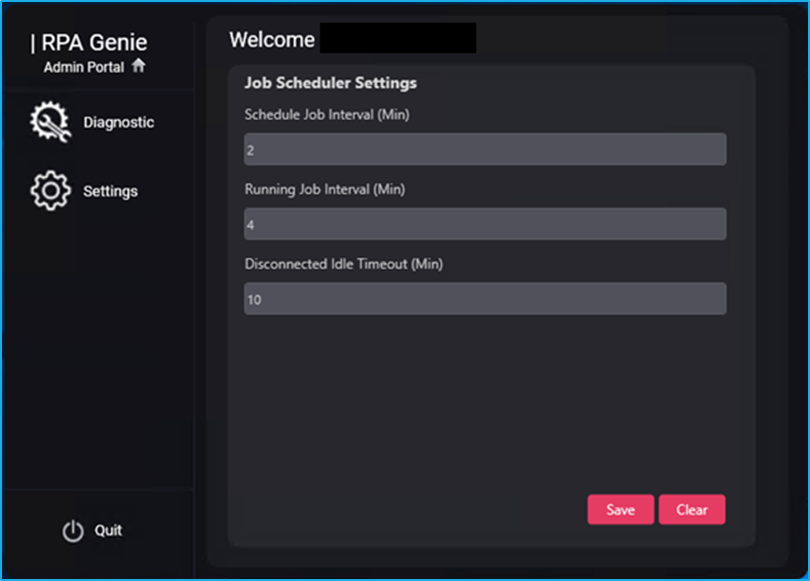
A job scheduler automates job execution by defining how often specific jobs will be running, their active execution intervals, and the maximum idle time before termination.
Following are the fields that the user can edit from the Job Scheduler page:
Schedule Job Interval (Min): The time duration or frequency (in minutes) can be configured in this field to run a specific job or task automatically in a scheduled manner.
Running Job Interval (Min): The Running Job Interval specifies the time interval or frequency (in minutes) at which a job or process is actively running or executing.
Disconnected Idle Timeout (Min): In this field, we can specify the maximum period of inactivity allowed for a job to remain disconnected (not actively processing) before it is terminated or marked as inactive by the scheduler.
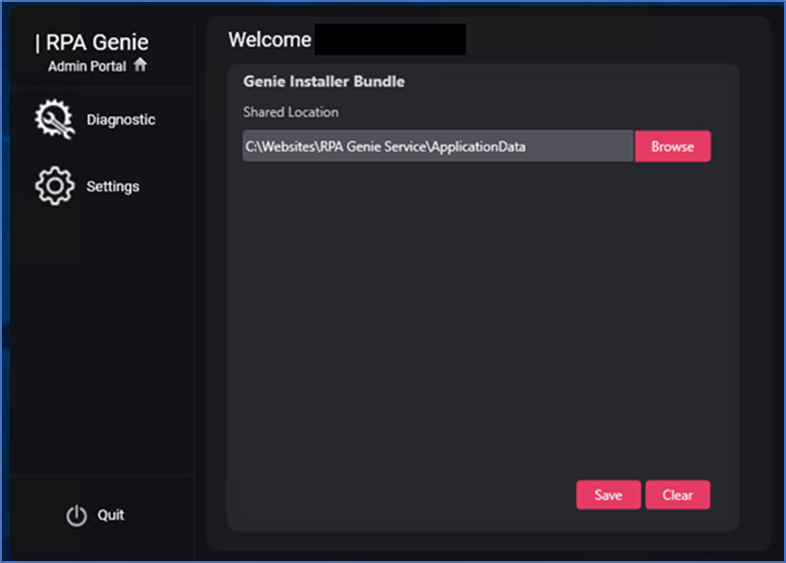
Shared Location
Shared Location: This field indicates the same shared place from which the installation bundle, packages, and extensions can be accessed. Also, the user will be able to change the shared location path and configure it to a different location, so that all the files will be accessible from that configured location.
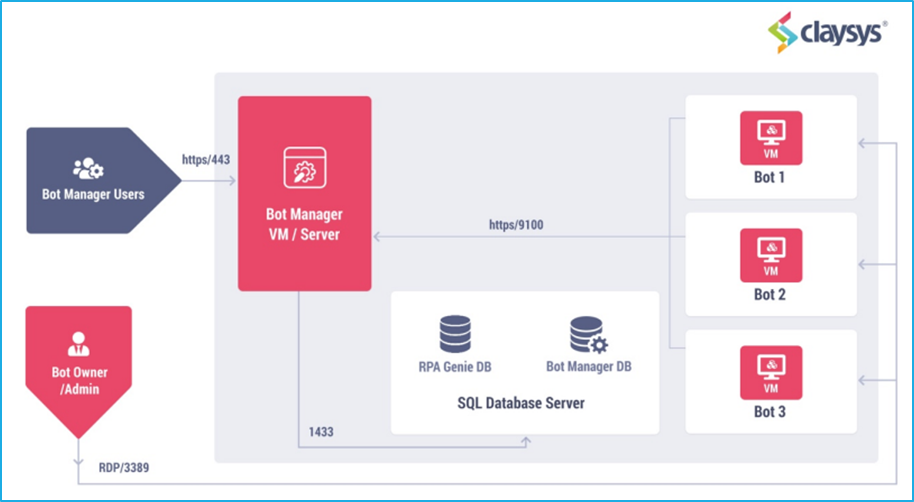
Establishing an RPA Genie environment necessitates a series of steps to guarantee the proper configuration of both infrastructure and software components which are essential for the seamless execution of automation tasks. Ideally, there should be six machines at disposal for the setup, catering to the requirements of Development (Dev), Quality Assurance (QA) and Production (Prod) environments.
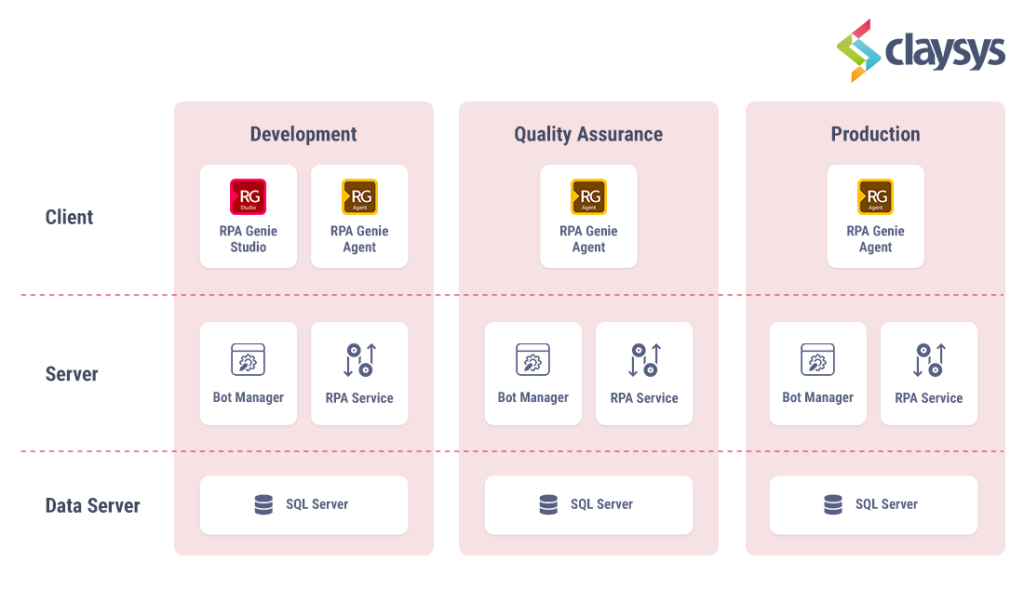
The diagram provided below visually depicts the arrangement of the RPA Genie environment. Depending on the number of developers actively engaged in automation, there is flexibility to provision extra development machines. Furthermore, for efficient parallel process execution, additional QA or Production machines can be deployed as required.
NB: The Windows server and Database server can be shared between Development and Quality environments.
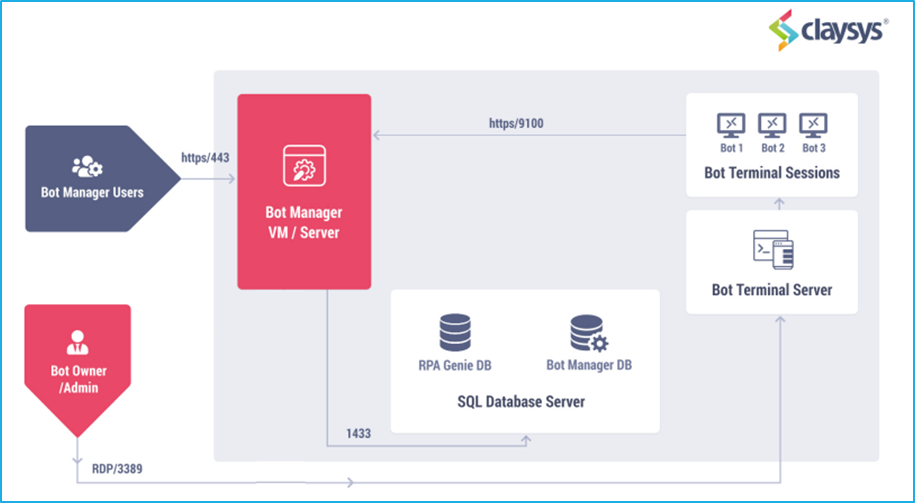
RPA Genie can be set up using Virtual Machines/Physical Machines for each of the BOTs. There are two different architectures that RPA Genie can set up:
Independent BOT Machines Architecture
Terminal Server Architecture
Independent BOT Machine Architecture
In the independent Bot machine architecture, the resources for each machine will be allocated separately and the bots can be created based on the user license. In this case, there will be multiple bot machines based on thenumber of automations to be automated and the number of parallel automations that run at the same time. If a single machine fails then the other machines will not get affected and it will continue with the assigned automation.
Terminal Server Architecture
In the Terminal Server architecture, it is possible to create multiple bots under different user accounts, each dedicated to interacting with distinct applications or processes. The execution of processes on the terminal server relies on “Terminal Server user licensing”. It’s important to note that each bot created within the terminal server environment will share the allocated resources of the terminal server.
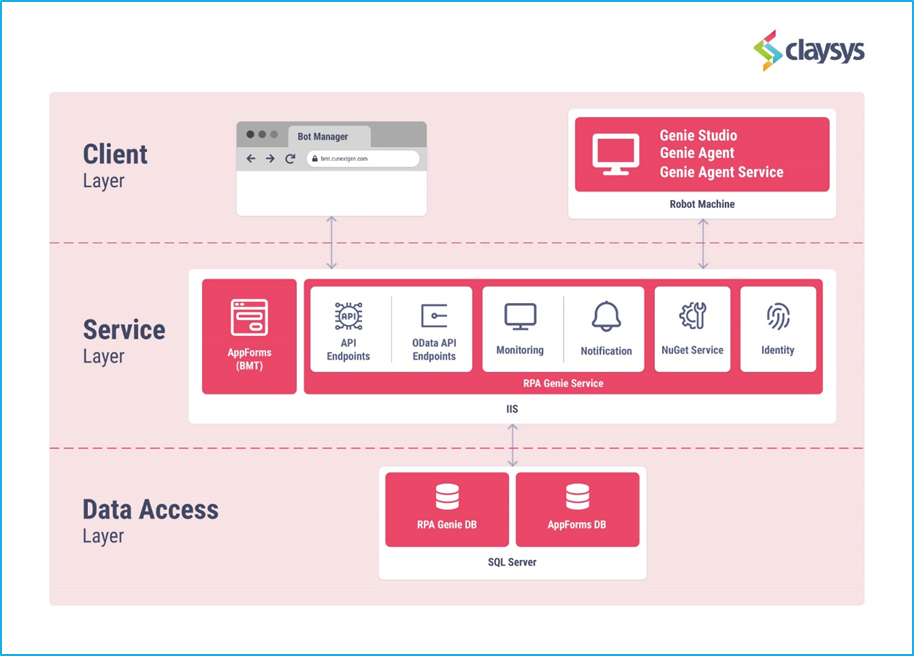
RPA Genie Platform has three layers, they are Client, Server, and Data.
Client: This layer consists of a bot machine.
The Bot machines would consist of three components as outlined below.
RPA Genie Studio: RPA Genie Studio is a visual designer that is used to create a robotic process automation.
RPA Genie Agent: RPA Genie Agent is the host that executes the automation that we have created using the RPA Genie Studio.
RPA Genie Agent Service: This is a Windows service that connects and establishes communication with bot machines and Bot Manager for automation.
Server: This Layer consists of a Bot Manager.
TheBotManager server would consist of two components as outlined below.
Bot Manager: Bot manager is a web application that can connect multiple bots to the bot manager, add, schedule, monitor the automation, and also control automated bots and processes.
RPA Genie Service: RPA Genie Service is a back-end service that is hosted in the IIS containing four components as mentioned below:
API: This component consists of restful APIs and OData APIs that help to communicate between Bots and Database.
Bot Monitoring: This component allows to monitoring of all kinds of events (Machine, Bot, Job, Queue & trigger) that are occurring across the Bots. This monitoring service will also send mail notifications based on the bot manager alerts.
Nuget Service: This component will act as the central package repository used by all the bots. Nuget packages will help to build tailor-made activities as per the requirements.
Identity: This component will provide authentication and authorization to all the bots and Bot manager login. This acts as a middleware that enables the user to Log in/Log out, token/Authorize, and other API protocol endpoints. Authentication can be possible with Windows (Active Directory – AD) and Forms as per the requirements. We can define a specific set of permissions for automation and different features of the Bot manager.
Data: RPA Genie uses the relational Database SQL to store all the metadata of the RPA Genie components like Bot, Processes, Queues, Triggers, Resources, etc.
RPA Genie Bot Manager is a web application that connects multiple bots and can manage each of the bots connected to it. Using this component, you can connect multiple bots to the bot manager, add, schedule, monitor the automation, and control automated bots and processes.
Q: What is RPA Genie? what does it do? Explain RPA Genie BOT Manager.
A: RPA Genie is an automation platform developed by ClaySys. The core purpose of RPA Genie is to automate tasks and business processes.
RPA genie Bot Manager is built on AppForms that enables you to manage your Robots in executing business processes.
Q: What are key features of RPA Genie BOT Manager?
A: The key features of RPA Genie are as follows:
Deployment: RPA Genie Bot Manager can help you deploy your bots to a variety of environments.
Monitoring: RPA Genie Bot Manager provides real-time monitoring of your bots, so you can quickly identify and troubleshoot any problems.
Troubleshooting: RPA Genie Bot Manager provides a variety of tools to help you troubleshoot your bots, including audit logs, status, timestamp, etc.
Security: RPA Genie Bot Manager provides security features to protect your bots and data.
Q: Is RPA Genie Server a Windows service? Can it be run as an AD user account of our choosing?
A: RPA Genie Server is a service that is hosted on the IIS. Hence, you will be able to run as any AD user.
Q: RPA Genie BOT Manager – how often do the bots/agents report back into the Genie Bot Manager? And, what does that traffic overhead look like?
A: The traffic overhead will be based on the number of automation and the type of automation that is configured. BOTs perform the logging to the BOT Manager based on the actions performed by the BOTS. Each action is recorded to the BOT service.
Q: Since this is a web-based application, do you only utilize IIS or is there a lot of other software that complements the IIS web service (like a full-blown application install)?
A: We only use IIS.
Q: If we delete a process, is there a possibility of losing the statistical data that we were tracking such as time saved, number of transactions, etc.?
A: It will not affect statistical data.
Q: Is it possible for us to rename the Robot Name in BMT which wouldn’t affect the actual machine name or AD user name. We are aware that its possible in the Robot details part but would it affect the process in any way?
A: It’s possible to change the robot name on the Robot edit page of Bot Manager. And it won’t affect the actual machine name or AD user name. (Make Sure we have the latest stable Appforms Extension Installed).
Q: Can we restrict a BMT user to use only one bot machine?
A: Currently, We don’t have support to limit the users to use only one bot machine.

 (tick mark) next to each validation indicates that there have been no validation errors. But if any of the validations has a
  (cross mark) next to it, then the user can check the error by simply clicking on that particular
  (question mark) icon. Next, a wizard will appear and suggest possible resolutions as illustrated below: