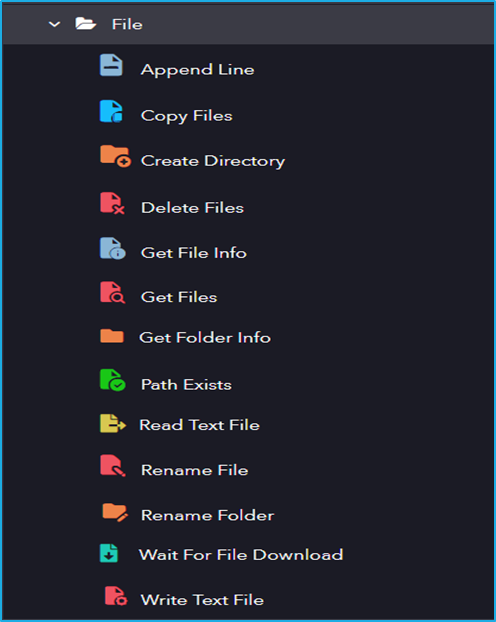
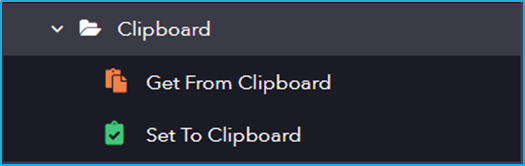
This section includes a set of activities designed to work with files and folders on the local system and allows users to create, move, copy, delete, and manipulate files and directories.
The File category has the following sub activities:
Append Line: This activity helps to append a string value to the end of a text file.
InputProperties:
File Path: The full path to the file.
String: Text to be attached to the file.
Copy Files: This activity can be used to copy one or more files to a specified folder.
InputProperties:
Source Folder: The relative or absolute path of the directory to search.
Contents: The search string to match against the names of files in path. This parameter can contain a combination of valid literal path and wildcard ( * and ?) characters, but it doesn”t support regular expressions.
Target Folder: The relative or absolute path of the destination folder.
Recursive: If selected, it will include the current directory and all of its sub-directories.
Advanced Option Properties:
Overwrite: If selected, replace the existing file in the target folder.
CleanTargetFolder: Select to clear the target folder before starting the copy action.
FlattenFolder: If selected, copie all files from subdirectories to the root folder.
DeleteFileAfterCopy: If selected, delete all files in the source location after the copy is complete.
Create Directory: This activity is used to create a new directory in the specified location.
InputProperties:
Path: Path of the directory to be created.
Delete Files: This activity is used to delete file(s) from the specified location.
InputProperties:
Source Folder: The relative or absolute path of the directory to search.
Contents: The search string to match against subdirectory names in the path. Supports valid literal and wildcard characters, but not regular expressions.
Remove SourceFolder: Attempt to remove the source folder as well.
Recursive: If selected, it will include the current directory and all of its sub-directories.
Get File Info: This activity is used to get the information of a specific file.
InputProperties:
FilePath: String or string variable that holds the relative or absolute path of file that needs to be retrieved.
Output Properties:
FileInfo: It returns file information inSystem.IO.FileInfo datatype.
Get Files: This activity helps to retrieve the location of the specified files.
InputProperties:
SourceFolder: String or string variable that holds relative or absolute path of the file that needs to be retrieved.
Contents: The search string to match against the names of files in the path. This parameter can contain a combination of valid literal path and wildcard ( * and ?) characters, but it doesn”t support regular expressions.
Recursive: If selected, it will include the current directory and all of its sub-directories.
Get Folder Info: This activity is used to retrieve the properties of a specified folder.
InputProperties:
FolderPath: The folder from which properties are to be retrieved.
Output Properties:
FolderInfo: It returns folder information in System.IO.DirectoryInfo datatype.
Path Exists: This activity is used to check if the specified path exists or not.
Input Properties:
Path: The full path to be checked.
PathType: Specifies if the path points to a folder or a file.
Output Properties:
Exists: Determines if the folder or file was found.
Read Text File: This activity reads the content of the specified text file and stores it in a string variable.
Input Properties:
FileName: Full path of the file to be read.
Output Properties:
String: Extracted text from the file.
Rename File: This activity allows the user to rename the existing file.
Input Properties:
Source File: The relative or absolute path to the directory to search.
File Name: New name for the file.
KeepExtension: Keep extension of the file.
Rename Folder: This activity is used to Rename a Folder.
Input Properties:
Source Folder: The relative or absolute path to the directory to search.
FolderName: New name for the folder.
Wait For File Download: This activity waits for a specific file to be downloaded.
Input Properties:
FilePath: Full path of the file.
PollingInterval: Polling interval for checking the file.
Write Text File: This activity creates a text file and writes the specified string value to it. If the text file already exists, then its contents will be overwritten.
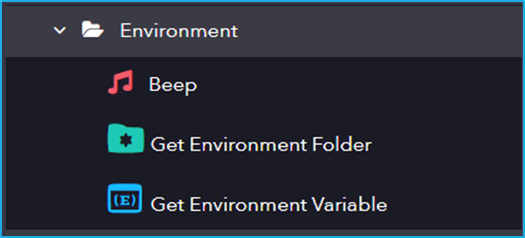
Environment includes activities for accessing and managing environment variables, system settings, and configurations to ensure seamless automation execution across different system environments.
The Environment activity has the following sub activities:
Beep: This activity can be used to generate a beep sound to notify or indicate a user about an automation.
Get Environment Folder: This activity gets the path of the specified system folder.
Input Properties:
SpecialFolder: Select the special system folder for which the path will be retrieved. Or Choose the system special folder to retrieve its path.
Output Properties:
FolderPath: Returns the path of the specified SpecialFolder.
Get Environment Variable: This activity returns the content of the specific variable from the environment.
Input Properties:
VariableName: Specify the name of the environment variable to retrieve.
Output Properties:
Value: Returns the value of the specified environment variable.
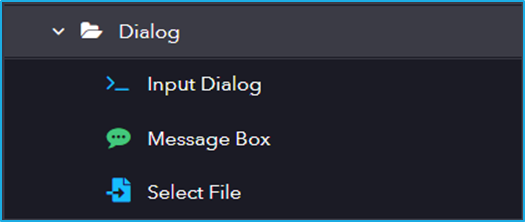
This System category includes activities for interacting with users through dialog boxes. These activities help facilitate user interaction within automation workflows.
The Dialog activity has the following sub activities:
Input Dialog: This activity displays a dialogue box that prompts the user with a label message and input field.
Input Properties:
Title: Title of the dialog box.
FieldLabel: The label for the dialog box’s input field.
Output Properties:
Output: The value inserted by the user in the input field.
Message Box: This activity displays a message box with the given text.
Input Properties:
Message: The text to be displayed in the message box.
Caption: The title of the message box.
Mouse Button: Select the required buttons like OkOkCancel, YesNoCancel, YesNo.
Output Properties:
ChosenButton: Displays The Selected Button.
Select File: This activity is used to retrieve the path of the file that has been manually selected by the user.
Input Properties:
Filter: A filter to shortlist files based on specific criteria.
Output Properties:
SelectedFile: Returns the full path of selected file in a String variable.
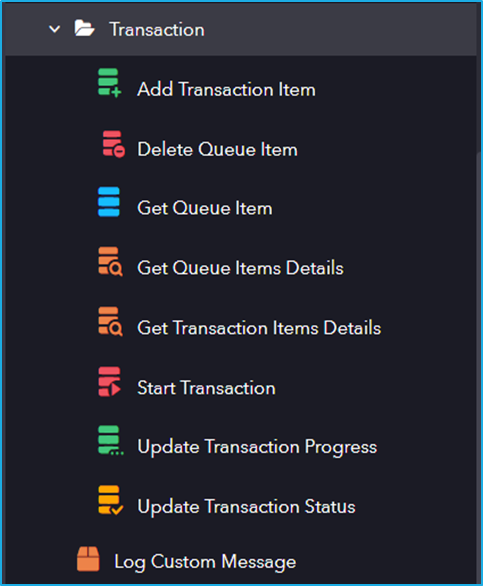
Transactions handle and process individual transactions within your automation, allowing you to add, retrieve, and manage transaction items and queue entries efficiently.
The Transaction category has the following sub-activities:
Add Transaction Item: This activity adds a new item to the queue and starts a transaction.
Input Properties:
QueueName: Specify the name of the created queue where the queue item will be added.
Reference: A string or string variable used as an identifier for a queue item or a group of items.
TransactionInformation: Collection of additional information about the specific transaction item that is to be added.
Priority: It is to prioritize the transaction item that is added to the queue depending on priority list.
Delete Queue Item: This activity is used to delete a particular transaction from a specified queue in the Bot Manager.
Input Properties:
Transaction: Gets TransactionItem as input.
Get Queue Item: This activity enables to get a list of transactions from a specified queue in the Bot Manager.
Input Properties:
Filter: Creates query for filtering queue details.
Output Properties:
TransactionItem: Enter the QueueItem variable created which stores the first item from a queue, according to its priority and deadline.
Get Queue Items Details: This activity retrieves the list of transactions from a bot manager queue based on the multiple filters.
Input Properties:
Filter: Query for filtering queue details.
Output Properties:
QueueItems: The list of items from Bot Manager Queue that you want to retrieve.
Get Transaction Items Details: This activity enables the user to retrieve a list of transactions from a queue according to the filter(s).
Input Properties:
Filter: Query for filtering transaction details.
Output Properties:
TransactionItem: The list of items from the transaction that you want to retrieve.
Start Transaction: This activity helps to start a transaction in a particular job.
Input Properties:
QueueName: Specifies the name of the created queue.
Name: Specifies the name of the transaction to display.
Reference: Enter a string or string variable to act as an identifier for a queue item or a group of them.
TransactionInformation: Collection of additional information about the specific transaction item that is to be added.
Output Properties:
TransactionItem: Transaction variable that stores the transaction item.
Update Transaction Progress: This activity is used to update the transaction progress and transaction information.
Input Properties:
Progress: The custom progress status to set for the TransactionItem.
ItemInformation: Details of the transaction item for which progress is being checked.
TransactionItem: The transaction item whose progress is to be updated.
Update Transaction Status: This activity can be used to update the status of the transaction item to either Failed or Completed which will be reflected under the details of a particular queue in the Bot Manager.
Input Properties:
Status: The status to set for the TransactionItem, either ‘Completed’ or ‘Failed.
Output: Get data from transaction item using parameter.
TransactionItem: Transaction item whose status is to be updated.
Transaction Error:
Reason: The reason for which transaction failed. This field supports only string and string variables.
Error Type: The error type that the failed transaction has thrown.
Log Custom Message: This activity enables the user to send custom logs to the Bot manager and display them on the Jobs page.
Input Properties:
Description: The message you want to log.
Source: An activity label that helps to record the activity information in a log.