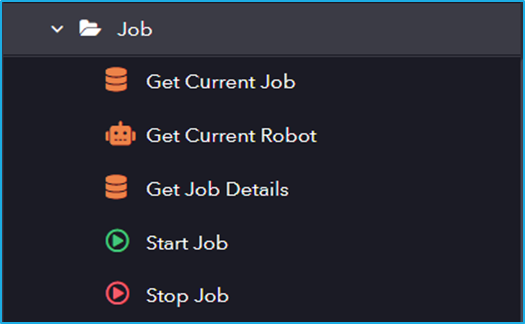
This section includes a collection of activities that aid in managing and controlling job activities within workflows. The users can track and monitor the execution of these jobs via the Bot Manager.
The Job category has the following sub activities:
Get Current Robot: This activity is used to retrieve the current robot details.
Output Properties:
JobDetails: Gets the Job details.
Get Current Job: This activity is used to retrieve the Current Job Details.
Output Properties:
RobotDetails: Gets the Current Robot Details.
Get Job Details: This activity enables the user to retrieve a list of jobs from an indicated Bot Manager queue, according to multiple filters.
Input Properties:
Filter: Query for filtering job details.
Output Properties:
Job Details: The list of items from the specified job that are to be retrieved.
Start Job: This activity enables you to start a job in the BOT Manager on a specified Robot.
Input Properties:
RobotName: Name of the robot used to execute the process specified in ProcessName.
ProcessName: Name of the process that is to be started.
Arguments: A list of parameters that are passed to the invoked workflow at runtime.
Stop Job: This activity enables the user to stop a job in the BOT Manager.
Calendar provides access to and management of calendar-related information and events, allowing retrieval of holiday data and integration into workflows.
The Calendar category has the following sub activity:
Get Holidays: This activity retrieves the Calendar from the Bot Manager based on the Calendar Name.
InputProperties:
Calender Name: Enter the calender name.
Holidays: Gets the Calendar holidays as collection.
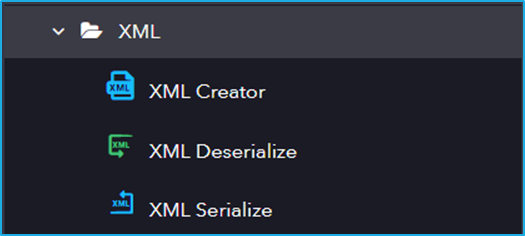
It is designed to handle XML data efficiently within automation workflows. These activities facilitate the creation, processing, and conversion of XML data.
The XML category has the following sub activities:
XML Creator: This activity returns XMLObject that encodes objects in a string.
Input Properties:
Options: Creates a string in XML format. It allows mapping or assigning values to the corresponding node in the string.
Output Properties:
XML Document: The resulting XML object that is stored in an object variable.
XML Deserialize: This activity accepts a string in XML format and converts it into an XML Object.
Input Properties:
XMLString: The XML String that you want to convert to an object.
Output Properties:
XML Document: The resultant XML object that is stored in an object variable.
XML Serialize: This activity converts the input Object into a string in XML format.
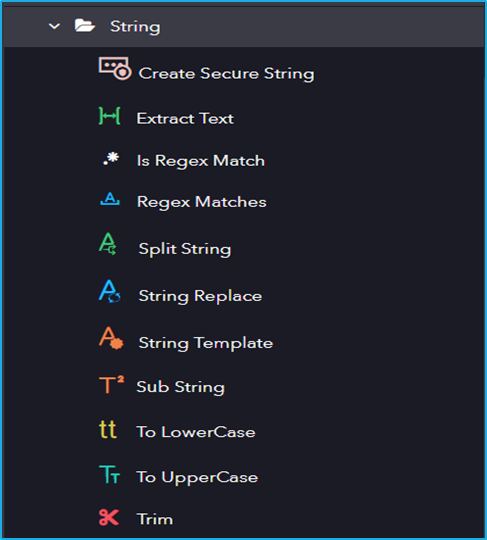
These activities help to automate tasks that involve text processing and its operations range from simple tasks such as manipulating, searching, replacing, modifying to more advanced tasks such as regular expression matching and formatting text data.
The String category has the following sub activities:
Create Secure String: This activity helps encrypt any text into a secure String.
Input Properties:
InputText: Enter the text to encrypt.
Output Properties:
Result: Variable that stores the encrypted text.
Extract Text: This activity extracts the text from the given source string and returns it as a string variable.
Input Properties:
Source String: Enter the source string.
Options Properties:
“BEFORE” and “AFTER” could be interchanged.
Output Properties:
Result: Variable that stores the resultant string.
Is Regex Match: This activity indicates if the specified regular expression finds a match in the specified input string.
Input Properties:
Input: Enter a string value to match the expression
Regex: This field displays the current form of the regular expression selected/built and gets updated when the conditions have been changed.
RegexOptions: A bitwise combination of the enumeration values that specify options for matching.
Output Properties:
IsMatch: A boolean variable that returns true if a match is found, else displays false.
Regex Matches: This activity searches for all occurrences of a regular expression input string and returns all successful matches.
InputProperties:
Input: Enter a string value to match the expression
Regex: This field displays the current form of the regular expression selected/built and gets updated when the conditions have been changed.
RegexOptions: A bitwise combination of the enumeration values that specify options for matching.
Output Properties:
Matches: Variable that returns the collection of matches found.
Split String: This activity is used to split a specified string which will be stored as separate elements in an ArrayList list based on the separator provided by the user.
Input Properties:
InputString: Enter the InputString.
Separators: Enter the character or string that separates the components.
RemoveEmptyEnteries: Remove any empty entries in the result.
Output Properties:
SubStrings: Variable that stores substring.
String Replace: This activity finds and replaces character(s) in the provided source string.
Input Properties:
Source String: Enter the string that needs to be replaced.
Build: Input the parameters for the replacement.
StartingIndex: Enter the starting index from which the search begins.
Output Properties:
String: Variable that stores the resultant string.
String Template: This activity uses a template to create dynamic string content with the parameters that are provided by the users.
Input Properties:
Parameters: Input values to the StringTemplate compile Activity
TemplateString: Enter a Liquid template string to generate the resulting interpolated string. Eg: Hello {{ name }}!
Output Properties:
String: Variable that stores the resultant string.
Sub String: This activity is used to extract a part of the string by giving the index and length of the string that is to be extracted.
Input Properties:
Source String: Enter the source string.
StartIndex: Enter the starting index from which the search begins.
Length: Enter the length of the string to be extracted.
Output Properties:
Result: Variable that stores the resultant string.
To LowerCase: This activity converts the string into lowercase.
Input Properties:
Source String: Enter the source string.
Output Properties:
Result: Variable that stores the resultant string.
To UpperCase: This activity converts the string into uppercase.
Input Properties:
Source String: Enter the source string.
Output Properties:
Result: Variable that stores the resultant string.
Trim: This activity is used to trim the left or right sections of the string based on the characters.
Input Properties:
Source String: Enter the source string that needs to be trimmed.
TrimChars: An array of characters to be removed.
TrimLeft: Trims characters on the left.
TrimRight: Trims characters on the left.
Output Properties:
Result: Variable that stores the resultant string.