Sub Activity – Database

It involves connecting to a database and executing query and non-query operations to retrieve, insert, or update data within automation workflows.
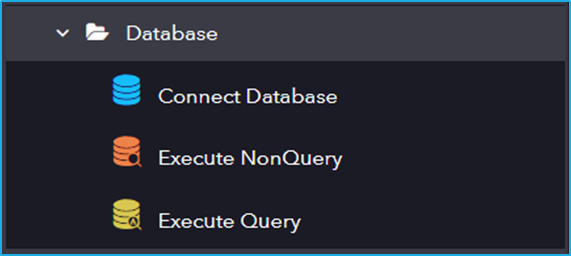
The Database category has the following sub activities:

Connect Database: This activity is used to Connect to a database by using a connection string.

Connection Properties:

  • ConnectionString: Specify the connection string to establish a database connection.
  • Provider: Name of the database provider used to connect to the database.

Output Properties:

  • Connection: Stores the established database connection.

Execute NonQuery: The ExecuteNonQuery activity enables you to execute SQL statements such as INSERT, UPDATE, or DELETE data in a given database.

Connection Properties:

  • ExistingConnection: Specify a previously established database connection from the Connect Database activity.
  • ConnectionString: Specify the connection string used to establish a database connection.
  • Provider: Name of the database provider used to connect to the database.

Input Properties:

  • SqlText: The SQL command to be executed. This field is determined by the CommandType property.
  • CommandType: Select how the SQL command is interpreted (e.g., Text, StoredProcedure).
  • Parameters– Collection of named parameters bound to the SQL command.

Output Properties:

  • AffectedRecords: Returns the number of rows affected by the execution of the SQL command.

Execute Query: This activity is used to execute query operations on a database.

Connection Properties:

  • ExistingConnection: Specify a previously established database connection from the Connect Database activity.
  • ConnectionString: Specify the connection string used to establish a database connection.
  • Provider: Name of the database provider used to connect to the database.

Input Properties:

  • SqlText: The SQL command to be executed. This field is determined by the CommandType property.
  • CommandType: Select how the SQL command is interpreted (e.g., Text, StoredProcedure).
  • Parameters: Collection of named parameters bound to the SQL command.

Output Properties:

  • Datatable: Stores the result of the executed SQL command in a DataTable variable.
Demo project using Workflow Activities

The URL of the demo project is given below where users can learn about these activities in a better manner.

Steps:

1st Sequence: Sum of two variables. 

  1. create two separate variables of integer data type. 
  2. Use multiple assign activity to assign separate values to each variable created in the first step. 
  3. Drag and drop an assign activity. In the ‘To’ field create a new variable of integer type which will represent the sum of other two integer variable. In the “value” field, provide the 1st and 2nd variable name with “+” in between.  
  4. Use a message box to display the result of the new variable. 

2nd sequence: ForEach Activity 

  1. Create a variable of array list data type and add five elements in the Default Value. (e.g. [“A”, “B”, “C”, “D”, “E”]) 
  2. Drag and drop the ForEach activity. In the ‘Condition’ field add the variable that was created in the first step. 
  3. Use a message box to display each element. To see each element, add the ‘Output’ variable (varItem) of ForEach activity in the ‘Input’ field of the message box. 

3rd Sequence: Break Activity 

  1. Inside the For Each, use a decision activity. In the ‘Condition’ field add a condition to check if a particular element exists.  
  2. If the element exists, use the “break” activity to exit the ForEach activity. 
  3. Use a message box to display elements. 

4th Sequence: Replace “break” with “continue” 

  1. Remove the “break” activity under the decision activity and drag and drop “continue” activity. 
  2. Save the changes and click on the “Play” button. The element specified in the condition field will be skipped, and the process will proceed to the next one. 
  3. Use a message box to display elements. 

5th  Sequence: Create a new sequence

  1. Drag and drop Assign activity. In the ‘To’ field create a new variable called varCounter of integer type, in the ‘Value’ field add value as 1. 
  2. Use the loop activity and give a condition such that as long as varCounter is less than or equal to 5, it will display the value of varCounter. 
  3. Use a message box to display the value. 
  4. Drag and drop another Assign activity to Increment the value of varCounter by 1 in each iteration. In the ‘To’ field add varCounter and in the ‘value’ field add varCounter+1. 

6th Sequence: Throw Error and Retry Sequence activity

  1. Drag and drop the “Throw Error” activity below outside the loop activity in the 5th sequence.  
  2. In the ‘Message’ field write “Retrying the Sequence”. 
  3. Under the On Error block, drag and drop “Retry the Sequence”. In the ‘No. of retries’ field you can give any number (In the video its 2). It will retry the sequence after handling the error. 

7th Sequence: Invoke Sequence  

  1. Use the “Invoke Sequence” activity in the main sequence (4th Sequence) to integrate with the 5th  Sequences. 
  2. Below the Invoke Sequence, use a Write Line activity to confirm the process completion. 

Activities Used“Multiple Assign, Assign, Message Box, For Each, Break, Continue, Loop, Decision, Throw Error, Retry the Sequence, Invoke Sequence, Write Line”
Video Link https://www.youtube.com/watch?v=tt8DURwe_x0&list=PLwFA5laAhcEJ7sVztHRNXDdXffy2odMvv&index=38

Sub Activity – Invoke

This includes activities for executing other processes or sequences within an automation project.

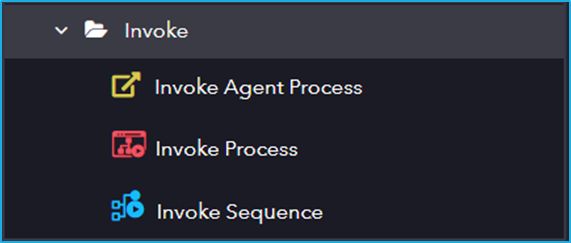
The Invoke category has the following sub activities:

Invoke Agent Process: Invokes the specified process from the agent.

Input Properties:

  • Process Name: Name of the process to be invoked.
  • Arguments: A list of parameters that are passed to the invoked workflow at runtime.

Invoke Process: This activity can be used to execute a process within another sequence.

Input Properties:

  • Process: Name of the specified process that is to be executed.
  • Parameters: A list of parameters that are passed to the invoked process at runtime.

Invoke Sequence: This activity can be used to execute a sequence within another sequence.

Input Properties:

  • Sequence: The name of the sequence in the specified process to be executed.
  • Variables: A list of parameters that are passed to the invoked workflow at runtime.

Sub Activity – Debug

This includes activities for troubleshooting and monitoring automation execution. These activities help developers track workflow behaviour and identify issues efficiently.

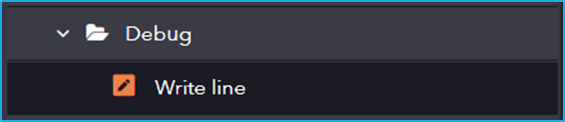
The Debug category has the following sub activity:

Write Line: This activity uses a line of text in the output panel.

Input Properties:

  • Text: The content you want to write to the Output panel. 

Sub Activity – Control

Control manages the flow of execution within automation workflows, utilizing activities like loops, conditional statements, and delays to direct the process.

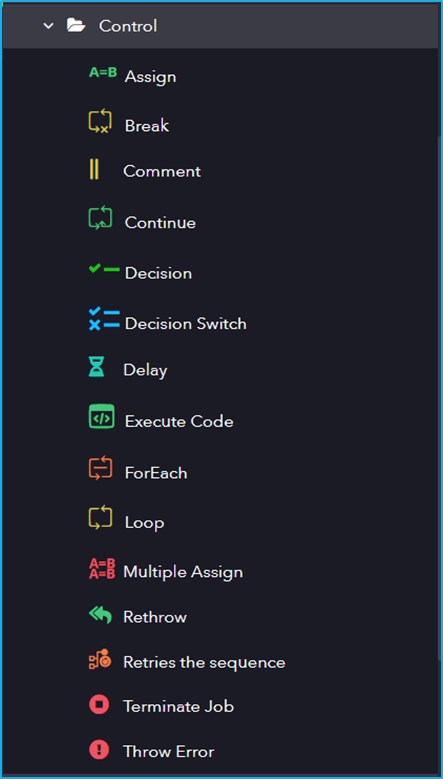
The Control category has the following sub activities:

Assign: This activity can be used to assign a value to a variable.

Input Properties:

  • To: Specifies the variable to which the value is added or assigned.
  • Value: The value to assign to the specified variable.

Break: This activity can be used to exit from the current iteration if the condition given in the loop is true and it will proceed to the next activity in the workflow.

Comment: This activity can be used to add a specific comment to the workflow.

Input Properties:

  • Comments: The text to display as a comment, entered as a string.

Continue: This activity can be used to skip the current iteration and continue to the next iteration if the condition given in the loop is true.

Decision: This activity controls the flow of a workflow by specifying a single condition that will be evaluated as true or false. The set of activities within the decision activity will only execute If the condition is true.

Input Properties:

  • Condition: Contains boolean expression which returns either true or false.

Decision Switch: This activity controls the flow of a workflow by specifying multiple conditions that will be evaluated to true or false. Depending on the condition that is true, the set of activities under that particular condition will execute.

Input Properties:

  • Expression: contains boolean expression which returns either true or false and used to control the flow of execution of sequence based on certain condition.

Delay: This activity suspends the execution of the next activity in the workflow for the specified period.

Input Properties:

  • Duration: The time, in milliseconds, for which the delay is to be executed.

Execute Code: This activity can be used to execute a specific code in a script format.

Input Properties:

  • Script: The code to be executed as a string.
  • Parameters: Input or Output parameters to be passed between the script and robot.

ForEach: This activity is used to iterate through every element of a collection to perform a series of actions for each item.

Input Properties:

  • Collection: Enables stepping through arrays, lists, data tables, or other types of collections to iterate through the data and process each piece of information individually.

Output Properties:

  • Item: An object variable where the result is stored.
  • Index: Zero based Index of the item in the collection.

Loop: This activity is used to perform iterations and execute a series of activities while the given condition is true.

Input Properties:

  • Condition: Contains Boolean expression which returns either true or false.

Output Properties:

  • Index: Zero based Index of the item in the collection.

Multiple Assign: This enables the user to assign values to multiple variables simultaneously.

Input Properties:

  • Assignments: Assign values to a multiple variable.

Rethrow: This activity is commonly used within the On-Error block to re-throw the exception message that was previously captured by the studio.

Retries the Sequence: This activity is used to retry the sequence when an error occurs during the execution of a normal set of activities.

Options Properties:

  • NumberOfRetries: The number of times to retry the sequence.
  • RetyInterval: Specify the time between each retry.
  • Rethrow: Select the checkbox if you want to throw an error, else uncheck.

Terminate Job: This activity stops the automation intentionally.

Input Properties:

  • Reason: A string that describes the reason for terminating the job.

Throw Error: This activity is used to throw custom exception messages during the execution.

Input Properties:

  • Message: Specify the text to be displayed in exception block.
  • Error Type: Choose the type of error.

Sub Activity – Assertion

These are used for validation and verification steps within the workflow.

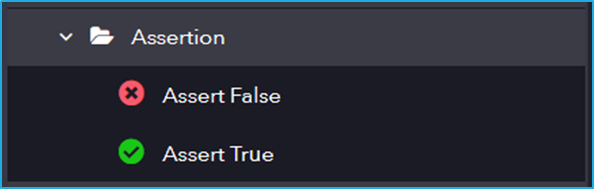
The Assertion category has the following sub activities:

Assert False: This activity is used to throw an error message if the given condition is true.

Input Properties:

  • Condition: A Boolean expression that evaluates to either True or False.
  • Error Message: Specify the text to be displayed if the value is True.

Assert True: This activity is used to throw an error message if the given condition is false.

Input Properties:

  • Condition: A Boolean expression that evaluates to either True or False.
  • Error Message: Specify the text to be displayed if the value is False. 

Sub Activity – Printer

The Printer in the System category contains activities related to managing and interacting with printers. It allows automation processes to handle printing tasks, configure printer settings, and manage print jobs efficiently.

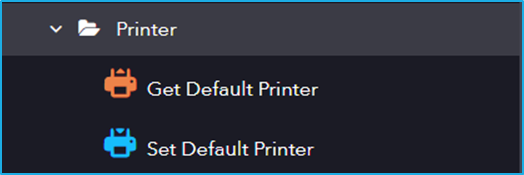
The Printer category has the following sub activities:

Get Default Printer: This activity returns the name of the system default printer.

Output Properties:

  • PrinterName: The name of the default printer.

Set Default Printer: This activity sets a default printer for the system.

Input Properties:

  • PrinterName: The name of the printer to set as default.

Demo Project using PowerShell Activity

The URL of the demo project is given below where users can learn about these activities in a better manner. 

Steps:

  1. Create a New Text File on the Desktop. 
  2. Use the PowerShell activity to run the powershell command for retrieving the Name and CreationTime of the newly created text file. The retrieved information (Name and CreationTime) will be written into another text file. 
  3. Execute the PowerShell activity again to run the command for fetching the list of all the services that are currently running or stopped in the system. The details of the services list will be written into a text file. 
Activities Used“Execute PowerShell”
Video Link https://www.youtube.com/watch?v=slX1COWZQNA&list=PLwFA5laAhcEJ7sVztHRNXDdXffy2odMvv&index=29

Sub Activity – PowerShell

The PowerShell in the “System” category contains activities that enable the execution of PowerShell scripts within the automation process. These activities help in performing advanced system administration tasks, executing commands, and automating configurations.

The PowerShell category has the following sub activities:

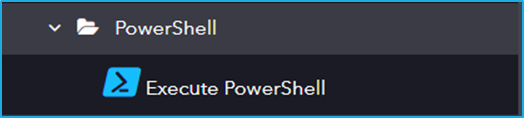
Execute PowerShell: This activity is used to execute PowerShell commands with specified parameters. 

Input Properties:

  • IsScript: Indicates whether the command is a script.
  • ApartmentState: Defines the apartment state, indicating whether the thread will execute in a single-threaded or multi-threaded apartment.
  • CommandText: The PowerShell command to be executed.
  • Parameters: A collection of parameters for the PowerShell command.
  • PowerShellVariables: Variables to be passed to the PowerShell script.
  • Input: Input values for the PowerShell script.

Output Properties:

  • Output: The result of the executed script.