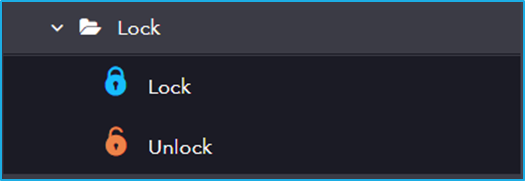
The Lock contains activities related to system security and access control. It enables automation to lock the system, manage user sessions, and ensure secure execution of workflows.
The Lock activity has the following sub activities:
Lock: Other instances of the process are prevented from continuing until the lock is released.
Input Properties:
Key: A unique mutex key. The Unlock activity uses this kay to release the lock.
Lock Attempts:
Attempts Interval: The amount of time required after a failed lock attempt before another lock attempt is allowed.
Unlock: This activity is used to release the lock that was previously placed by the Lock activity.
Input Properties:
Key: A unique mutex key. The Unlock activity uses this key to release the lock.
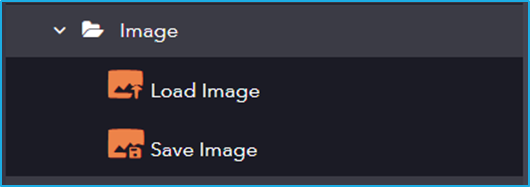
Image includes activities for saving and loading images, allowing automation to capture screen images, store them, or load them for further analysis, comparison, or interaction with UI elements.
The Image activity has the following sub activities:
Load Image: This Loads image from a specified location.
Input Properties:
FilePath– Specify the full path of the image file, including the image name.
Output Properties:
Image– The image variable that stores the loaded image.
Save Image: Saves the image to a specified location.
Input Properties:
Image: An image variable in which the specified image is stored. Or An image variable in which a specified image is saved.
FilePath: Specify the full path where the image will be saved, including the file name.
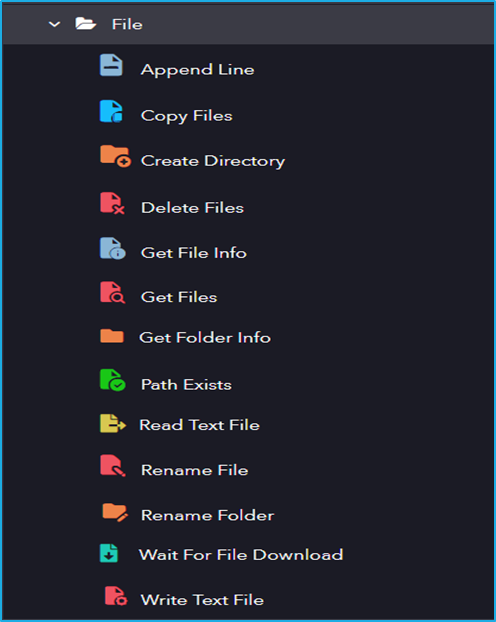
This section includes a set of activities designed to work with files and folders on the local system and allows users to create, move, copy, delete, and manipulate files and directories.
The File category has the following sub activities:
Append Line: This activity helps to append a string value to the end of a text file.
InputProperties:
File Path: The full path to the file.
String: Text to be attached to the file.
Copy Files: This activity can be used to copy one or more files to a specified folder.
InputProperties:
Source Folder: The relative or absolute path of the directory to search.
Contents: The search string to match against the names of files in path. This parameter can contain a combination of valid literal path and wildcard ( * and ?) characters, but it doesn”t support regular expressions.
Target Folder: The relative or absolute path of the destination folder.
Recursive: If selected, it will include the current directory and all of its sub-directories.
Advanced Option Properties:
Overwrite: If selected, replace the existing file in the target folder.
CleanTargetFolder: Select to clear the target folder before starting the copy action.
FlattenFolder: If selected, copie all files from subdirectories to the root folder.
DeleteFileAfterCopy: If selected, delete all files in the source location after the copy is complete.
Create Directory: This activity is used to create a new directory in the specified location.
InputProperties:
Path: Path of the directory to be created.
Delete Files: This activity is used to delete file(s) from the specified location.
InputProperties:
Source Folder: The relative or absolute path of the directory to search.
Contents: The search string to match against subdirectory names in the path. Supports valid literal and wildcard characters, but not regular expressions.
Remove SourceFolder: Attempt to remove the source folder as well.
Recursive: If selected, it will include the current directory and all of its sub-directories.
Get File Info: This activity is used to get the information of a specific file.
InputProperties:
FilePath: String or string variable that holds the relative or absolute path of file that needs to be retrieved.
Output Properties:
FileInfo: It returns file information inSystem.IO.FileInfo datatype.
Get Files: This activity helps to retrieve the location of the specified files.
InputProperties:
SourceFolder: String or string variable that holds relative or absolute path of the file that needs to be retrieved.
Contents: The search string to match against the names of files in the path. This parameter can contain a combination of valid literal path and wildcard ( * and ?) characters, but it doesn”t support regular expressions.
Recursive: If selected, it will include the current directory and all of its sub-directories.
Get Folder Info: This activity is used to retrieve the properties of a specified folder.
InputProperties:
FolderPath: The folder from which properties are to be retrieved.
Output Properties:
FolderInfo: It returns folder information in System.IO.DirectoryInfo datatype.
Path Exists: This activity is used to check if the specified path exists or not.
Input Properties:
Path: The full path to be checked.
PathType: Specifies if the path points to a folder or a file.
Output Properties:
Exists: Determines if the folder or file was found.
Read Text File: This activity reads the content of the specified text file and stores it in a string variable.
Input Properties:
FileName: Full path of the file to be read.
Output Properties:
String: Extracted text from the file.
Rename File: This activity allows the user to rename the existing file.
Input Properties:
Source File: The relative or absolute path to the directory to search.
File Name: New name for the file.
KeepExtension: Keep extension of the file.
Rename Folder: This activity is used to Rename a Folder.
Input Properties:
Source Folder: The relative or absolute path to the directory to search.
FolderName: New name for the folder.
Wait For File Download: This activity waits for a specific file to be downloaded.
Input Properties:
FilePath: Full path of the file.
PollingInterval: Polling interval for checking the file.
Write Text File: This activity creates a text file and writes the specified string value to it. If the text file already exists, then its contents will be overwritten.
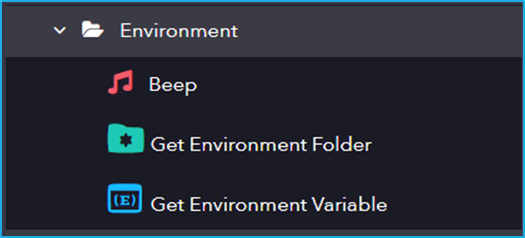
Environment includes activities for accessing and managing environment variables, system settings, and configurations to ensure seamless automation execution across different system environments.
The Environment activity has the following sub activities:
Beep: This activity can be used to generate a beep sound to notify or indicate a user about an automation.
Get Environment Folder: This activity gets the path of the specified system folder.
Input Properties:
SpecialFolder: Select the special system folder for which the path will be retrieved. Or Choose the system special folder to retrieve its path.
Output Properties:
FolderPath: Returns the path of the specified SpecialFolder.
Get Environment Variable: This activity returns the content of the specific variable from the environment.
Input Properties:
VariableName: Specify the name of the environment variable to retrieve.
Output Properties:
Value: Returns the value of the specified environment variable.