Building A Sales Viewer Application Using AppForms

Design Document for Sales Viewer

Introduction

Sales Viewer has been designed to generates graphical reports on Daily sales performance, unit sales and sales by range on the basis of Revenue by sector and Revenue by product. The purpose of this document is designed to be a reference for any person wishing to implement or any person interested in the architecture of sales viewer for the ClaySys AppForms.
In ClaySys AppForms Sales Viewer , a combo box is available to select the category. If we select the category as Revenue by sector, the statistical report will shows the Daily sales performance, unit sales by sector and sector sales by range as shown in the below figure.
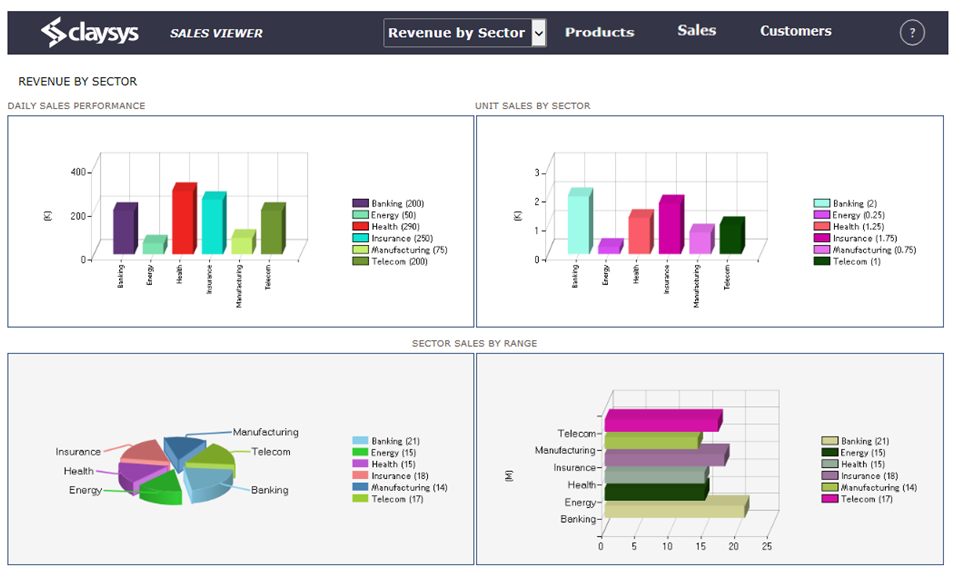
Image1
If we select the category as Revenue by Product, then the statistical report will shows the Daily sales performance, unit sales by product and Product sales by range as shown in the figure.
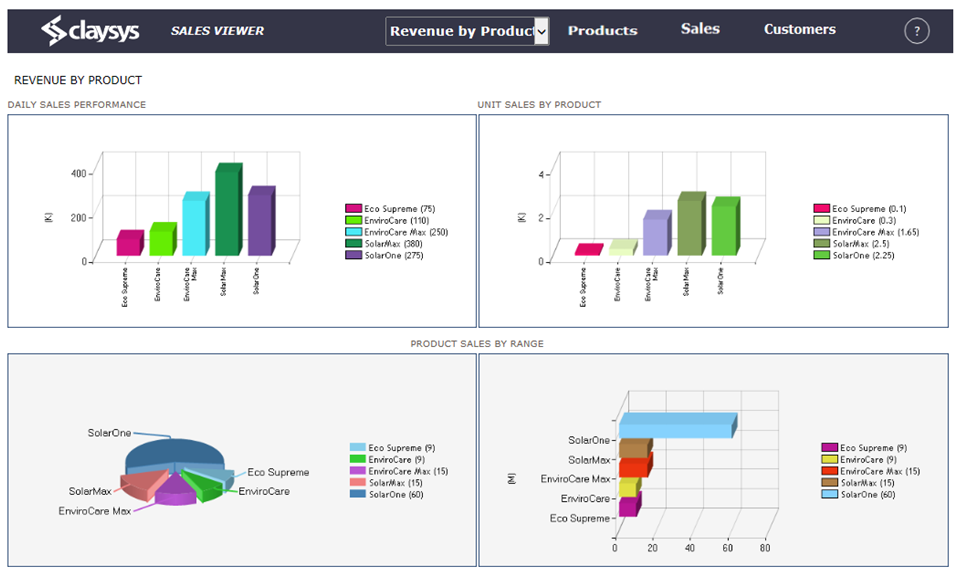
Image2
It is designed to guide development and design in ClaySys AppForms, including:

  •  Creating the form
  • Form design
  • Data Source configuration
  • Rules
  • How to use this template
  • Uploading List Templates
  • Import tenant
  • Create a web part page

Creating the form
Form Design

  • On clicking the New Folder option, it will create a new folder and the name will be in the edit mode. You can type a new name for the folder.

image1

  • Then click on the ‘New Form’ link on the toolbar. Give an appropriate name for the form. Click ‘Save’ to save the form.
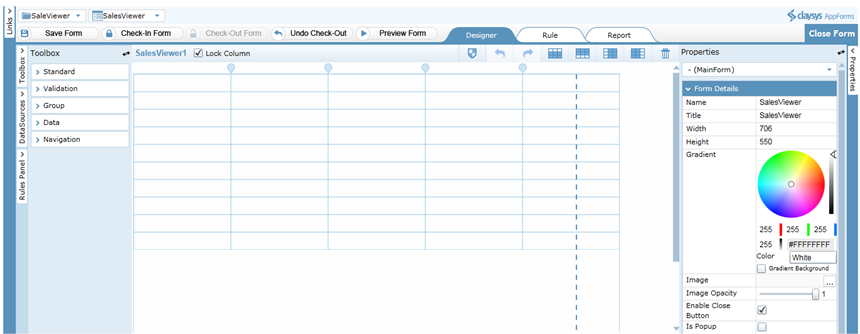
image2

  • You can drag and drop controls format the styles easily.
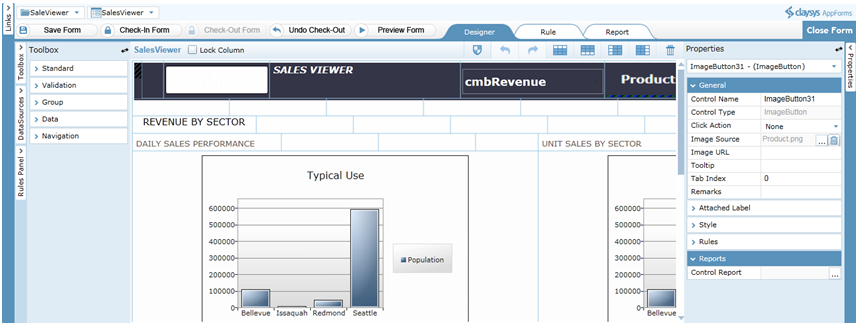
image3

  •  ‘Check-In Form’ to save the changes and publish to get the completed form for the end user to use. A form must be checked-out to make modifications while all aspects of the form can be examined while checked-in.
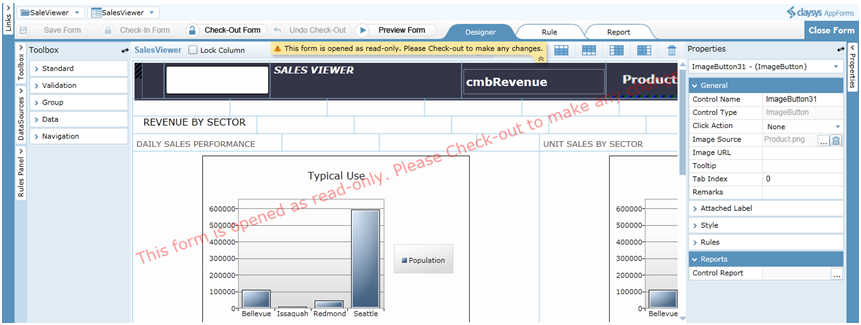
image4
DataSource Configuration
Following steps will explain about the DataSource configuration of Search control.

  • Click Search control select the New DataSource Configuration.
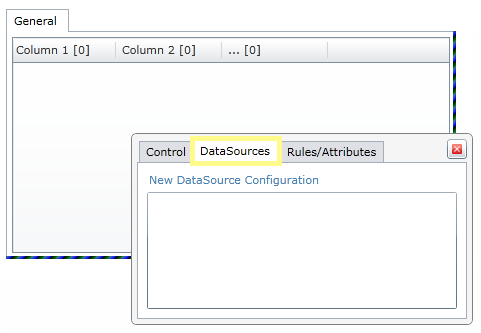
image1

  • Select the site from the available sites. Click ‘Next’ to continue.
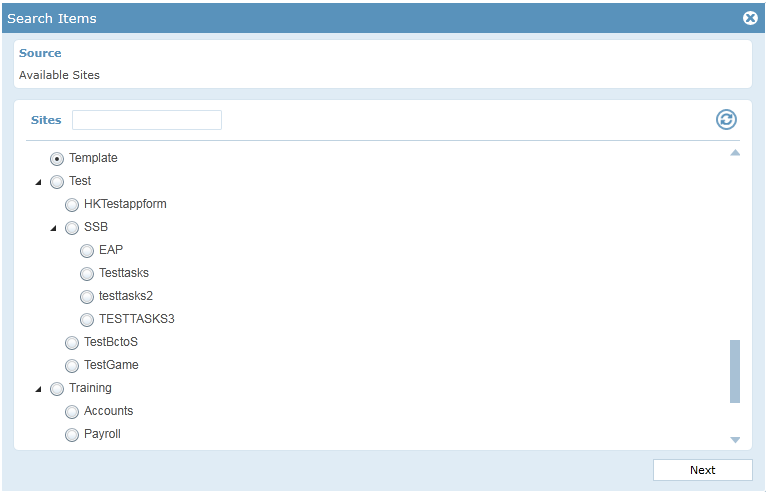
image2

  • Select the list from available list name. Click ‘Next’ to continue.
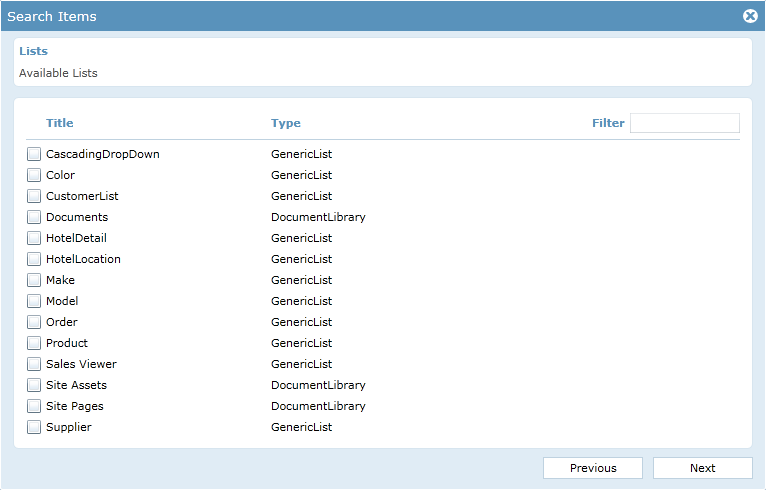
image3

  • Select the result columns. Click ‘Next’ to continue.
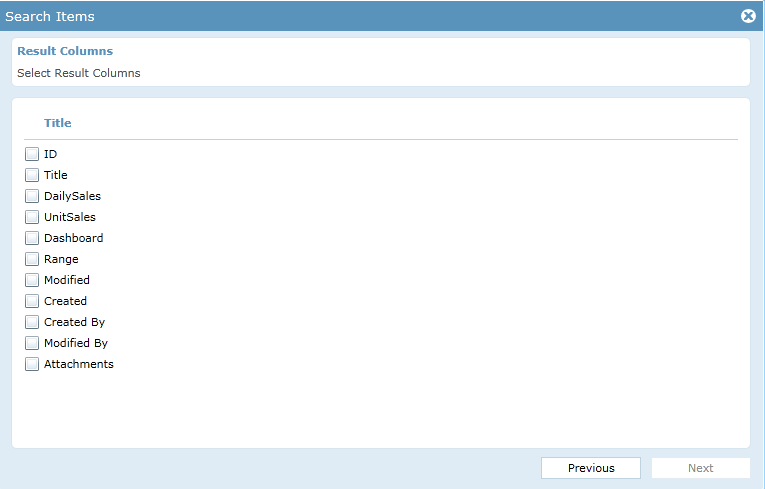
image4

  • Add the designer criteria in the criteria builder that should select the unique record in the List that matches the user identity criteria in the Data source and additional and/or Query clauses can be added. Click ‘Next’ to continue.
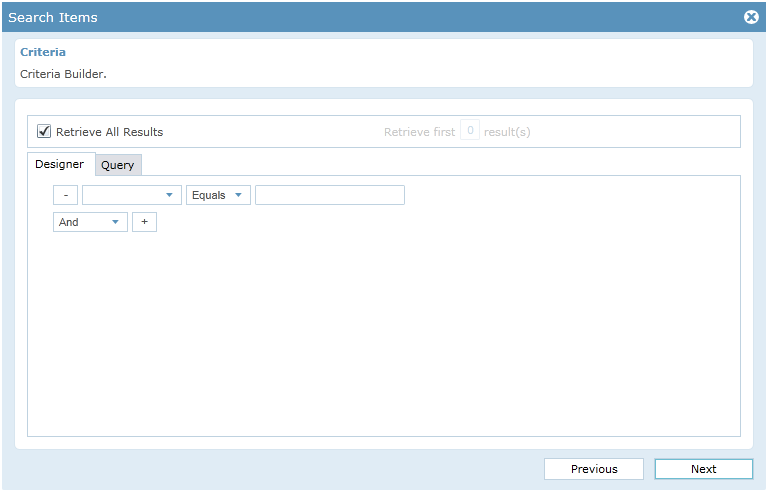
image5

  • If the selected lists needs any relationship then we can add  their relations here. Click ‘Next’ to continue.
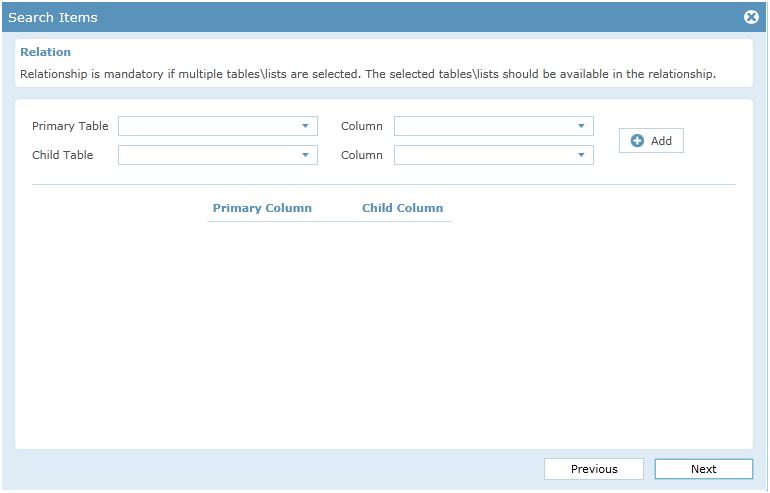
image6

  • We can change the look and feel of the search control.
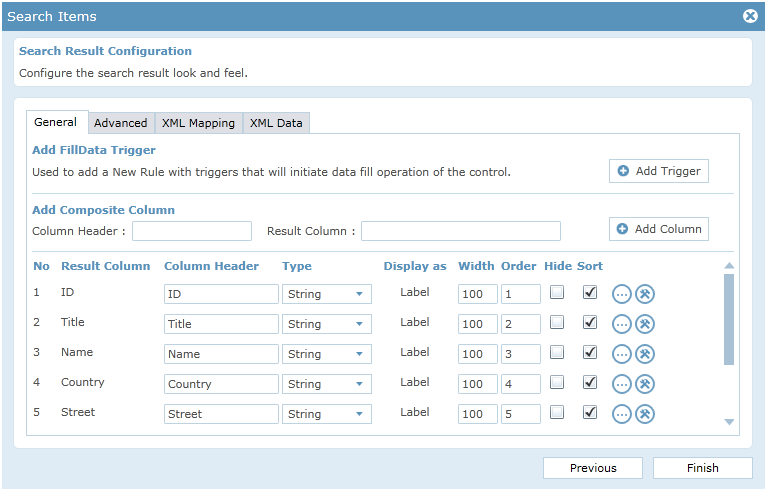
image7

  • Click ‘Add Trigger’ to add the trigger.
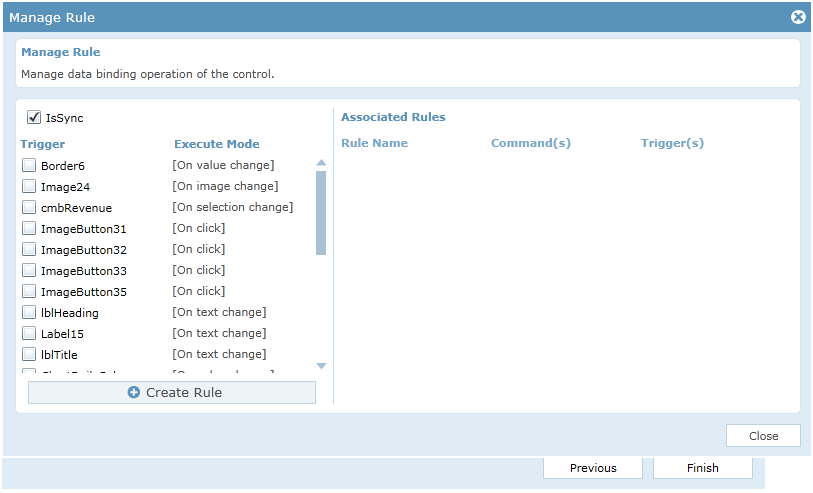
image8

  • We can select and add the trigger by clicking the check box corresponding to the control.
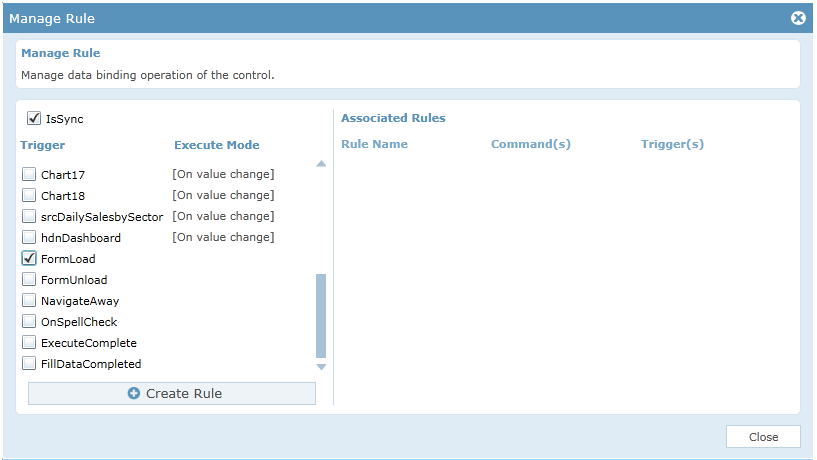
image9

  • Click ‘Create Rule’ will automatically create the FillData() rule for the search control with associated trigger.
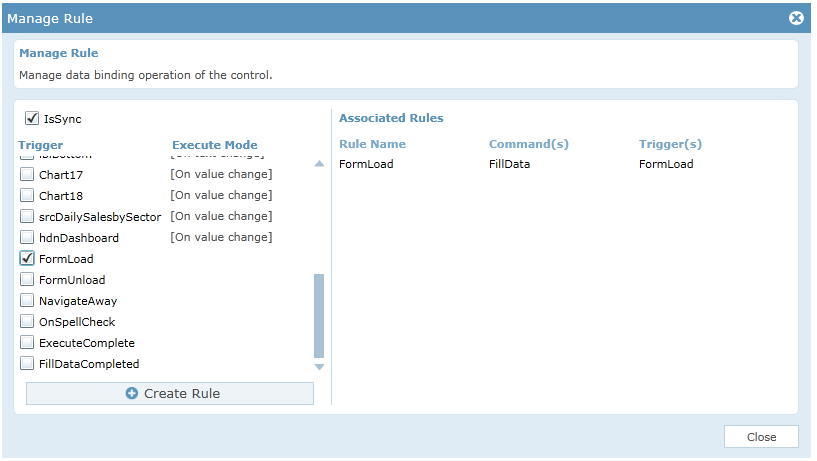
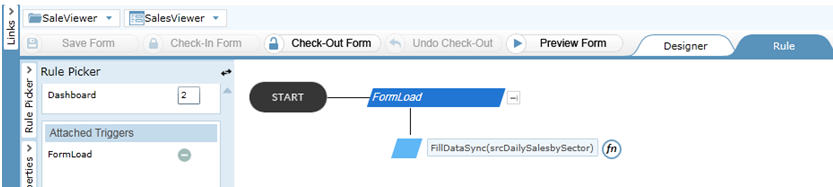
image10
image11

  • Click ‘Finish’ button to save and close the DataSource configuration process for the search control.

Following steps will explain about the DataSource configuration of Chart control:
Before configuring the chart control, a search control should be configured whose data has to be taken for mapping the chart control.

  • Click on the Chart control and select the DataSource.
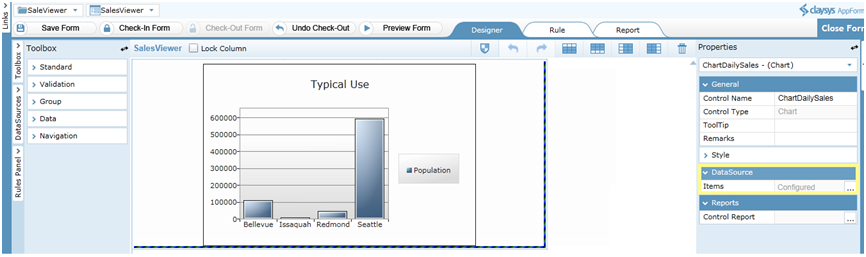
image12

  • A chart window appears. Select a suitable Chart type. Click ‘Next’ to continue.
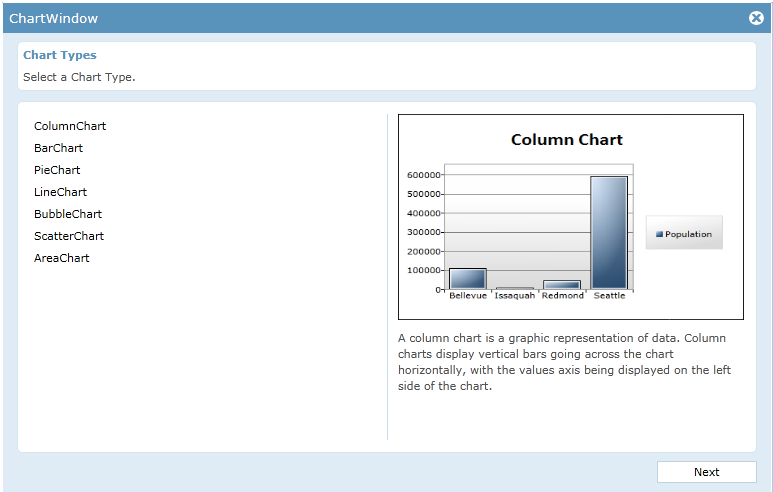
image13

  • A Chart window appears for configuring the Chart Source Data. Select the DataSource as a Search control whose data has to be taken for mapping the chart control. Add a Chart title and label the X and Y axis. Click ‘Next’ to continue.
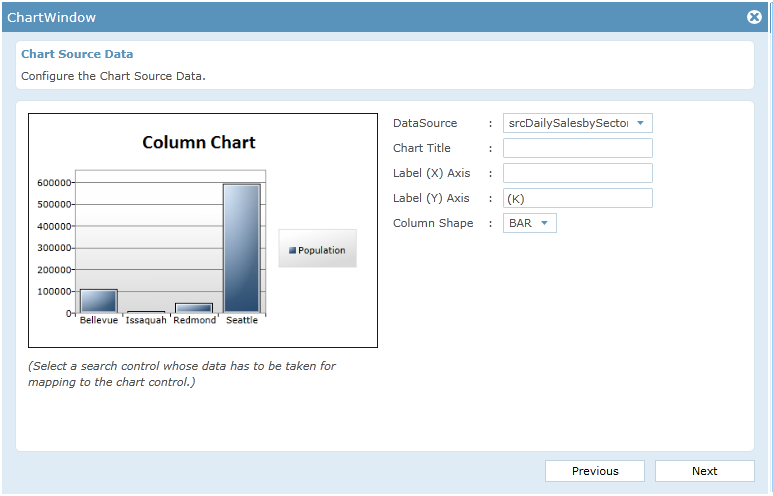
image14

  • Chart window appears for configuring the Series title, Independent value path and Dependent value path. Click ‘OK’ to add the option.
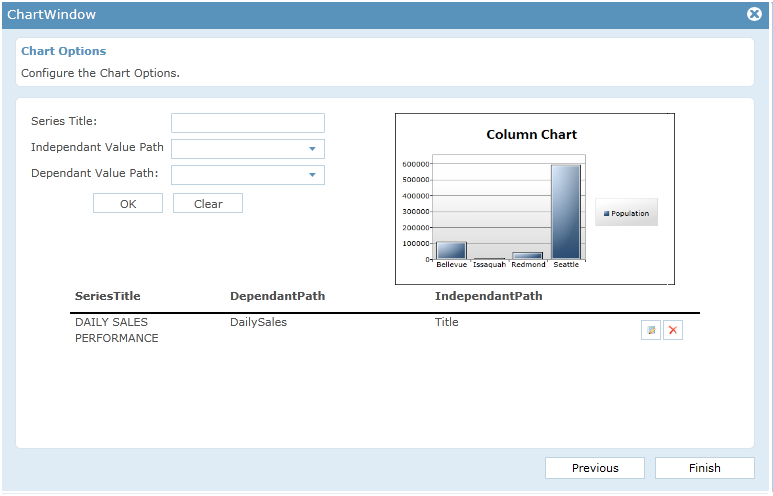
image15

  • Click ‘Finish’ button to save and close the DataSource configuration process for the Chart control.

Rules
The rules section is the most powerful section in the AppForms. The rules can be configured using the Rules Engine. Following are the rules associated with the application.

  • The rule named ‘FormLoad’, fills the search control and set the values to label controls on ‘FormLoad’ as trigger.
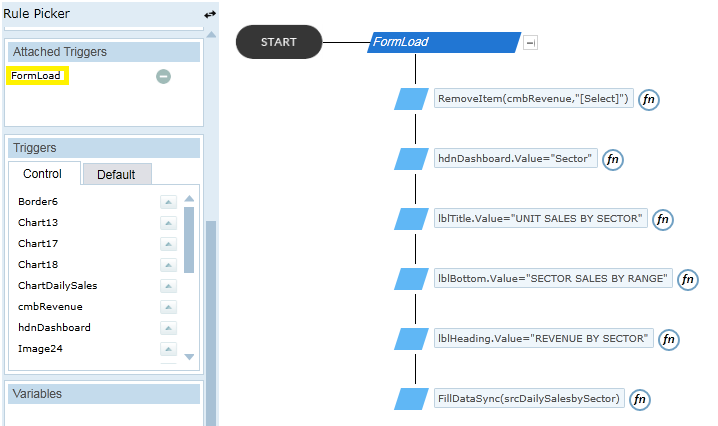
image1

  •  The rule named ‘Dashboard’ fills the search control ‘srcDailySalesbySector’ and sets the values to the label controls based on the value in the combo box ‘cmbRevenue’, on ‘cmbRevenue’ as trigger. Depends on the values in the search control the Chart controls will be populated. This process is converted into concise, yet readily understood rule expression statements that represent the underlying execution logic of the form as shown in the figure.
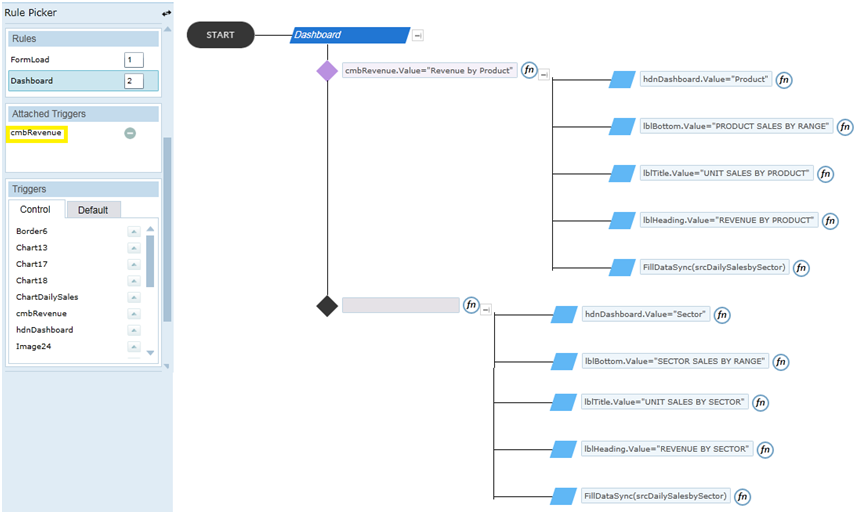
image2

How to use this template


Uploading List Templates

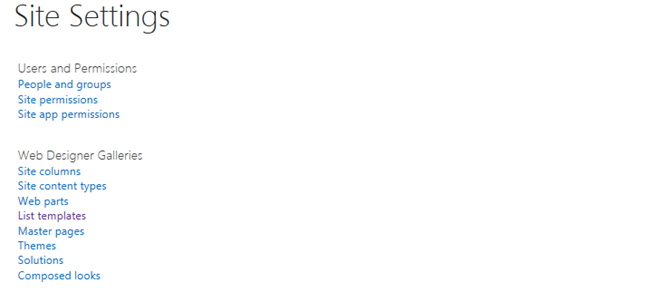
List templates that were downloaded to a file on the file system can be uploaded to the list template gallery. To perform the following steps, you must have Read permission to the folder or network share that contains the list template file. Before uploading the list template, it should be added to the list template gallery of the root site. Following steps will explain about how to add the list template in to the list template gallery.

  •  On the Site Actions menu, click ‘Site Settings’.
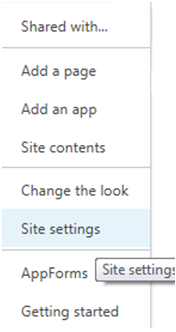
image1

  • In the Galleries column, click List templates. This option appears only to users who have the Manage Lists permission. Site owners have this permission by default.
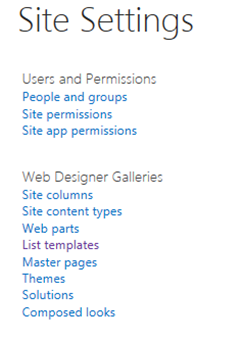
image2

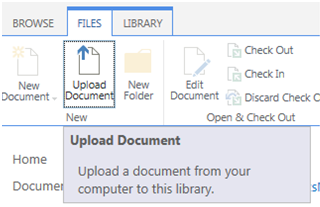
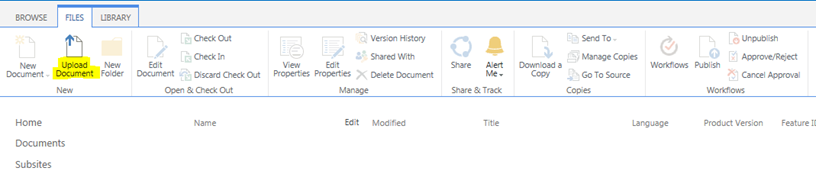
  •  The List Template Gallery page appears. Select Files tab and click ‘Upload Document’.
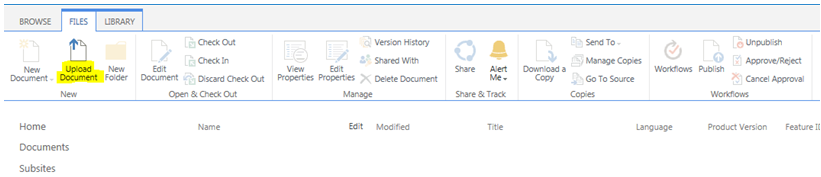
image3

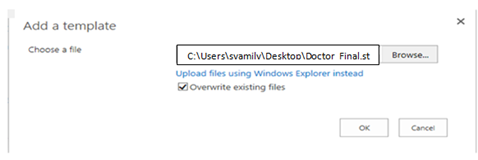
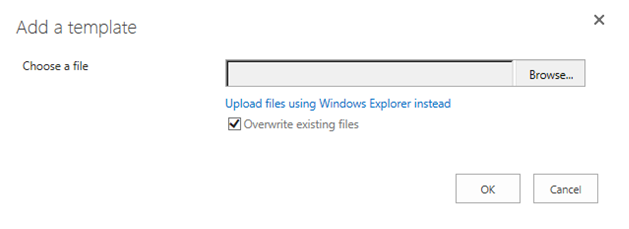
  • Either type the path or file name (including the file extension) of the list template that you want to upload, or click ‘Browse’ to select the file. Choose whether to overwrite the existing files. By default, the ‘Overwrite existing files’ check box is selected.
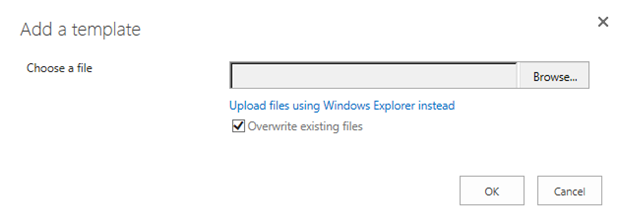
image4

  • Click ‘OK’ to choose the file.
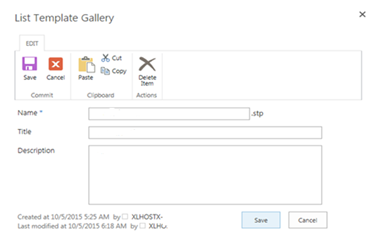
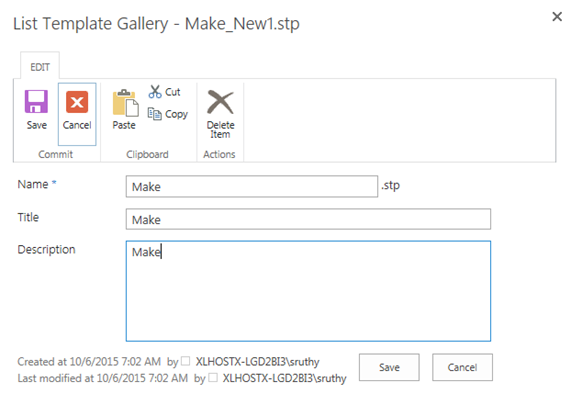
  • A pop-up appears to edit the name, title and description of the list template.
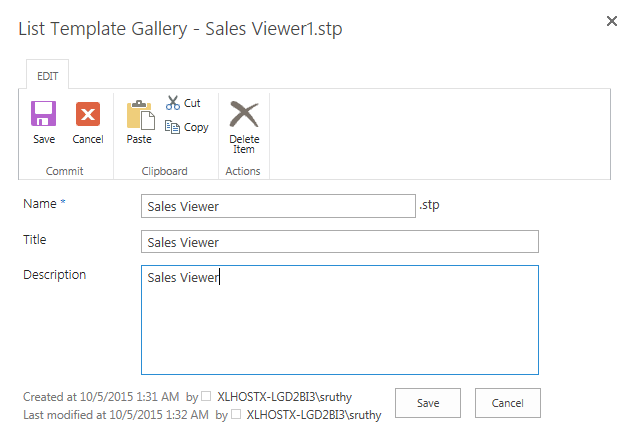
image5

  •  Click ‘Save’ to include the list template into the list template gallery.

Once the list template is added to the list template gallery, we can create a new list using the list template uploaded. Following steps explains how to create a new list using list template.

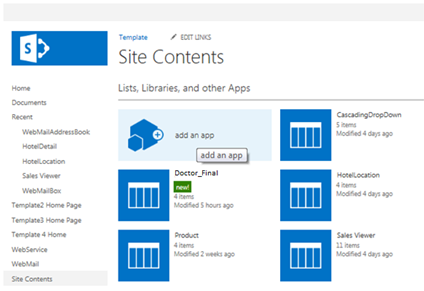
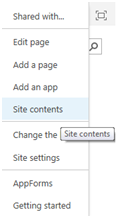
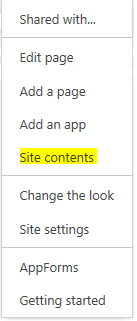
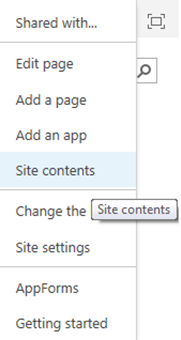
  • From the Site Actions drop-down menu in the top right, select ‘Site Contents’ of your site.
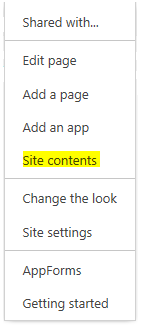
image6

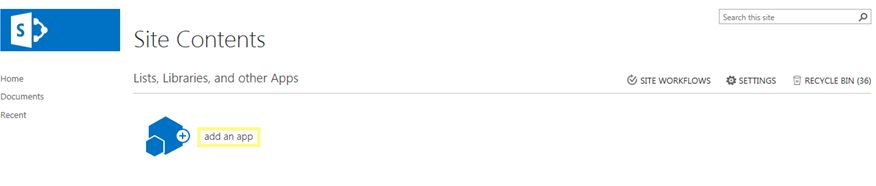
  • Click ‘add an app’

image7

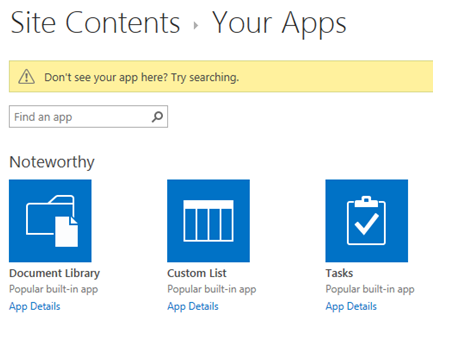
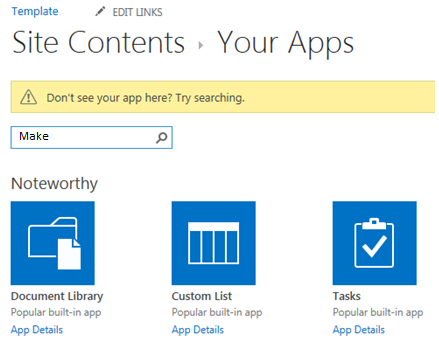
  •  Find the list template that was uploaded.
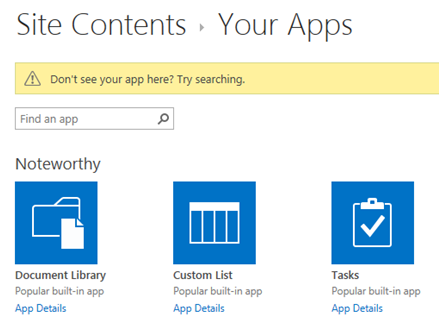
image8

  • Click on the list template to use for this site
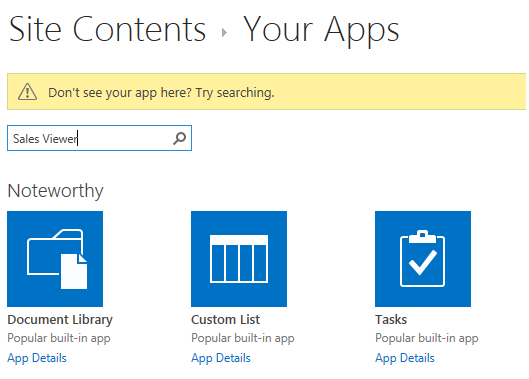
image9

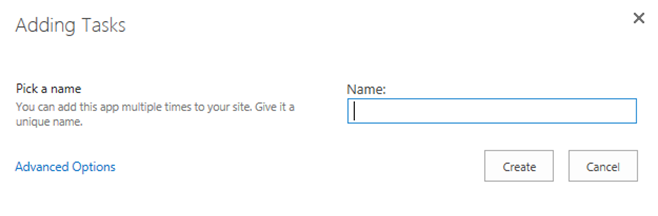
  • Pick a name for the new list. We can add this app multiple times with a unique name.
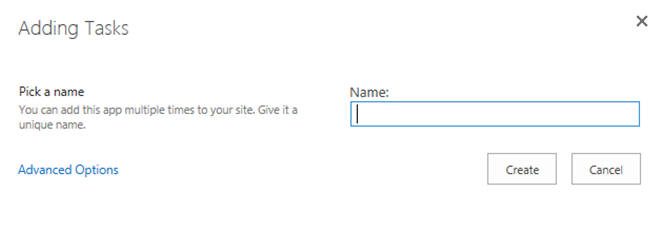
image10

  • Click on the ‘Create’ button. A list has now been created using the list template.

Import tenant
Following steps will explain about tenant import.

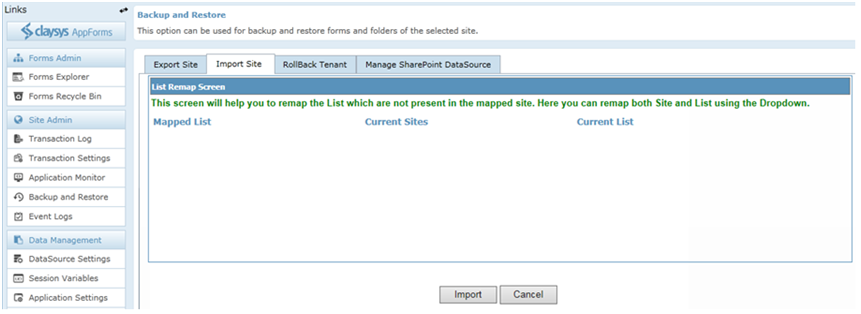
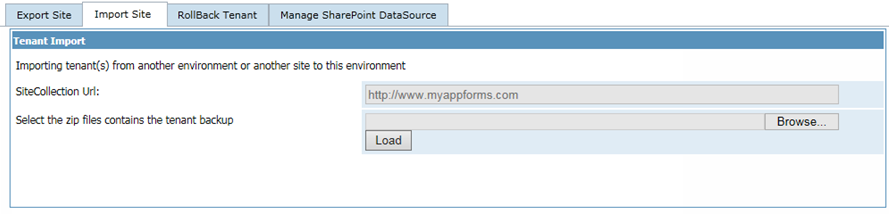
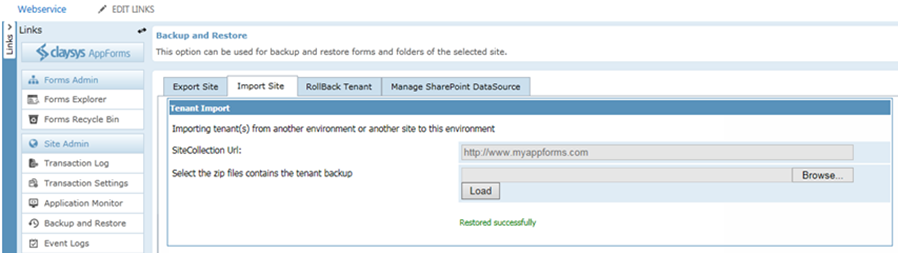
  • Open the ‘Backup and Restore’ option in AppForms in the destination site and click on the ‘import site’ tab.
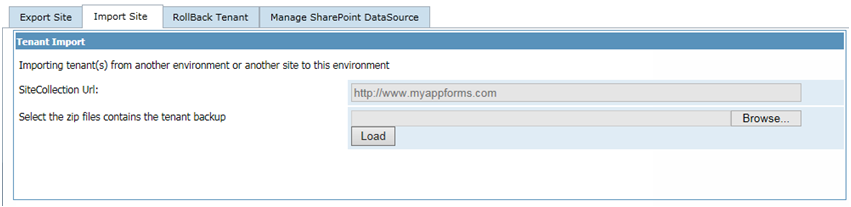
image1

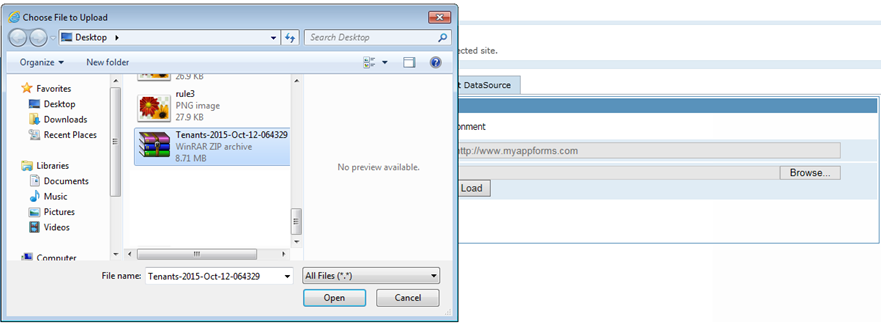
  • Select the backup file we had saved from the source site.
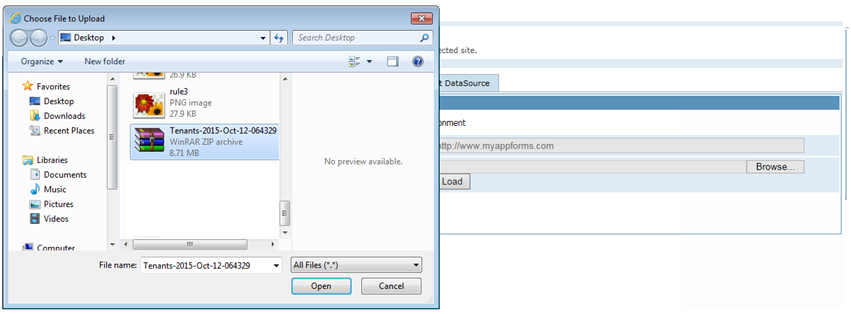
image2

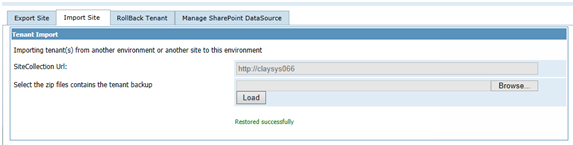
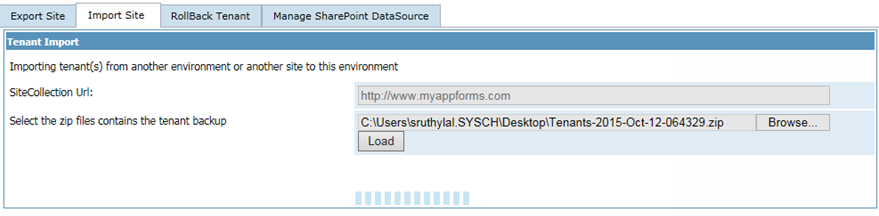
  • Once the file is selected, click on the load button.
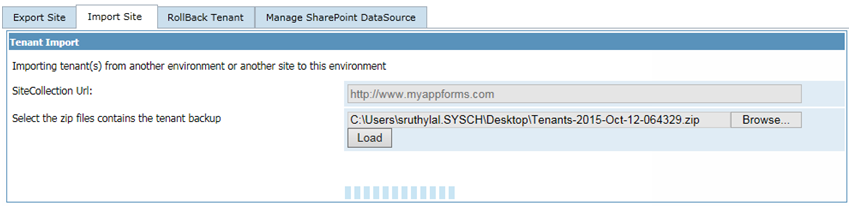
image3

  • This will show you the different sites that were exported from the source site. If there are more than one site content saved, then you can map each site in backup file to different sites in the current site. Select the required site content that needs to be restored and select the destination site in the current site as shown below. Once we are done with the backup mapping, click on the next button to proceed with the import.
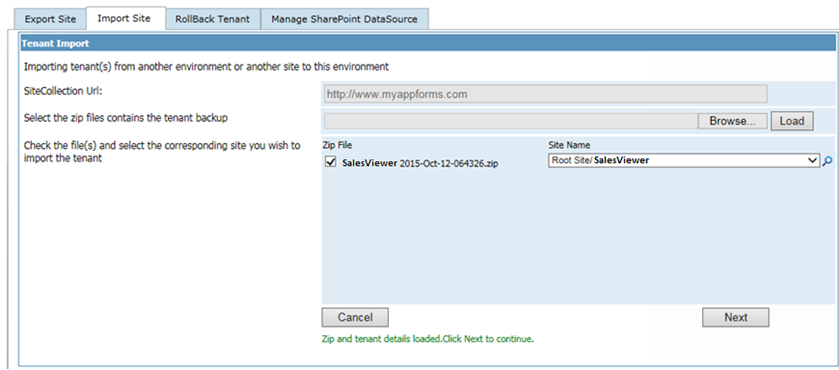
image4

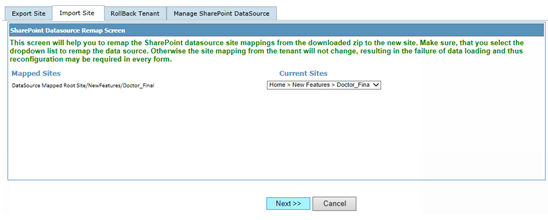
  • Now we will have to remap the sites we had used in the source website to the actual site in the target site. The drop down will show you with the sites/sub sites to help you with the data source mapping. Click ‘Next’ to continue.
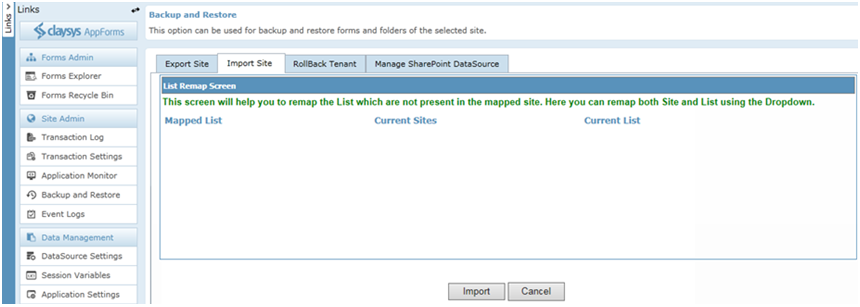
image5

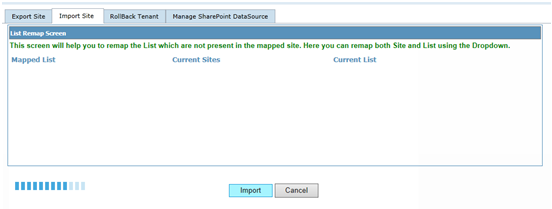
  • Click ‘Import’ to continue.

image6

  • This will import all the site content we had backed up from the source site and we are ready to work with the forms in the current site.
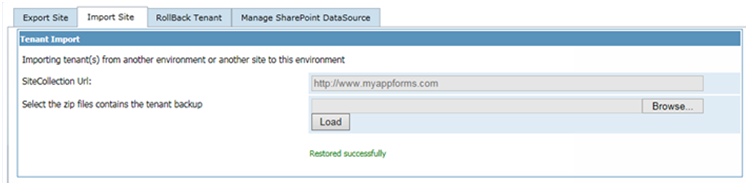
image7
Create a Web Part Page
Forms can be embedded on any SharePoint page by using the ClaySys AppForms Web Part, to create a web part page, follow these steps:

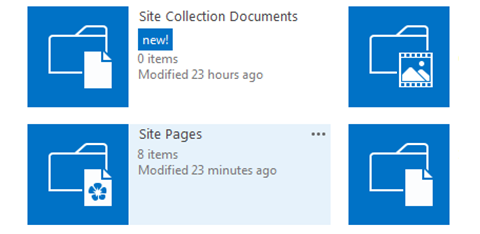
  • Click on Site Settings Wheel in the upper right corner of your site and then select “Site Contents” Page.
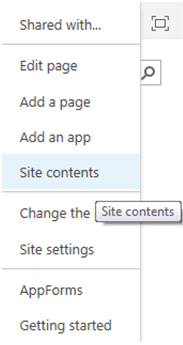
image1

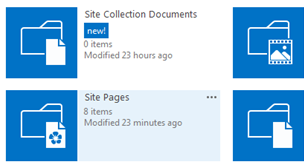
  •  Select “Site Pages” or simply pages library on Site Contents Page.
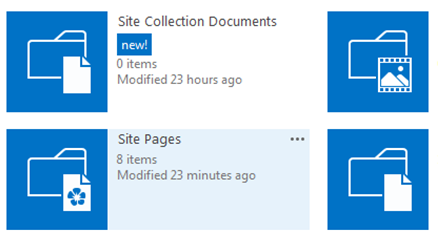
image2

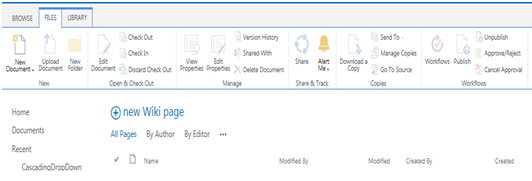
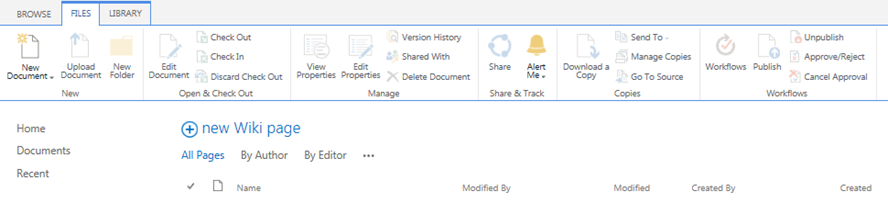
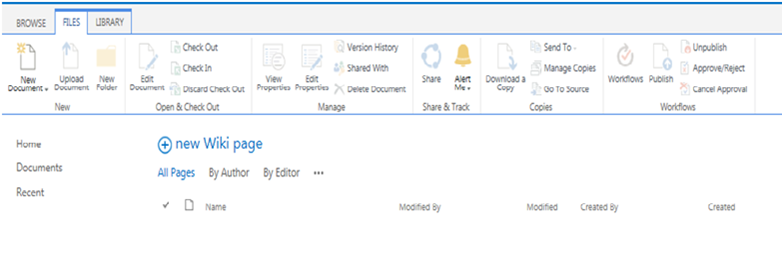
  • Click on “New Wiki Page” to add new site page.
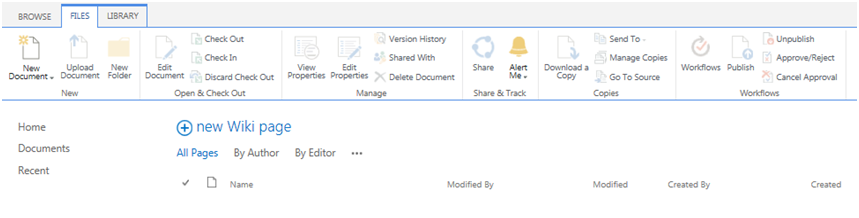
image3

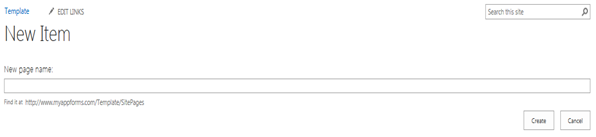
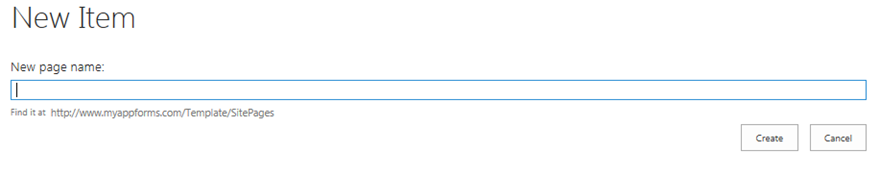
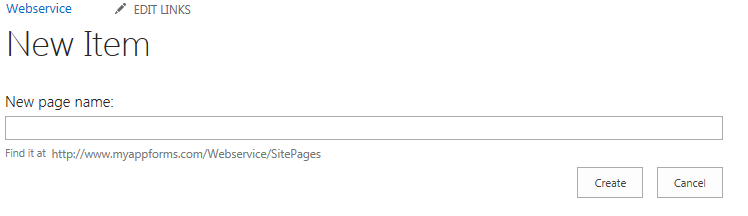
  • Give the New page name into the pop-up window and click ‘Create’ to add new page.
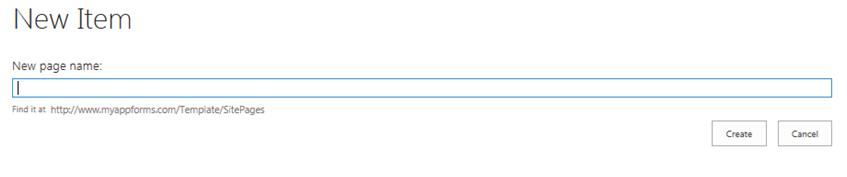
image4

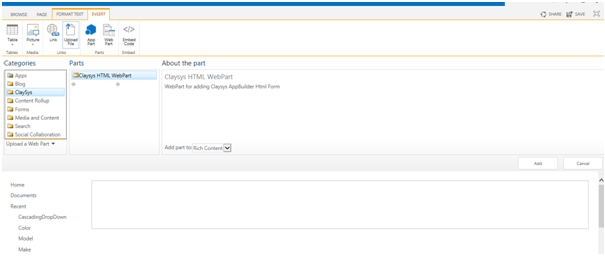
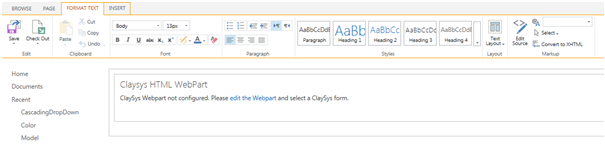
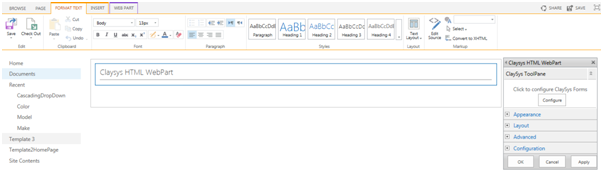
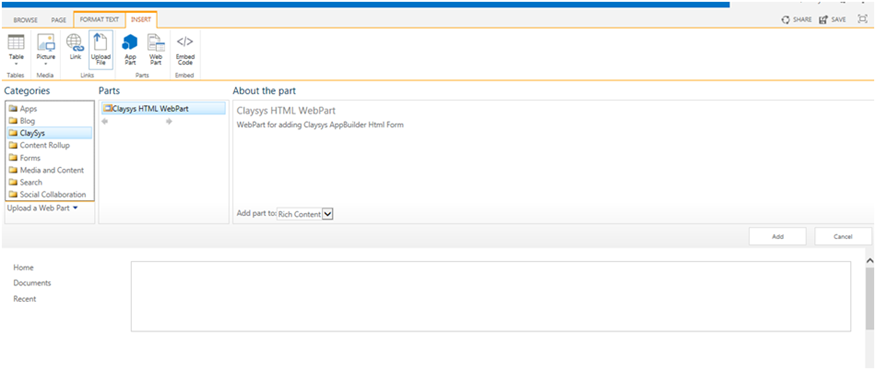
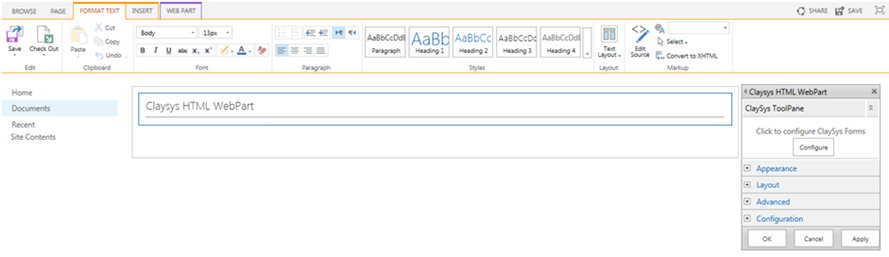
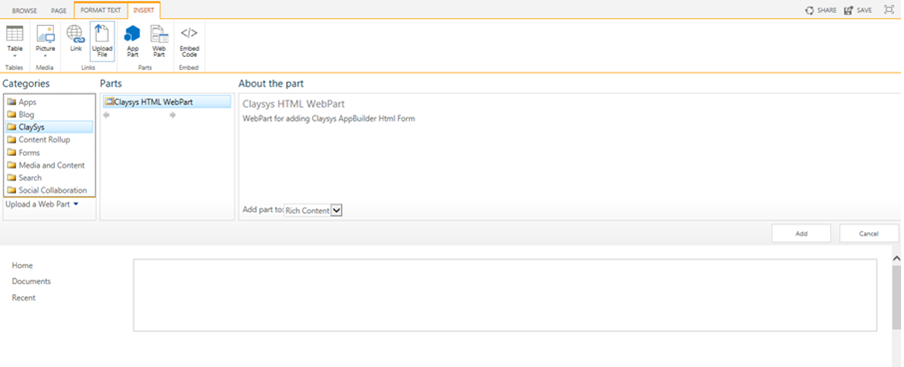
  • To add a new web part, click on the ‘Insert’ tab and then click on the ‘Web Part’ button. Then select ClaySys -> ClaySys HTML Web Part.
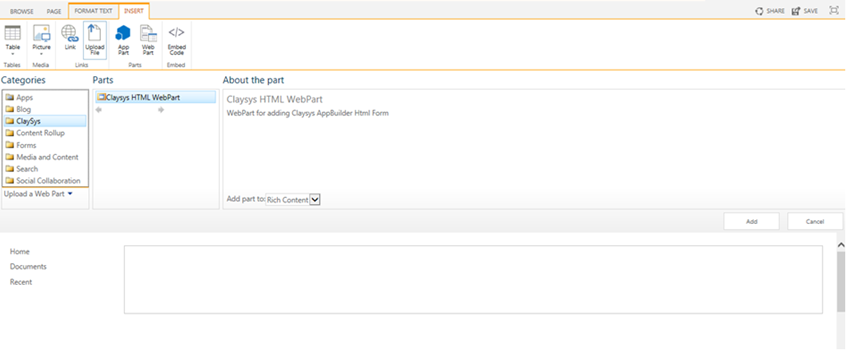
image5

  • Click ‘Add’ button to add the Web Part.
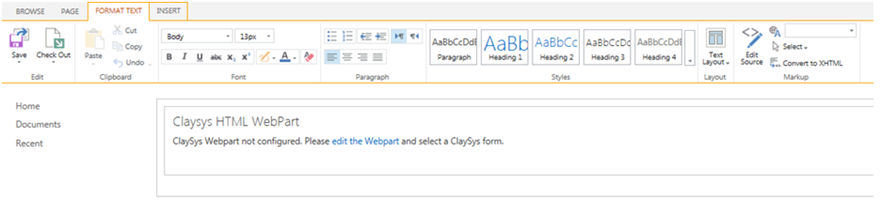
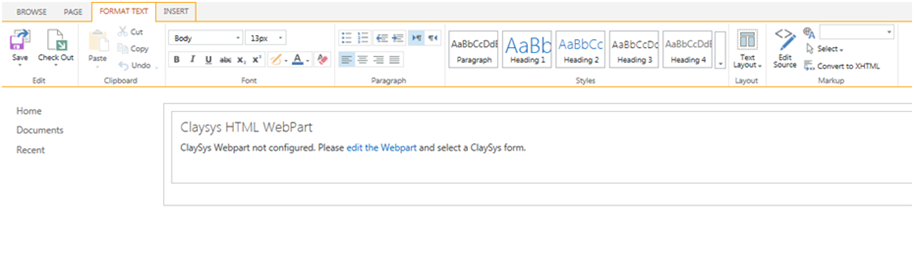
  • Click on the ‘edit the Web part’ link to edit the page.
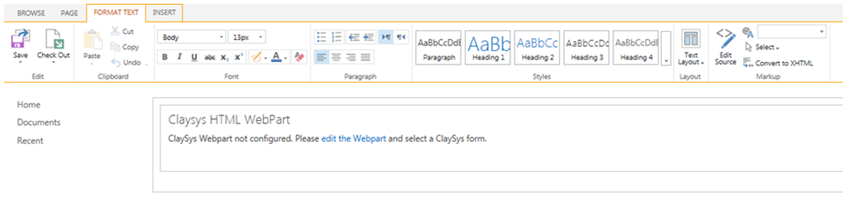
image6

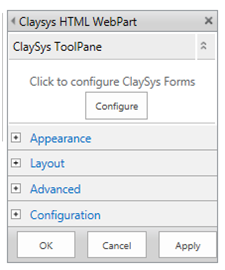
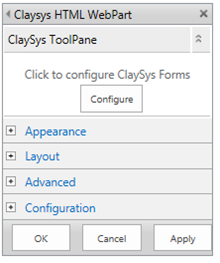
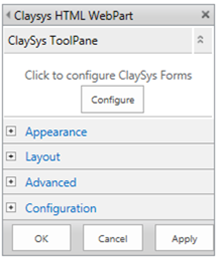
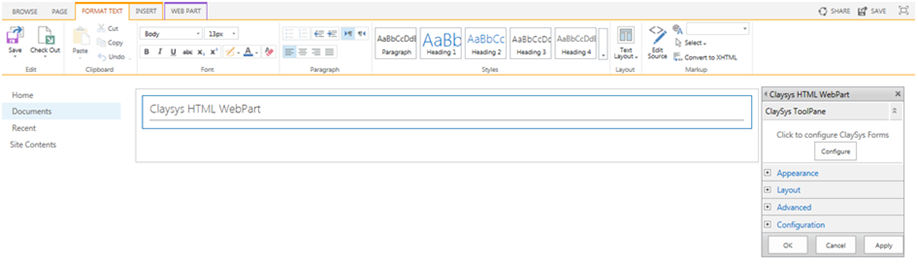
  • A new pop-up window appears and here we can configure the ClaySys AppForms by clicking on the ‘Configure’ button.
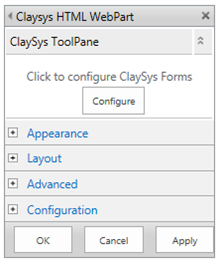
image7

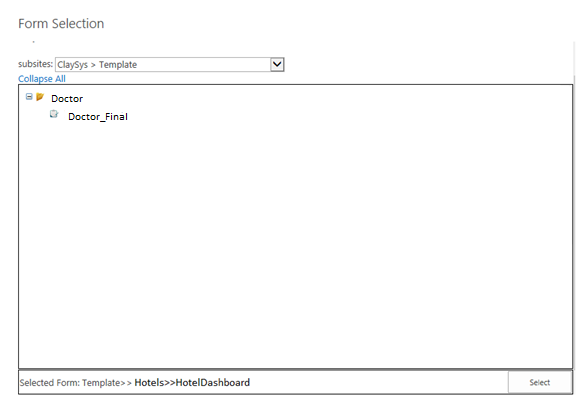
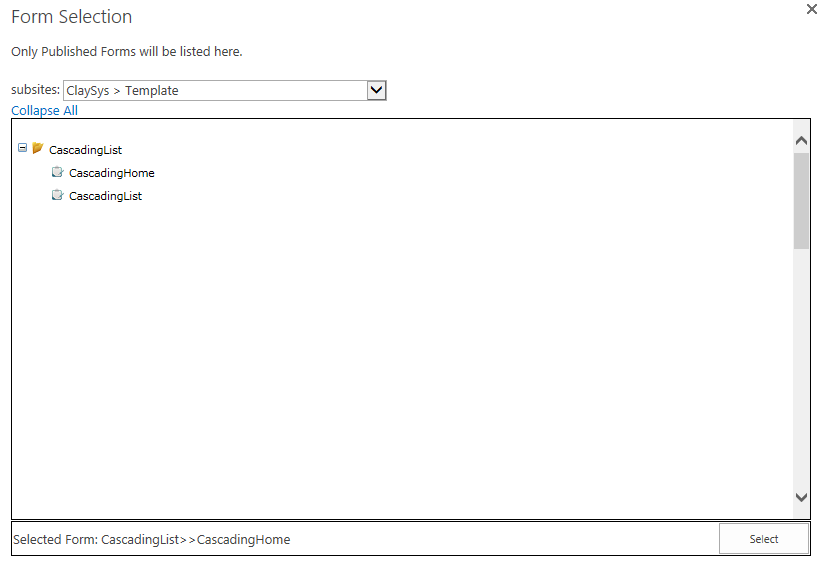
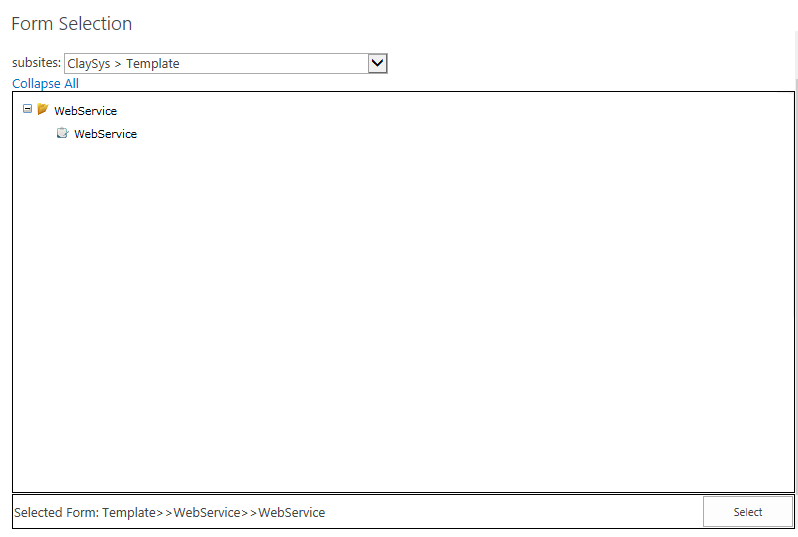
  • Pop-up appears with listed published forms. We can select the appropriate form by click on the form and add the form by clicking on the ‘Select’ button.
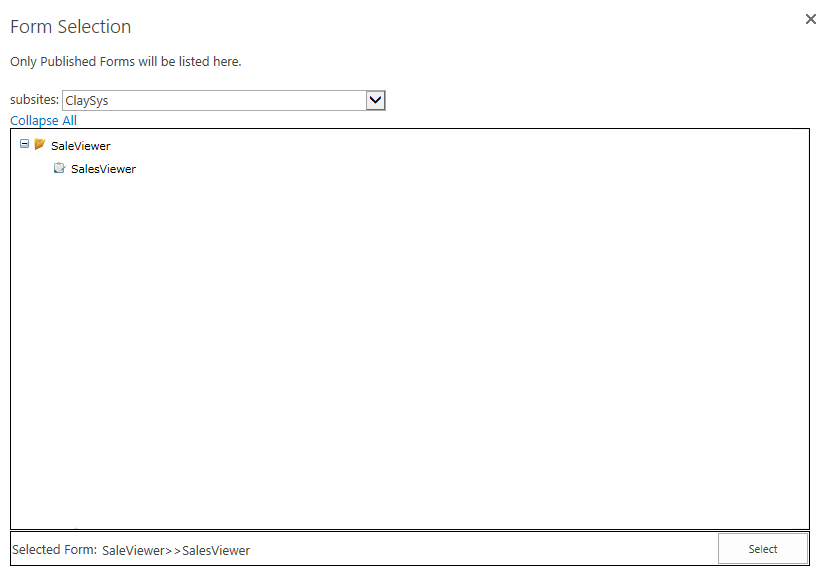
image8

  • Once the configuration is finished, click on the ‘Apply’ button to see the changes. Click ‘OK’ to continue.
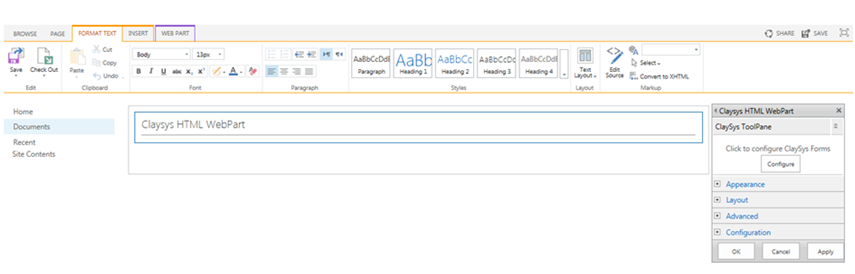
image9

  • Click ‘Save’ button to save the changes.
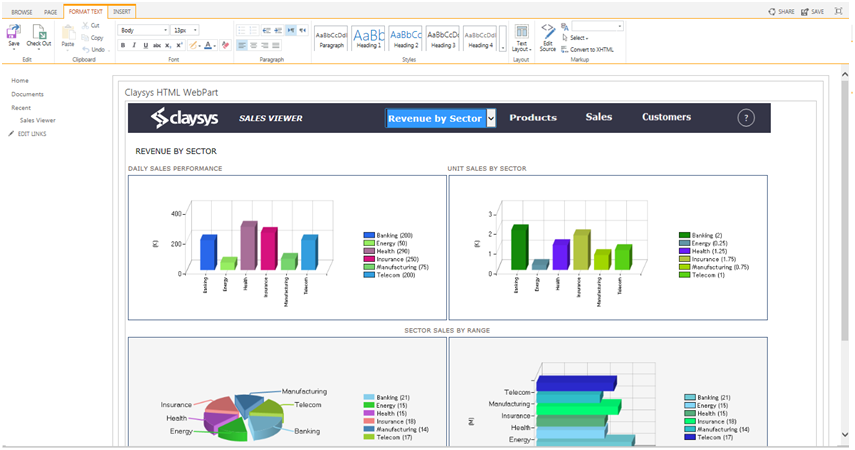
image10

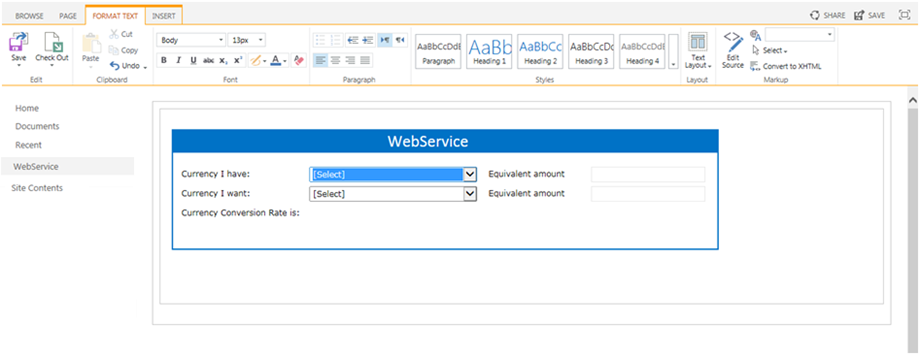
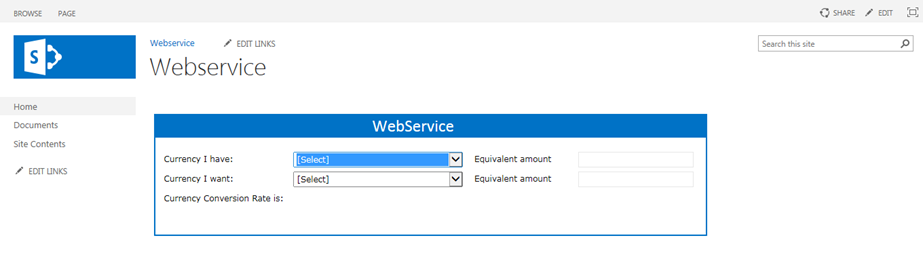
  • Below figure shows the form after Web Part configuration.
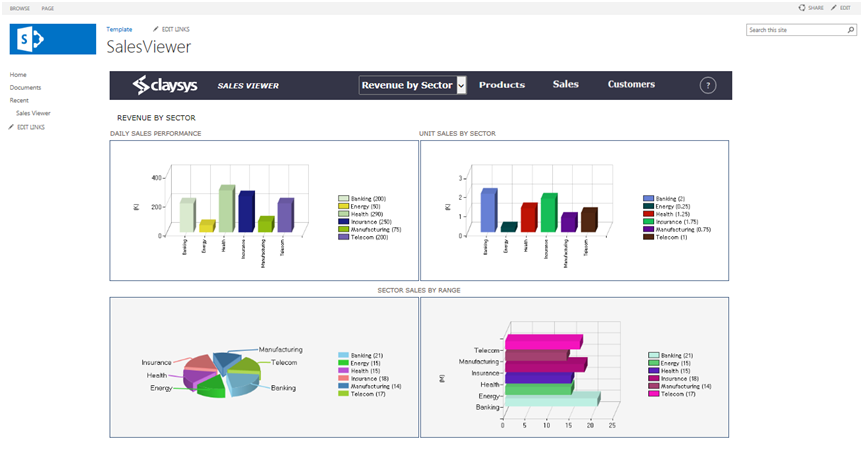
image11

Get Started with our Appforms Development Services

Clinical Management Portal Using AppForms

1.Introduction:

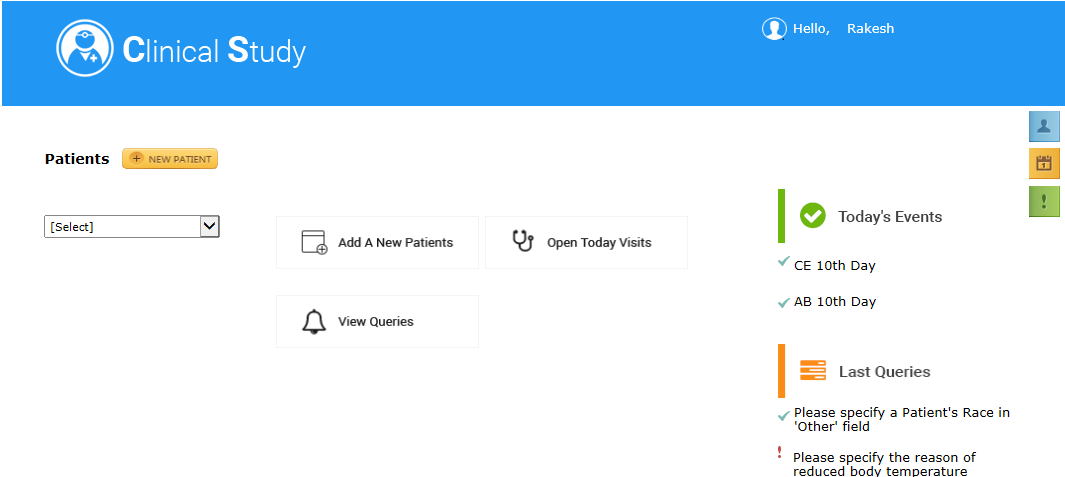
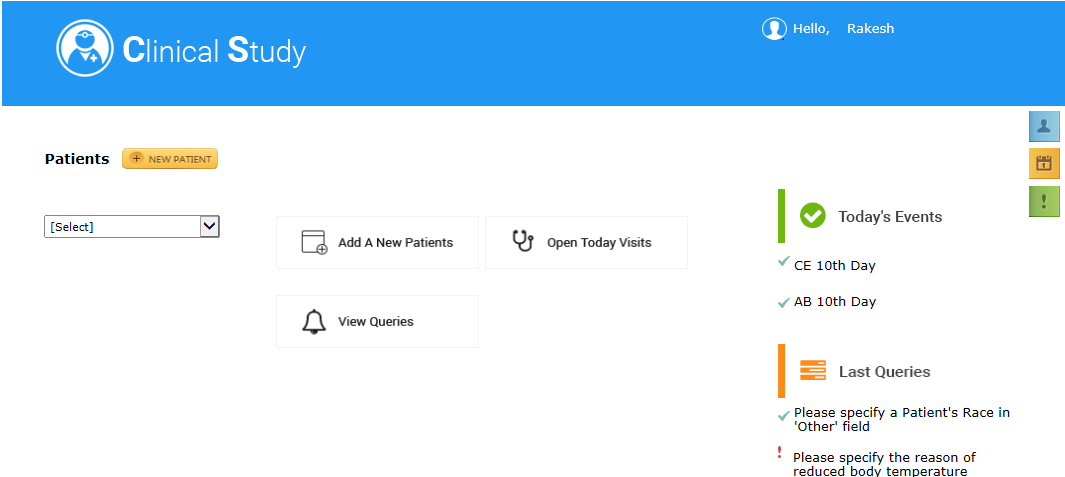
ClaySys AppForms Demo template document deals with, 1. Pre-Requisite 2. How to create a main form using different controls 3. How to create the home page to display patient details 4. How to rename a control 5. How to add a image to image control or image button 6. How to configure a search control 7.Adding a new patient Form 8. Query page 9.View comments page 10. To view daily schedule 11. How to use this template.

What are we going to create using this document?
Form1:
Doctor1latest
Form 2:

Docter2
Form 3:
Doctor3

Form 4:
Doctor4

Form 5:
Doctor5

1 Pre-Requisite:

Doctor6

  1. Launch the AppForms URL.
  2. Create a New Folder by clicking on new Folder Tab.
  3. Inside the Folder create a new form by clicking on new Forms Tab.
  4. Browser Preferred – IE8,9,10,11.

2 How to create a main form using different controls

2.1 Controls used in the form are

  • Image
  • Image Button
  • Sub Form
  • Label
  • Search Control
  • Text box as hidden control (visibility is set as false).


3 How to create the home page to display patient details:

3.1 Steps to achieve the above UI

1.Select the first column and by using span option span it to n number of columns, eg: 5.
2.Drag Sub-Form from Group to the spanned column.
3.Inside the sub form add columns. In one of the columns add one image control.
Doctor9
4.Add one more Sub-form inside one of the columns of the first inserted Sub-form.
5.Add two columns to the second Sub-form.
6.Drag and drop one image control and label control to the added columns respectively.
7.Add another label control to the 1st Sub-form.

Doctor10
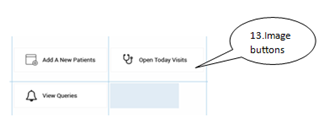
8.Drag and drop 3 Image button controls.

Doctor11
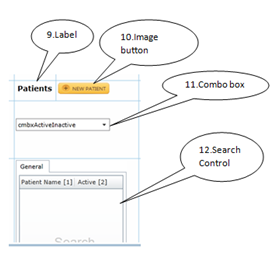
9.Drag and drop a label control and change the name as Patient.
10.Drag and drop an image button.
11.Drag and drop a combo box.
12.Drag and drop a search control.
Doctor12
13.Image button controls are dragged and dropped.
Doctor13
14.Drag and drop the sub-form.
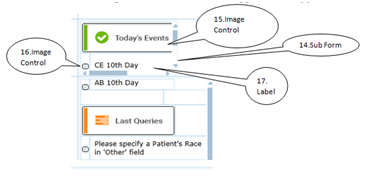
15./ 16. Drag and drop the image control.
17.Drag and drop the label control.
Doctor14
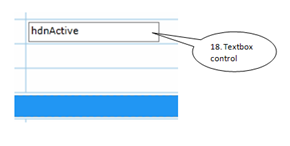
18.Drag and drop the textbox control.

4 How to rename a control:
4.1 Steps to Rename control.
Doctor15

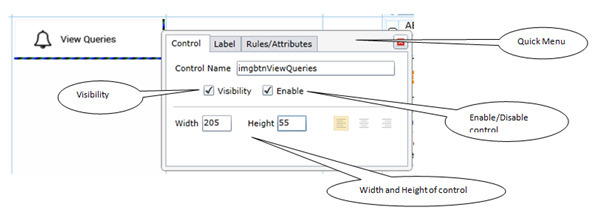
1.Click on the control.
2.A Quick menu will be displayed.
3.Edit the name of the control in the column name field.
4.We can make the control Visible/ Invisible by selecting the check box respectively .
5.The control can be enabled /disabled by selecting the check box respectively.
6.We can also set the Width and Height of the control.

5 How to add a image to image control or image button:

5.1 Steps to add a image to image control or image button.

1.Select the image/image button control.
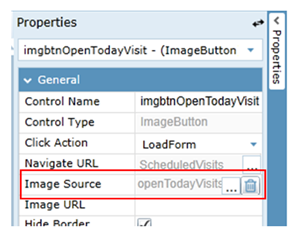
2.In the right side Properties drop down select Image source.
3.Browse and select the image from the stored location.
4.The image will be added to the image source and displayed in the image/image button control.
Doctor16
6 How to configure a search control:
6.1 Steps to configure a search control:

1.Create a list in share point with required field.
2.Click on the search control.
3.Quick menu will be opened.Doctor17
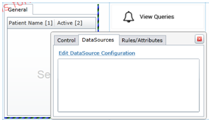
4.Select the Data Source tab.
5.Click on edit Data Sources Configuration hyperlink.
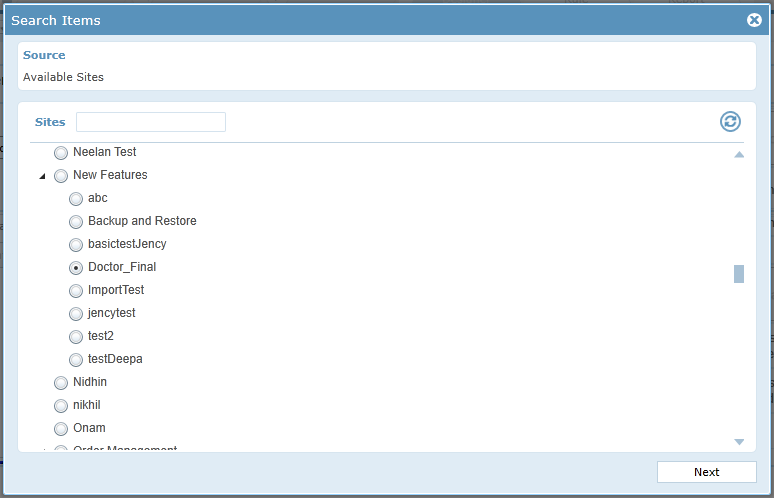
6.Select the Site by clicking the radio button from the pop-up and click on Next button.
Doctor18new
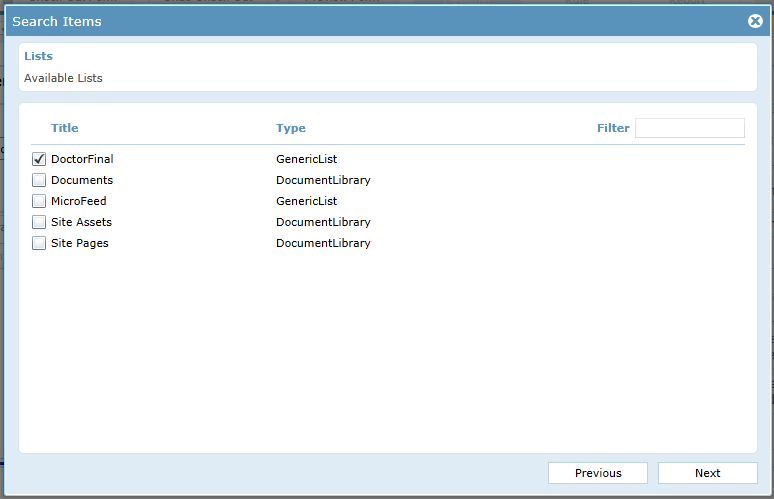
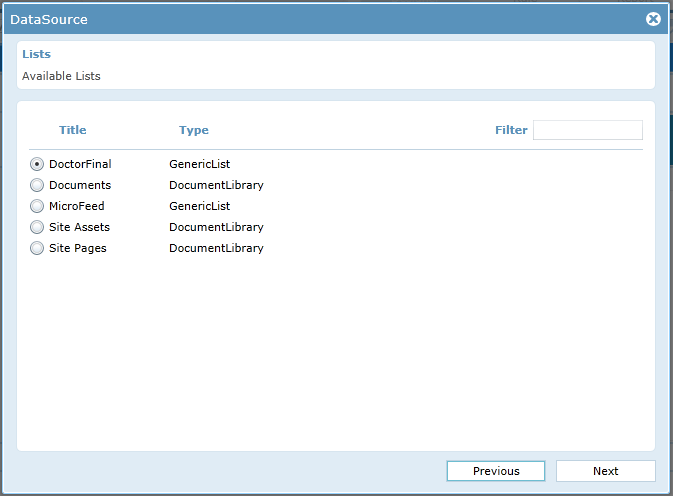
7.Select the list created in the share point and click on next button.
Doctor19new
8.Select the columns in the list which should be displayed in the search control.
9.Select the criteria if necessary / click on next button.
10.Select the Relation , if you need to join 2 or more tables.
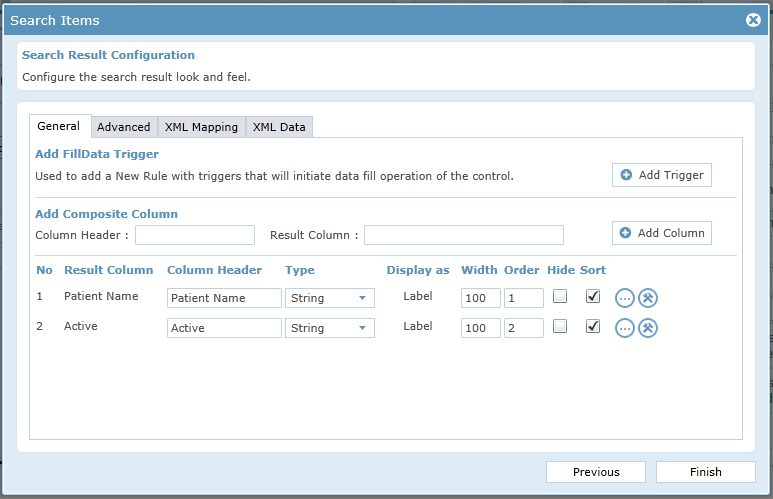
11.In search result configuration window, you will be allowed to edit the column header ,type and order to display the columns.
Doctor21new
12.Click on finish button. The search control will be configured.
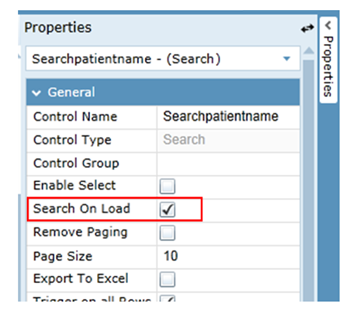
13.In general properties select the Search On load option and the search will be filled when the form is launched. Search can also be filled using various methods.
Doctor22

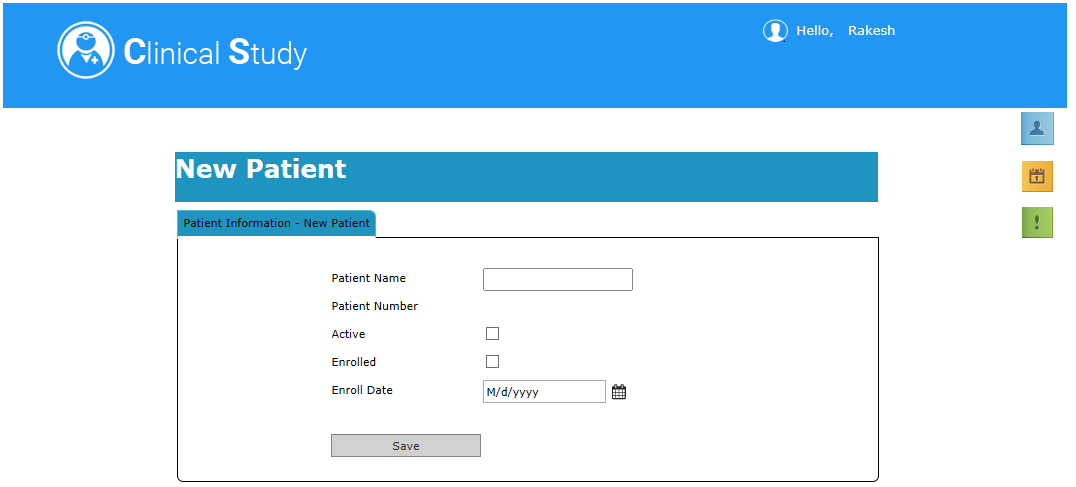
7.Adding a new patient Form:

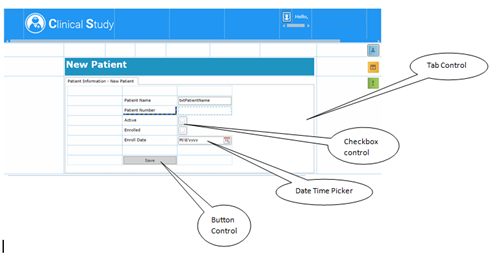
Doctor23
7.1 Controls used in the form are

  • Image
  • Image Button
  • Sub Form
  • Label
  • Tab Control
  • Text box
  • Check box
  • Date Time Picker
  • Button

7.2 Steps to create this form:

  1. Follow the same steps used in first form to create the header part.Doctor24
  2. Place a label control by spanning columns and change the name as New Patient.
  3. Change the header Name of the Tab control to Patient Information – New Patient.
  4. Properties –> Tab Collection –> Items –>
  5. Enter the name in Tab Item Name and click on OK button.
  6. The name of the tab control will be changed.
  7. Drag and drop controls as shown in the image above.
  8. The UI design of New Patient Form is completed.

7.3 Save Functionality in the Form:

  1. Button is dragged and dropped.
  2. Create a list in SharePoint.
  3. Add a data source to the form and name it.
    Click On DataSources –> Create DataSource –> Enter Name –> Select the data source as SharePoint –> Click Ok –> Select the list created in the share point –> Click on Next button. Doctor26new
  4. Select Insert option from the drop down and click on add button. Doctor27new
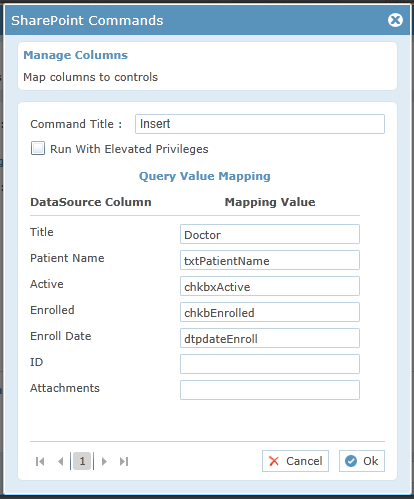
  5. Map the columns of list to the design controls and click on OK button. Doctor28new
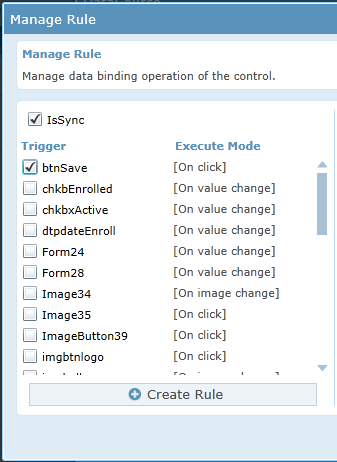
  6. Click on Add Trigger Button:   Doctor31new
  7. We had named the save button as btnSave  Doctor30new
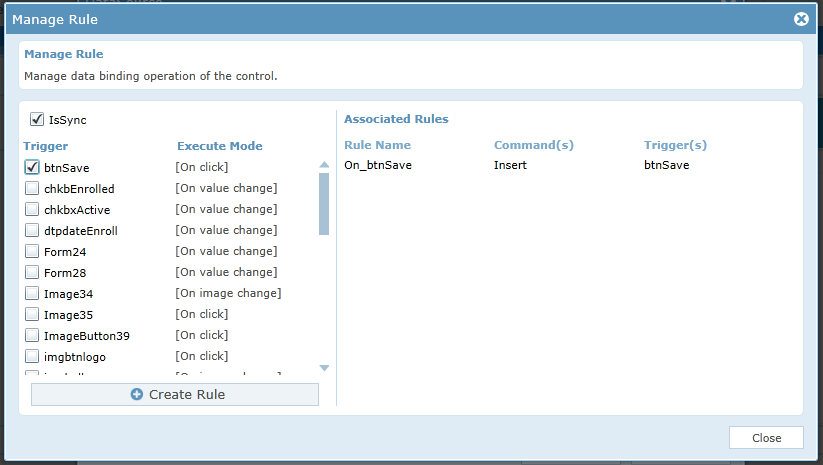
  8. Select btnSave as trigger and click on Create Rule button.
  9. The rule will be created–> Click on close button.
  10. Click on Finish button
  11. The data source will be added
  12. By using this form we will be able to insert the data into the List created in the share point. In this form New patient details will be added.

8 Query Form:
Doctor34new

8.1 Controls used in the form are

  • Image
  • Image Button
  • Sub Form
  • Label
  • Button

8.2 Steps to create this form:

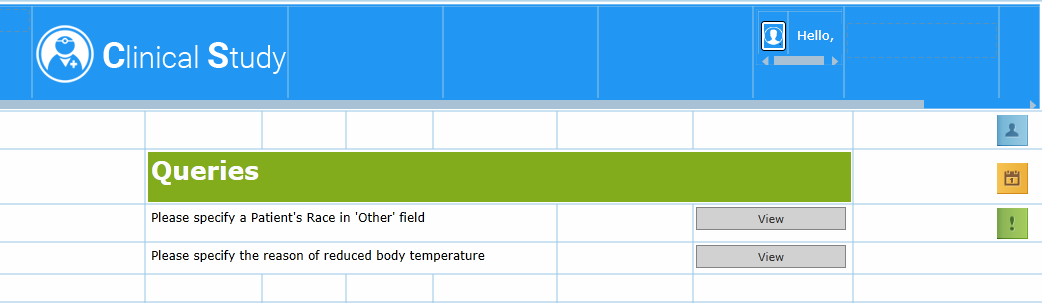
  1. Create the header by using the same steps used in the above forms.
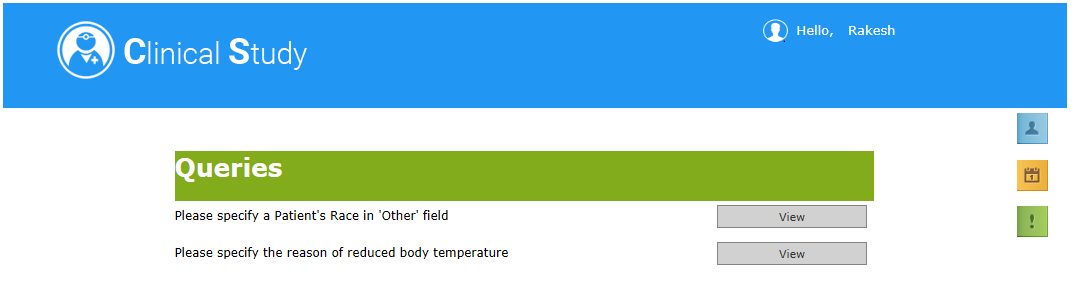
  2. Span columns and drop a label control. Name the label as Queries.
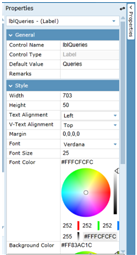
  3. Change the back ground color to eg: Green. The back ground color option is present in Properties–> Style –> Background color   Doctor35
  4. Complete the design as shown in the design.

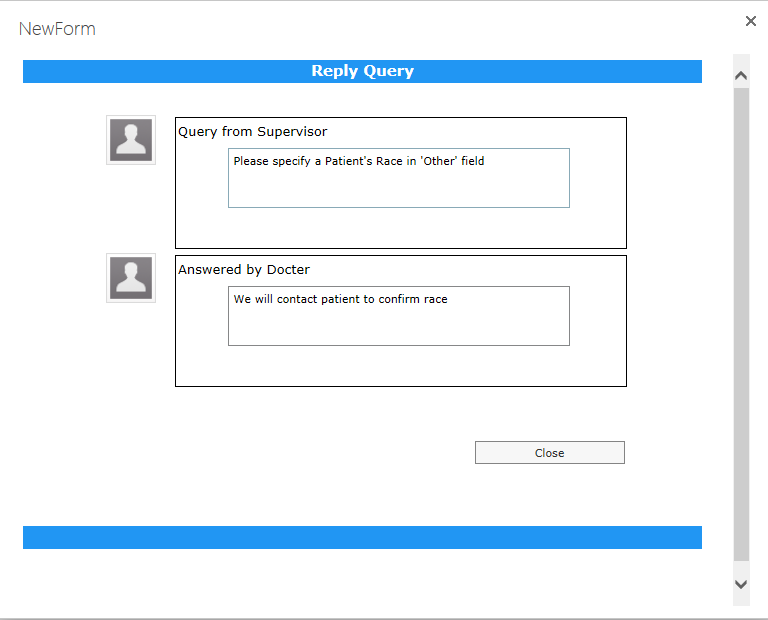
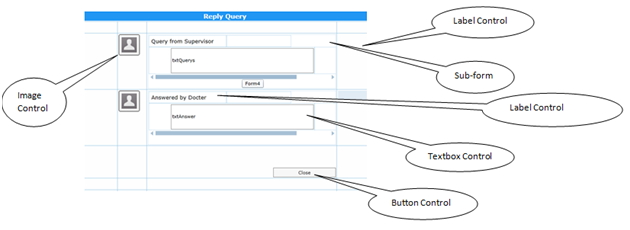
9.View comments page:

Doctor36
9.1 Controls used in the form are

  • Image
  • Sub Form
  • Label
  • textbox
  • Button

9.2 Steps to achieve the above Form

  1. Drag and drop all the controls and achieve the Form UI design.
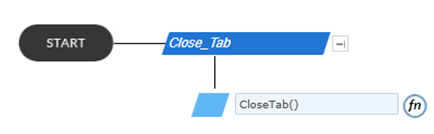
  2. For Close button, Click on the button –> Quick menu will be displayed–> Select Rule/Attributes –> Create rule –> Click on start –> Add an action –> Write rule CloseTab(). Doctor37
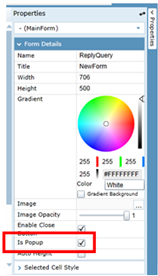
  3. This form should be shown as a pop-up when the VIEW button in   Query Form Is Clicked. So Is Pop-Up option should be selected in this form. Click on any part of form–>Properties –> Form Details–> Is Popup =True.  Doctor38

The Form will be displayed as popup.

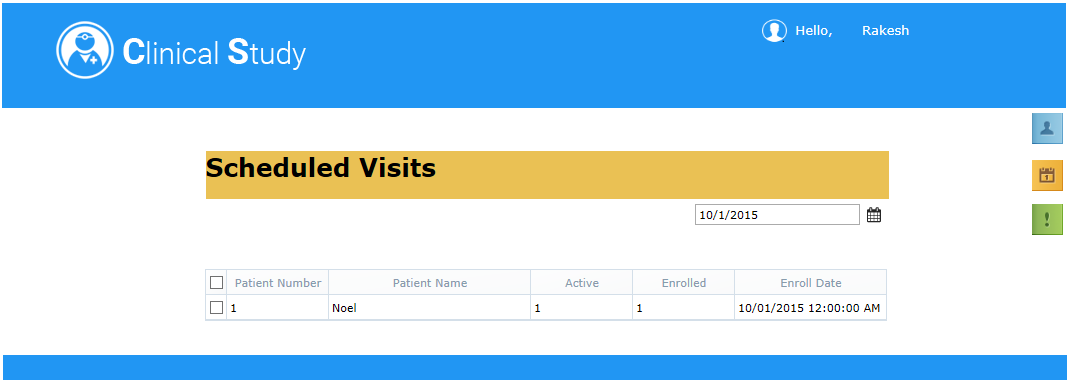
10 To view daily schedule Form:
Doctor39new

10.1 Controls used in the form are

  • Image
  • Image Button
  • Date Time Picker
  • Label
  • Search Control

10.2 Steps to achieve the above Form

  1. Drag and drop all the controls and achieve the Form UI design.
  2. In this a label for error message and search control is placed and marked as Invisible.
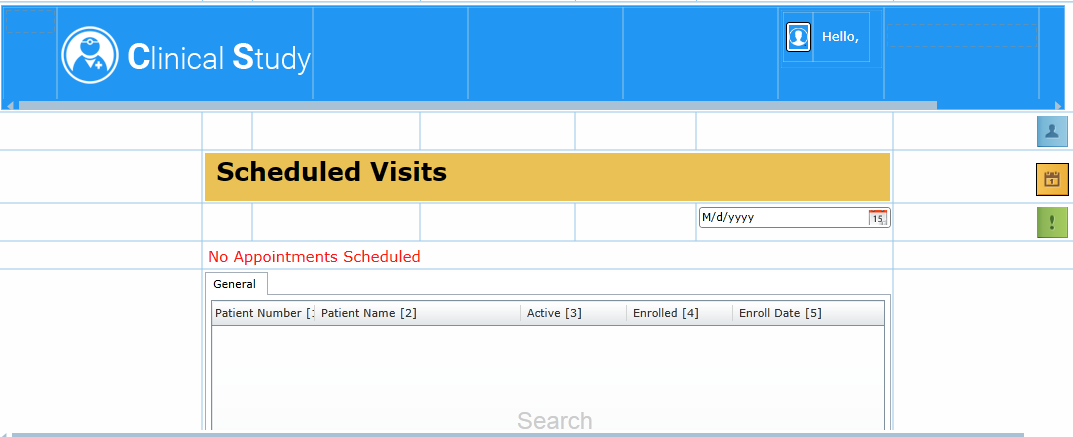
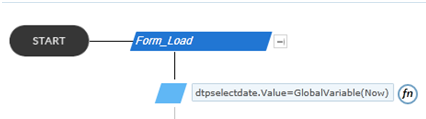
  3. When the Form is loaded, the date time picker displays the current date. This is achieved using a rule.

Rules –> New Rule –> Add Action –> dtpselectdate.Value=GlobalVariable(Now)

dtpselectdate.Value=GlobalVariable(Now) means

dtpselectdate.Value – Value Of date time picker. the name of date time picker is given as dtpselectdate in form design.

GlobalVariable(Now) – this selects the current date.
Doctor40

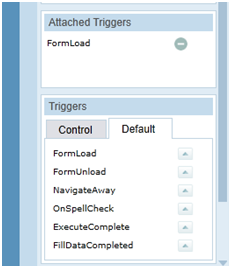
  1. FormLoad is set as trigger. In Default Tab –> form load will be displayed. Doctor41
  2. When the Form is loaded, if there is any appointment scheduled for the current date the search control will be displayed with data.
  3. If there is no appointment scheduled for the current date, the error message will be displayed.
  4. This is achieved using rules.
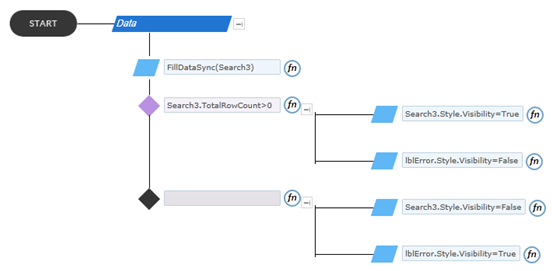
  5. Have Date Time Picker as trigger .

Rules:

Create a new Rule –> Add a Action Rule FillDataSync(Search3)

Add a decision:

If

Search3.TotalRowCount>0   -> Search3.Style.Visibility=True

-> lblError.Style.Visibility=False

Else

   -> Search3.Style.Visibility=False

   -> lblError.Style.Visibility=True

Doctor42

  1. The Form Design is complete.

11 How to use this template:

11.1 Uploading List Template:

The below given list is used for creating the template form.

Doctor_Final

11.1.1 Steps for uploading list templates

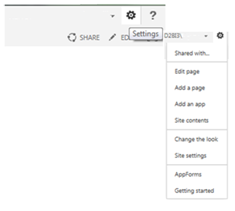
  1. Click on settings at the right corner of the window.  Doctor43
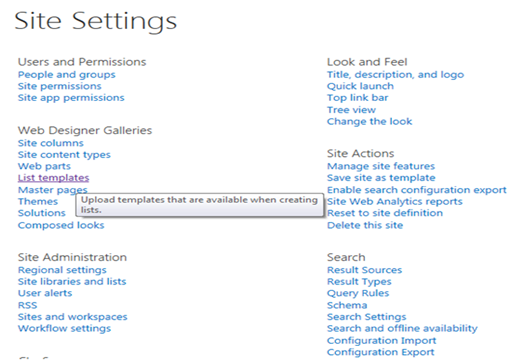
  2. Click on ‘Site settings’ from the drop down menu, we can see the following window appearing.   Doctor44
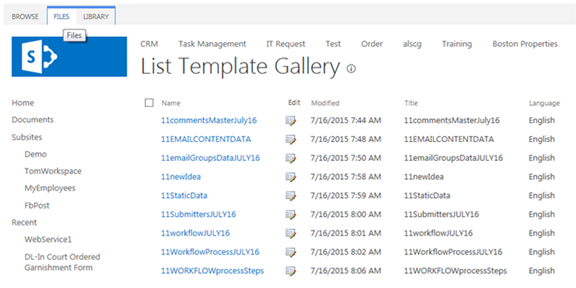
  3. Click on ‘List template’ option as shown in the above image. And we can see ‘List Template Gallery’. Click on ‘Files’ at the left most corner as shown in the following image.  Doctor45
  4. Click on ‘Upload Document’  Doctor46
  5. Following Pop up will appear where we can browse a list template stored in our computer and click ‘OK’ button.  Doctor47
  6. Following pop up will appear where we can change the name of the List Template and enter the Description as required and click on ‘Save button’.   Doctor48
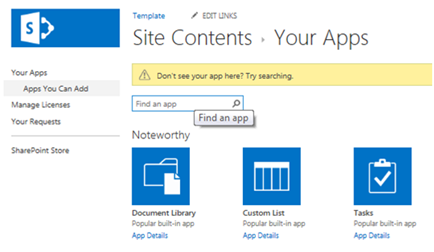
  7. Now go to the required sub site, click ‘Settings’ on the right corner. Then click on ‘Site Contents’. Following Screen appears in which click on ‘add an app’.   Doctor49
  8. Following screen will appear where we can type the uploaded template name and click search.   Doctor50
  9. Then you can see the Uploaded template, Click on it.
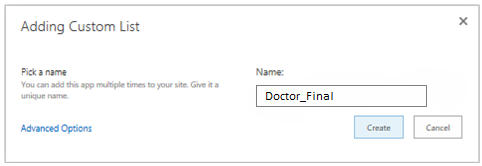
  10. On clicking it, we will get following Pop up. Enter the name for the List template and click ‘Create’ button

Doctor52

11.2 Uploading Tenant:
11.2.1 Steps for Uploading Tenant:

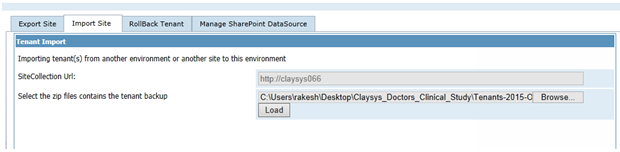
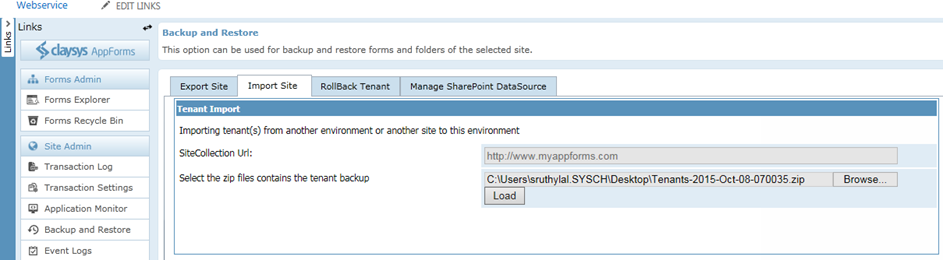
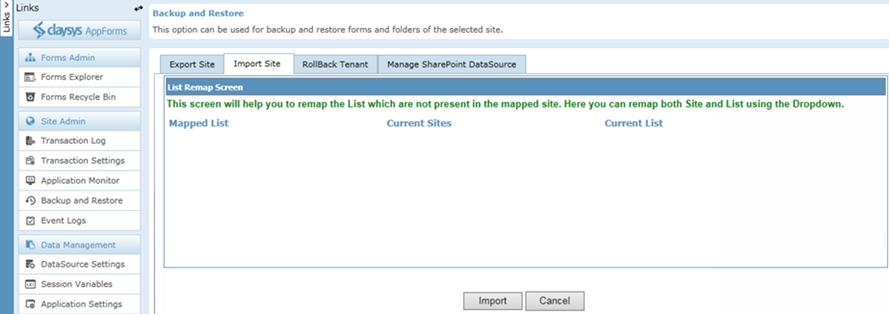
  1. Click on the ‘Backup and Restore’ on the left side of the App form Designer window .Then click on ‘Import Site’ -> Browse the Tenant and click Load.  Doctor53
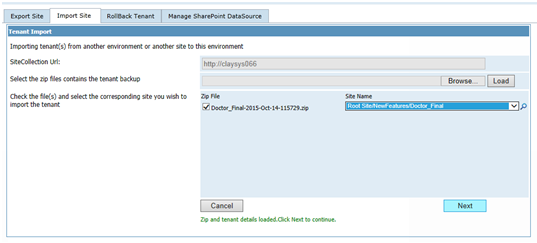
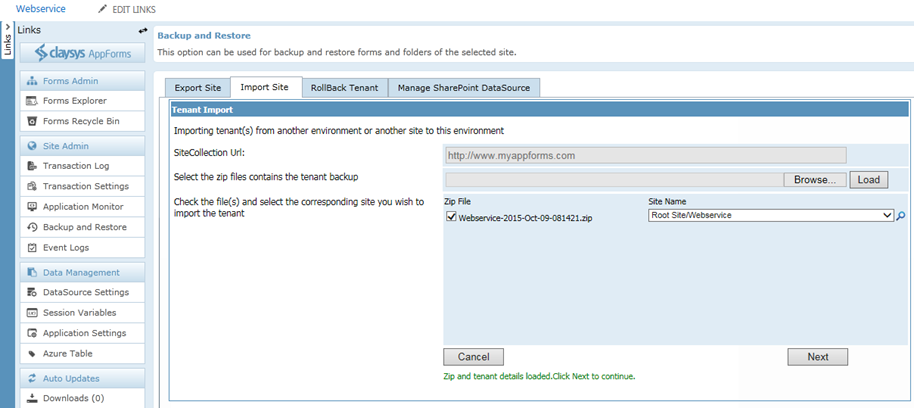
  2. Select the ‘Zip File’ and ‘Site Name’ and click ‘Next’   Doctor54
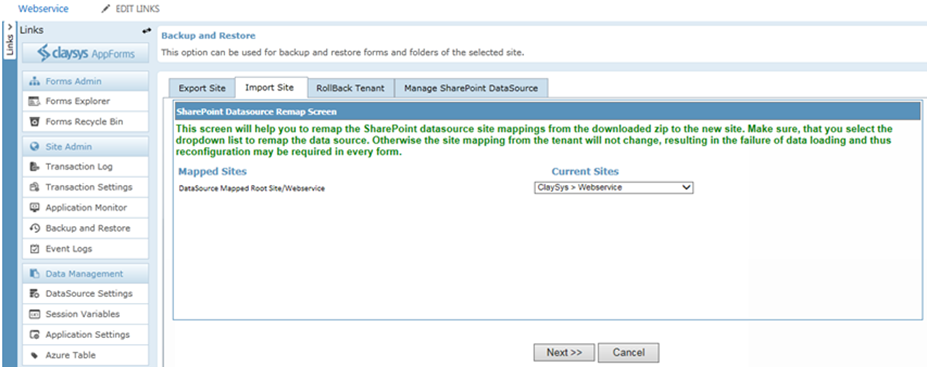
  3. Click ‘Next’ button Doctor55
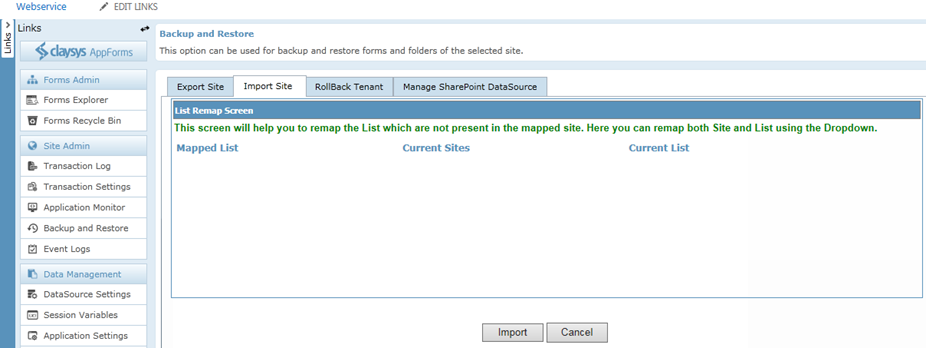
  4. Click on ’Import’ button   Doctor56
  5. Backup re stored successfully.   Doctor57

11.3 Creating a Web Part page:

Forms can be embedded on any SharePoint page by using the ClaySys AppForms Web Part, to create a web part page.

11.3.1 Steps to create a web part page:

  1. Click on Site Settings Wheel in the upper right corner of your site and then select “Site Contents Page”.  Doctor58
  2. Select “Site Pages” or simply pages library on Site Contents Page.  Doctor59
  3. Click on “New Wiki Page” to add new site page.  Doctor60
  4. Give the New page name into the pop-up window and click ‘Create’ to add new page.   Doctor61
  5. To add a new web part, click on the ‘Insert’ tab and then click on the ‘Web Part’ button. Then select ClaySys -> ClaySys HTML Web Part.  Doctor62
  6. Click ‘Add’ button to add the Web Part.
  7. Click on the ‘edit the Web part’ link to edit the page.  Doctor63
  8. A new pop-up window appears and here we can configure the ClaySys AppForms by clicking on the ‘Configure’ button.   Doctor64
  9. Pop-up appears with listed published forms. We can select the appropriate form by click on the form and add the form by clicking on the ‘Select’ button.   Doctor65
  10. Once the configuration is finished, click on the ‘Apply’ button to see the changes. Click ‘OK’ to continue.  Doctor66
  11. Click ‘Save’ button to save the changes.
  12. Below figure shows the form after WebPart configuration.

Doctor1latest

Get Started with our Appforms Development Services

Creating Cascading Dropdown List Using AppForms

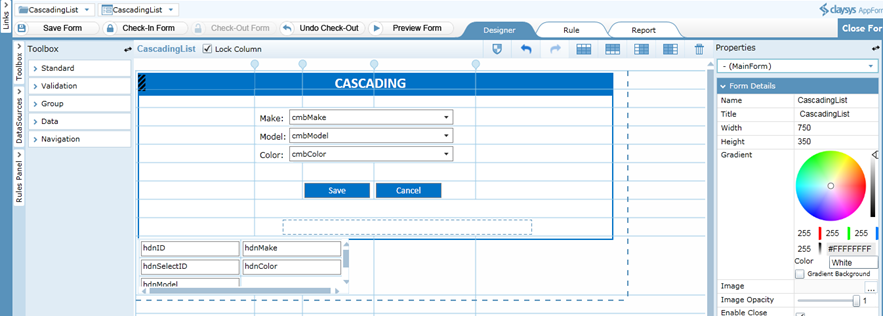
IntroductionCascadingDropDown enables a common scenario in which the contents of one combobox depends on the selection of another combobox. The Cascading Dropdown Menu allows you to drill down through hierarchical data by using one dropdown menu as a filter into the next. The purpose of this document is designed to be a reference for any person wishing to implement or any person interested in the architecture of the cascading dropdown for the ClaySys AppForms or how to configure the combo boxes in AppForms with cascading dropdown effect.

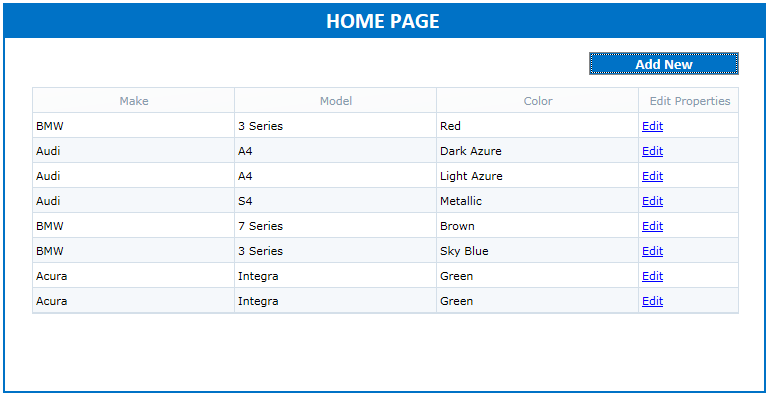
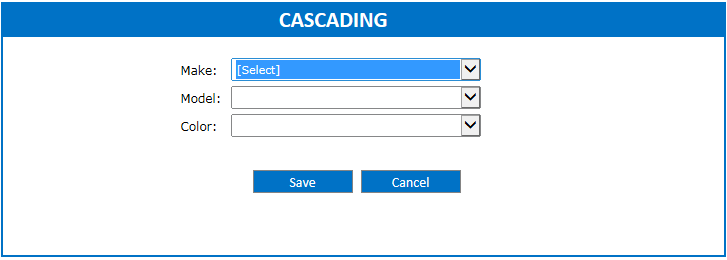
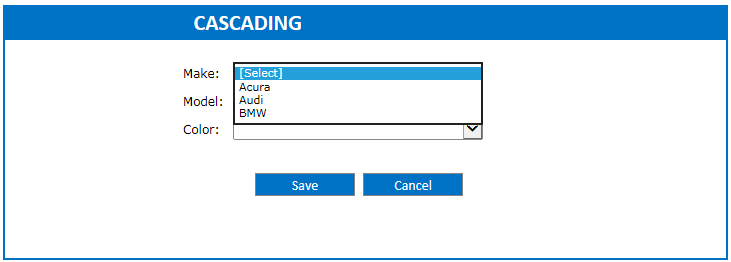
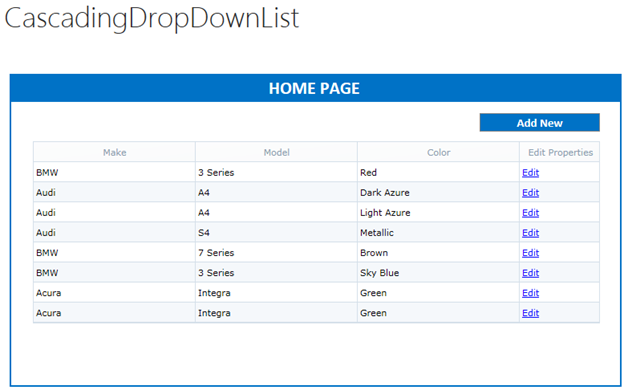
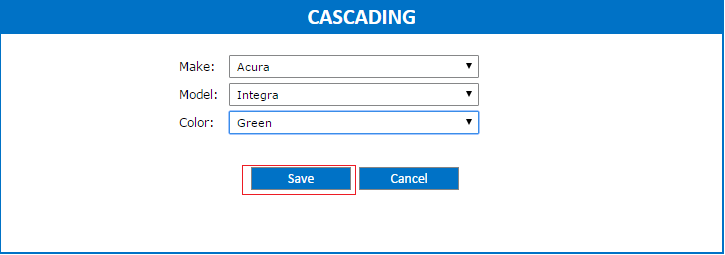
The Dashboard form contains an Add New button; it will navigate to a popup form. In that form we can create a new cascading combination. When the user selects maker from “Make” combo box, model of the car should populated in “Model” combo box and when the user selects model, color of the car should be populated in “Color” combo box. Click Save to save the values and it will reflect in the dashboard form. We can update the values by clicking on the ‘Edit’ link provided in the dashboard form. The values in the combo boxes are populated from SharePoint lists. The ‘Make’ list contains the car maker names. The ‘Model’ list contains the model of the car and the ‘Color’ list contains the color of the cars.

CascadingImage1
CascadingImage2

It is designed to guide development and design in ClaySys AppForms, including:

  • Creating the form
  • Form design
  • DataSource configuration
  • How to use this template
  • Uploading List Templates
  • Import tenant
  • Create a webpart page

Creating the form
Form Design
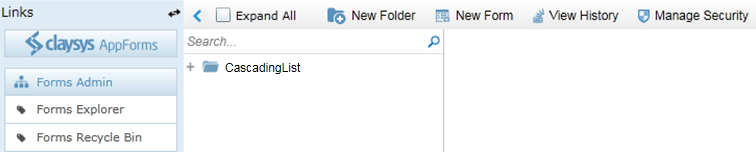
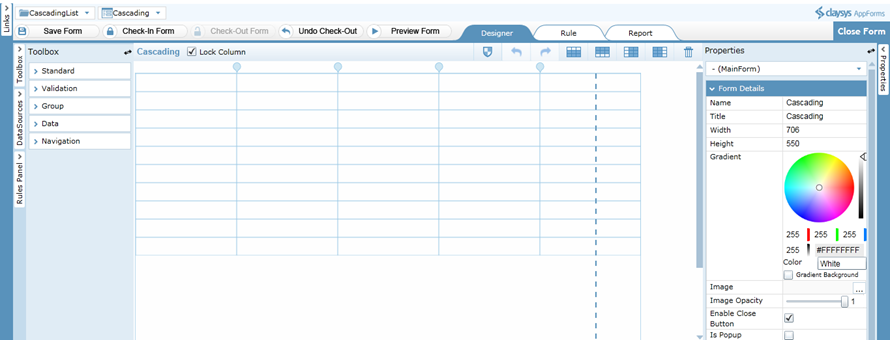
Folders are used to store and organize forms that have a logical association or relationship.To create a new form click ‘New Folder’ button on the toolbar of the designer.

  • On clicking the New Folder option, it will create a new folder and the name will be in the edit mode. You can type a new name for the folder.

CascadingImage3

  •  Then click on the ‘New Form’ link on the toolbar. Give an appropriate name for the form. Click ‘Save’ to save the form.

CascadingImage4

  • You can drag and drop controls format the styles easily.

CascadingImage5

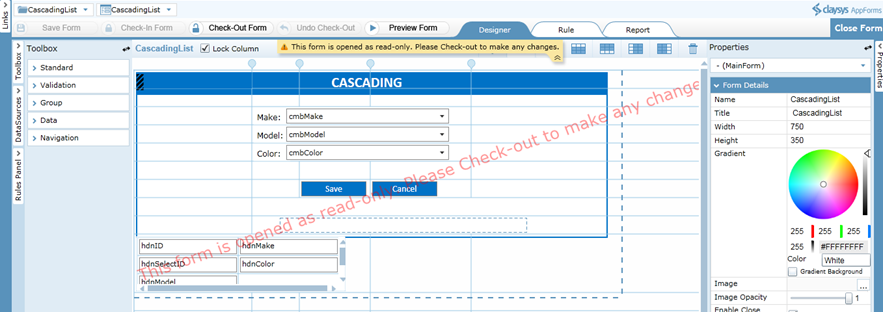
  • ‘Check-In Form’ to save the changes and publish to get the completed form for the end user to use. A form must be checked-out to make modifications while all aspects of the form can be examined while checked-in.

CascadingImage6

DataSource Configuration

Following steps will explain about the DataSource configuration of ComboBox control.

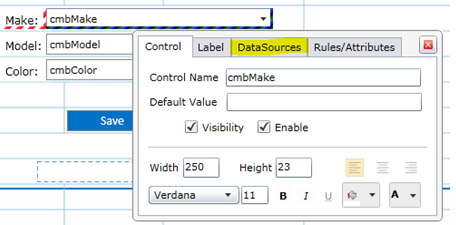
  • Click on the ‘Make’ ComboBox and select the DataSources tab to edit the DataSource.

CascadingImage7

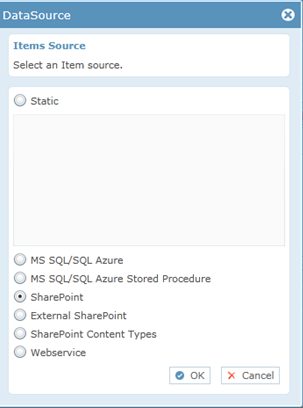
  • A pop-up window appears to select the item source. Select the appropriate Item source and click ‘OK’ to continue. Here we select the Item Source as ‘SharePoint’

CascadingImage8

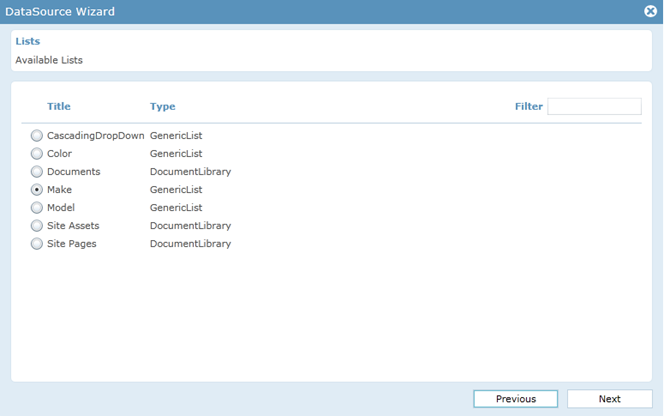
  • Select the SharePoint List in the next window. Click ‘Next’ to continue.

CascadingImage9

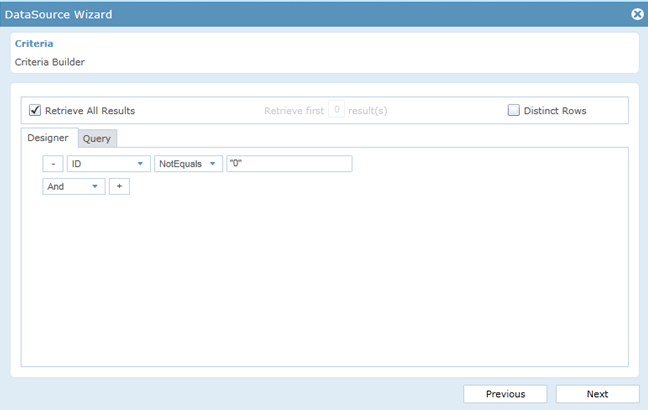
  • Click “Add” button in the criteria window to Write the appropriate criteria for filling the ‘Make’ ComboBox in the Criteria Builder . Click ‘Next’ to continue.

CascadingImage10

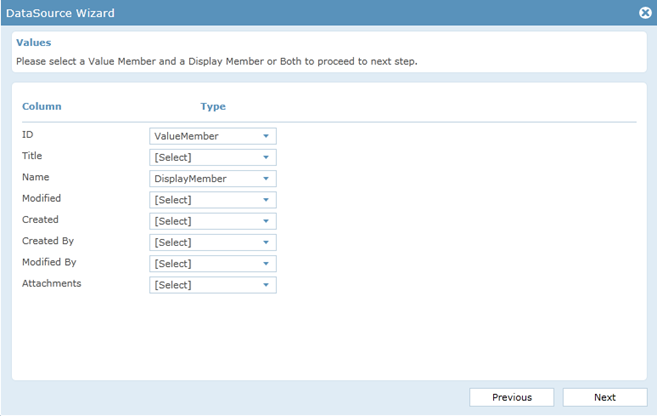
  • Select the value member and display member from DataSource wizard. Click ‘Next’ to continue.

CascadingImage11

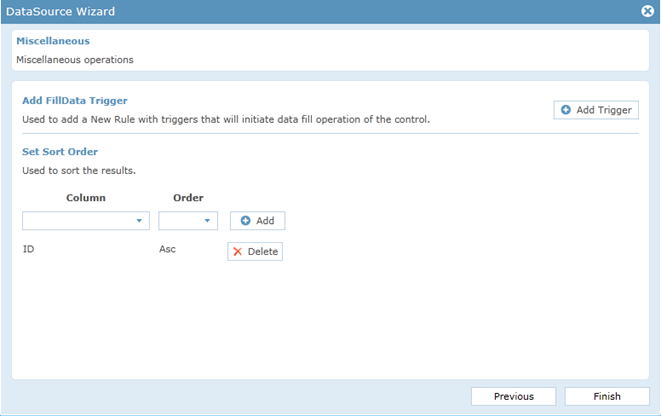
  • Click “Add Trigger” in the miscellaneous window.

CascadingImage12

  • We can select and add the trigger by clicking the check box corresponding to the control.

CascadingImage13

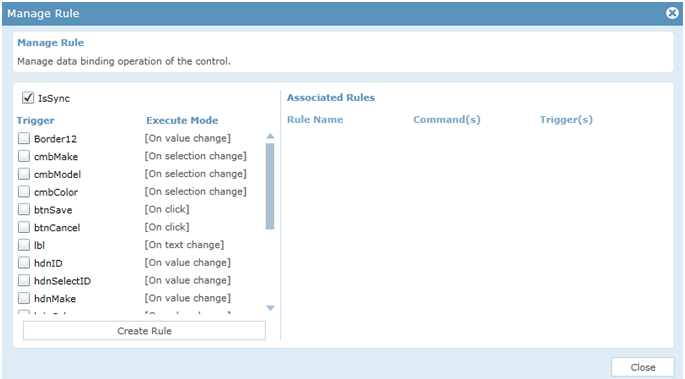
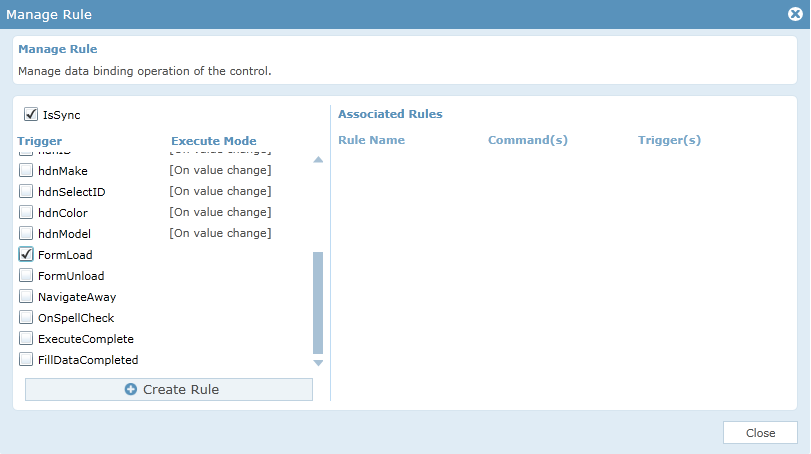
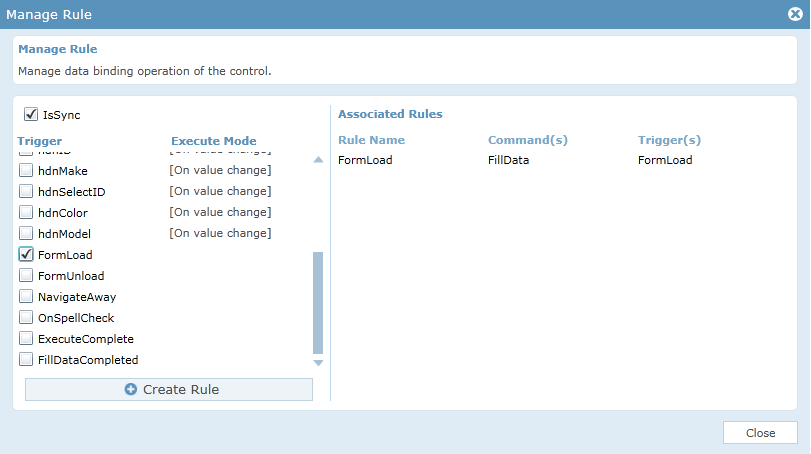
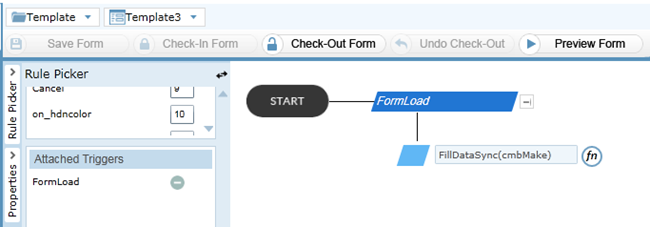
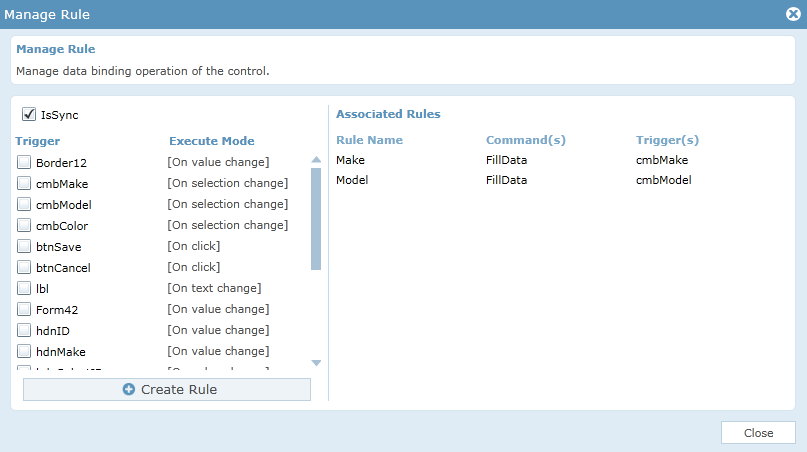
  • Click ‘Create Rule in the Manage Rule window to create FilldataSync( ) rule associated with the corresponding control/Event as trigger. Choose whether to Sync the command. By default, the ‘IsSync’ check box is

CascadingImage14
CascadingImage15

  • If you need to display items in any sorting order, select the column name from “Column” and select the Order. Click “Add” button without fail. Click ‘Finish’ to end the process.

CascadingImage16

  • Click “Preview”. You can see that Maker names are populating in combo box.

CascadingImage17

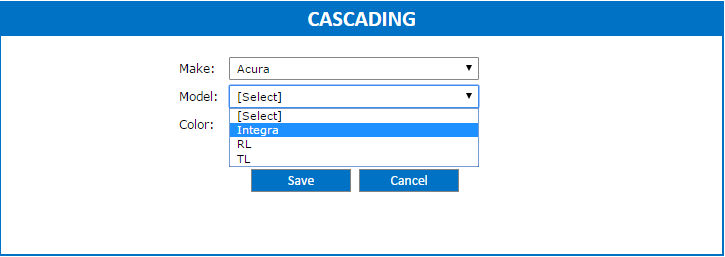
  • When the user selects ‘Acura’ from Make, Model names should be populated in the ‘Model’ combo box.
  • To configure the ‘Model’ ComboBox follow the steps for configuring the ‘Make’ Combo Box up to the list selection.
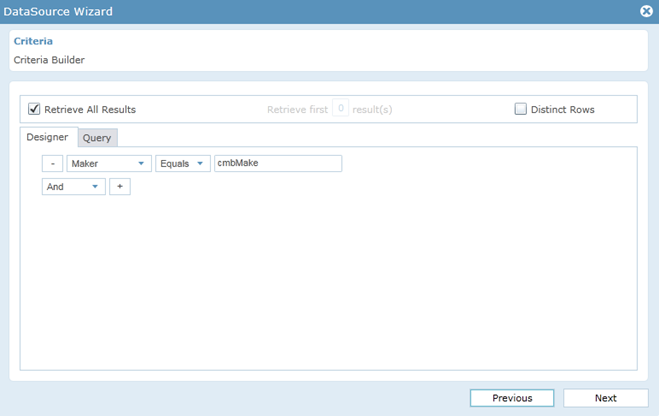
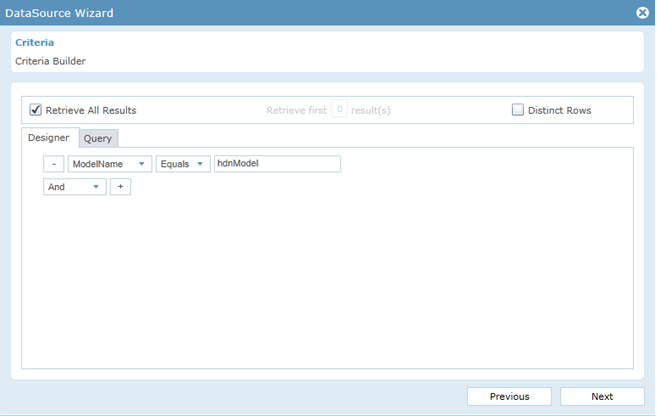
  • Give the criteria for filling the ‘Model’ combo box as given below .

CascadingImage18

  • Click “Next” to continue. Follow the configuration steps of ‘Make’ combo box to add the trigger for ‘Model’ combobox. Add trigger as ‘Make’ and complete the configuration.
  • When you select the value from the combobox ‘Make’, the ‘Model’ will populate the Names of corresponding Maker. Click “Preview”. You can see that Model names are populating in combo box.

CascadingImage19

  • Click ‘Color’ and follow above steps that you followed for ‘Make’ and ‘Model’ upto selecting the List.Give the criteria for filling the combo box ‘Color’.

CascadingImage20

  • Give ‘Make’ and ‘Model’ as a trigger and complete the configuration.

CascadingImage21

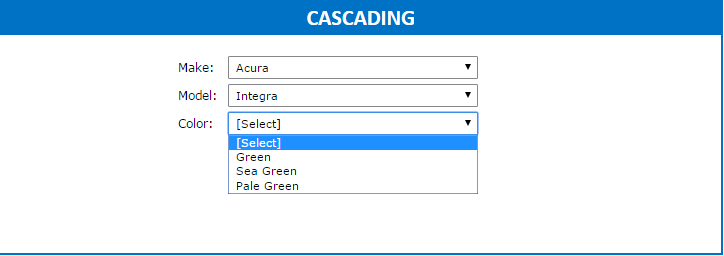
  • Click “Preview”. You can see the Color names are populating in the combo-box, corresponding to the values in the other combo boxes.

CascadingImage22

How to use this template
Uploading List Templates

List templates that were downloaded to a file on the file system can be uploaded to the list template gallery. To perform the following steps, you must have Read permission to the folder or network share that contains the list template file. Before uploading the list template, it should be added to the list template gallery of the root site. Following steps will explain about how to add the list template in to the list template gallery.

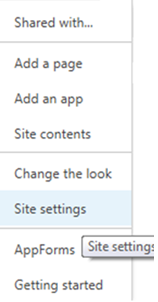
  • On the Site Actions menu, click ‘Site Settings’.

CascadingImage23

  • In the Galleries column, click List template This option appears only to users who have the Manage Lists permission. Site owners have this permission by default.

CascadingImage24

  • The List Template Gallery page appears. Select Files and click ‘Upload Document’.

CascadingImage25

  • Either type the path or file name (including the file extension) of the list template that you want to upload, or click ‘Browse’ to select the file. Choose whether to overwrite the existing files. By default, the ‘Overwrite existing files’ check box is selected.

CascadingImage26

  • Click ‘OK’ to choose the file.
  • A pop-up appears to edit the name, title and description of the list template.

CascadingImage27

  • Click ‘Save’ to include the list template into the list template gallery.
  • Once the list template is added to the list template gallery, we can create a new list using the list template uploaded. Following steps explains how to create a new list using list template.
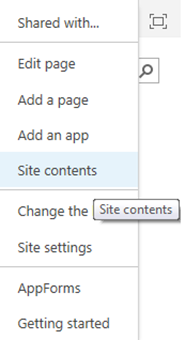
  • From the Site Actions drop-down menu in the top right, select ‘Site Contents’ of your site.

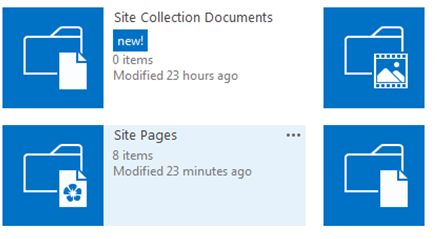
CascadingImage28

  • Click ‘add an app’.

CascadingImage29

  • Find the list template that was uploaded.

CascadingImage30

  • Click on the list template to use for this site

CascadingImage31

  • Pick a name for the new list. We can add this app multiple times with a unique name.

CascadingImage32

  • Click on the ‘Create’ button. A list has now been created using the list template.

Import Tenant

Following steps will explain about tenant import.

  • Open the ‘Backup and Restore’ option in AppForms in the destination site and click on the ‘import site’ tab.

CascadingImage33

  • Select the backup file we had saved from the source site.

Cascading34

  • Once the file is selected, click on the load button.

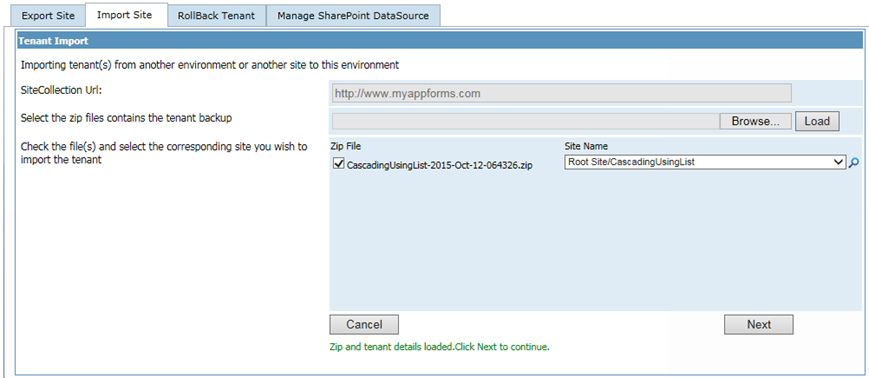
Cascadingimage34

  • This will show you the different sites that were exported from the source site. If there are more than one site content saved, then you can map each site in backup file to different sites in the current site. Select the required site content that needs to be restored and select the destination site in the current site as shown below. Once we are done with the backup mapping, click on the next button to proceed with the import.

Cascadingimage35

  • Now we will have to remap the sites we had used in the source website to the actual site in the target site. The drop down will show you the sites/sub sites to help you with the data source mapping. Click ‘Next’ to continue.

Cascadingimage36

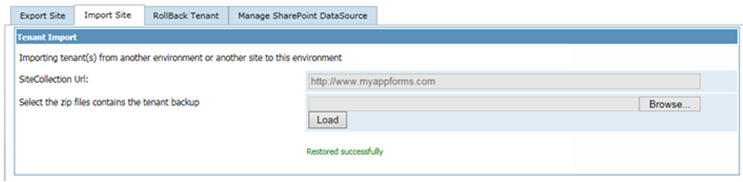
  • Click ‘Import’ to continue.
  • This will import all the site content we had backed up from the source site and we are ready to work with the forms in the current site.

CascadingImage37

 Create a Web Part Page

Forms can be embedded on any SharePoint page by using the ClaySys AppForms Web Part, to create a web part page, follow these steps:

  • Click on Site Settings Wheel in the upper right corner of your site and then select “Site Contents Page”.

Cascadingimage38

  • Select “Site Pages” or simply pages library on Site Contents Page.

CascadingImage39

  • Click on “New Wiki Page” to add new site page.

CascadingImage40

  • Give the New page name into the pop-up window and click ‘Create’ to add new page.

Cascadingimage41

  • To add a new web part, click on the ‘Insert’ tab and then click on the ‘Web Part’ button. Then select ClaySys -> ClaySys HTML Web Part.

Cascadingimage42

  • Click ‘Add’ button to add the WebPart.
  • Click on the ‘edit the Webpart’ link to edit the page.

Cascadingimage43

  • A new pop-up window appears and here we can configure the Claysys Appforms by clicking on the ‘Configure’ button.

CascadingImage44

  • Pop-up appears with listed published forms. We can select the appropriate form by click on the form and add the form by clicking on the ‘Select’ button.

CascadingImage45

  • Once the configuration is finished, click on the ‘Apply’ button to see the changes. Click ‘OK’ to continue.

CascadingImage46

  • Click ‘Save’ button to save the changes.

Cascadingimage47

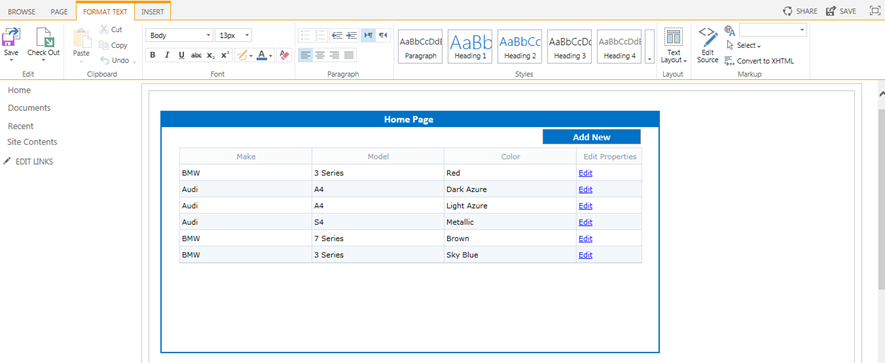
  • Below figure shows the form after WebPart configuration.

Cascadingimage48

  • Click “Add New” button to open the cascading form. Select values from 3 combo boxes and click save to save values to list.

CascadingImage49

Get Started with our Appforms Development Services

Web service in ClaySys AppForms

Introduction

A web service is a software system designed to support inter operable machine-to-machine interaction over a network. In ClaySys AppForms you can connect to the web service to read/write data unless you have restrictions from the server to have the connectivity to the web service from the server. The purpose of this document is designed to be a reference for any person wishing to implement or any person interested in the architecture of the web service with the ClaySys AppForms.

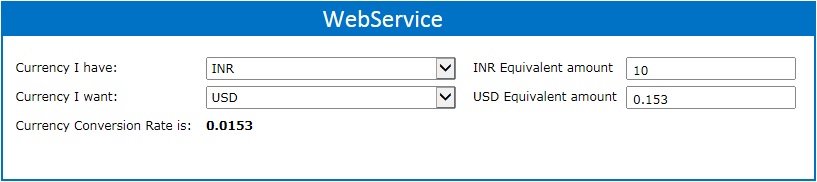
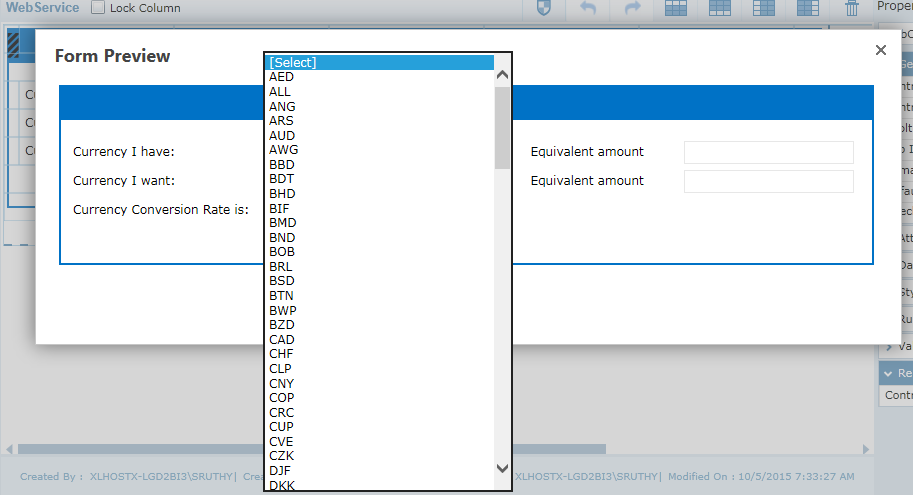
Here we will be using a web service called ‘Currency Converter’, to get the conversion rate from one currency to another currency. The label will display the currency conversion rate of two countries from the two combo boxes. Also we can calculate the equivalent amount of money based on this conversion rate in the text boxes. If we select the currency codes of countries from the two combo boxes, two text boxes available in the right side of the page will be enabled. We can enter currency amount in one of the text box and the other will give the corresponding amount based on the conversion rate.

Image1

It is designed to guide development and design in ClaySys AppForms, including:

  • Creating the form
  • Form Design
  • Data Source configuration
  • Rules
  • How to use this template
  • Import tenant
  • Create a new web part page

Creating the form
Form Design

Folders are used to store and organize forms that have a logical association or relationship. To create a new form click ‘New Folder’ button on the toolbar of the designer.

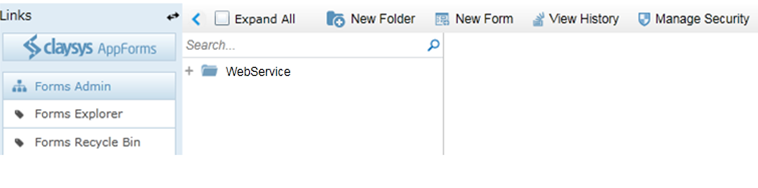
  • On clicking the New Folder option, it will create a new folder and the name will be in the edit mode. You can type in the new name for the folder.

Image2

  • Then click on the ‘New Form’ link on the toolbar. Give an appropriate name for the form. Click ‘Save’ to save the form.

Image3

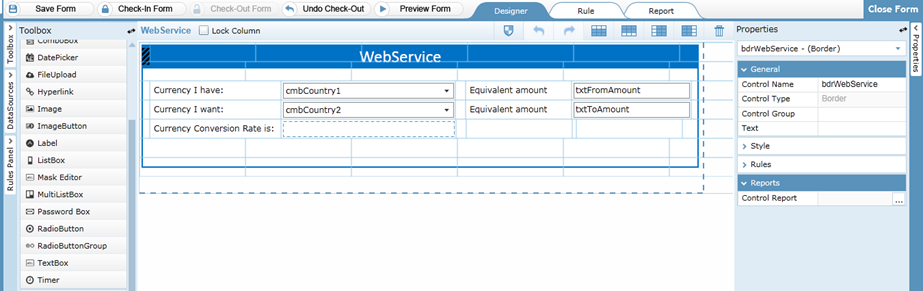
  • You can drag and drop controls format the styles easily.

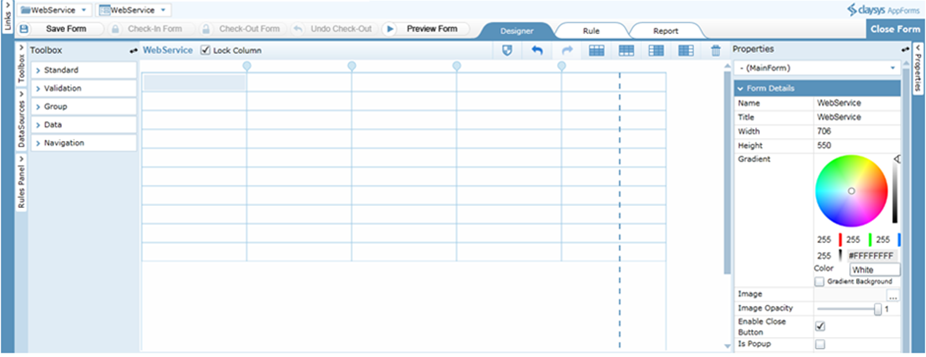
Image4

  • ‘Check-In Form’ to save the changes and publish to get the completed form for the end user to use. A form must be checked-out to make modifications while all aspects of the form can be examined while checked-in

Data Source Configuration

Following steps will explain about the Data Source configuration of Combo Box.

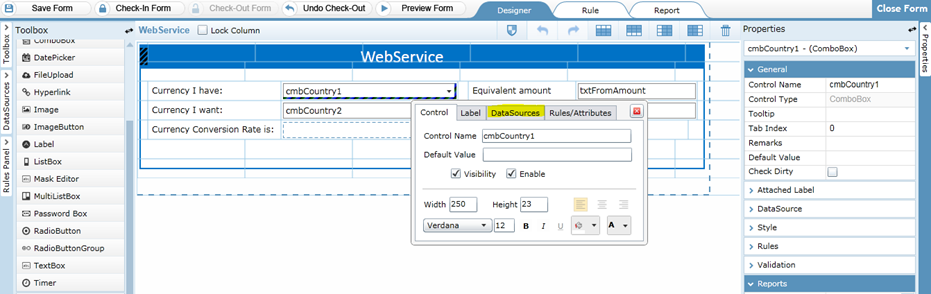
  • Click on the Combo Box control and click the Data Sources tab to edit the Data Source.

Image6

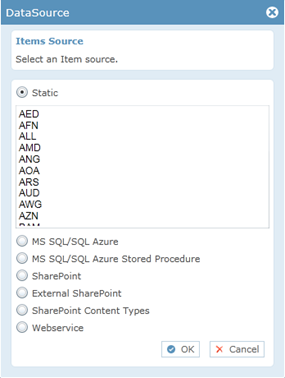
  • A pop-up window appears to select the item source. Select the Item Source as ‘Static’ so that the values can be given as static.
Image7
  • Following figure shows the combo box in preview.

Image8

When you upload the form, Web service DataSource will automatically be added to “DataSource settings”. Following steps will explain about how to create a new WebService DataSource.

  • In the Data Source wizard on the left side of the designer, select the DataSource Type as WebService.
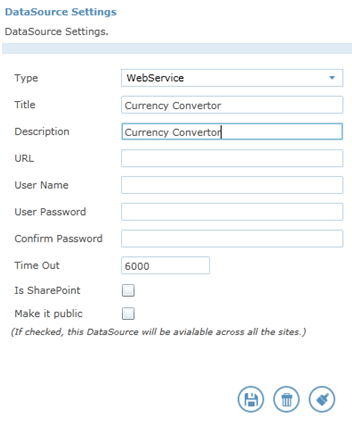
  • Enter the Title& Description for Web Service Data Source. This is mandatory.

Image10
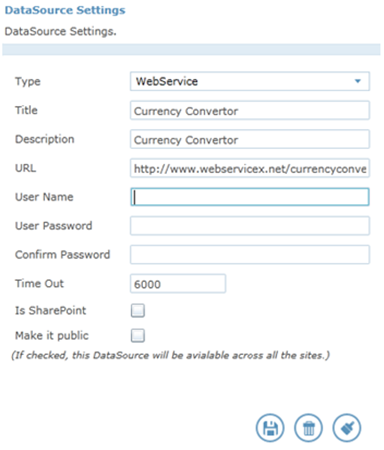
Enter URL for the WebService. Example URL: http://www.webservicex.net/currencyconvertor.asmx?wsdl

Image11

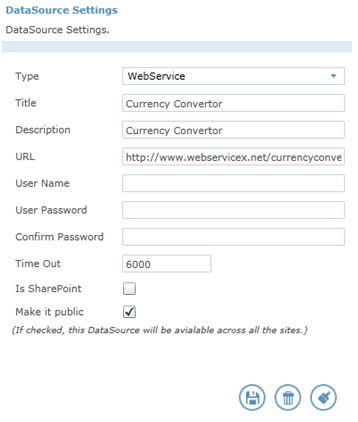
  • Username and Password are not required for this Public Web service. Select ‘Make it Public’ for the availability of created Data Source across all the sites. If its public, it will be available for all the site collections.

Image12

  • Select ‘Is SharePoint ‘for the UserProfile SharePoint WebService.
  • Click on the icon to insert or update the DataSource.
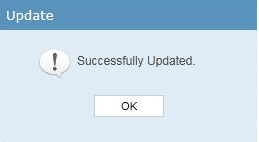
  • A message will pop up indicating the successful insertion of web service. Click ‘Ok’.
image13
  • Following steps will explain how to configure the web service data source.
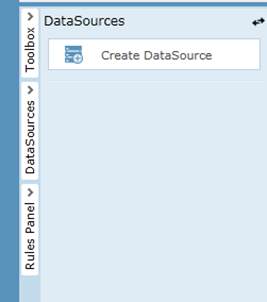
  • To create an external DataSource click on the ‘Create DataSource’ link on the left side of the designer.
Image14

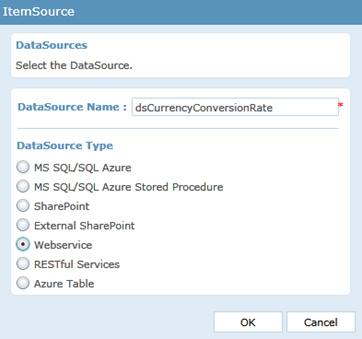
Give the DataSource name and select the DataSource type as ‘Webservice’. Click ‘OK’ to continue.

Image15
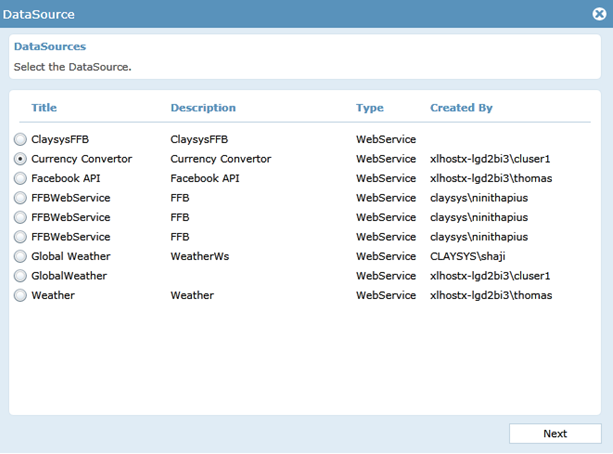
DataSource configuration wizard with all the WebService datasource mapped will be populated. Select the ‘Currency Convertor’ DataSource from the available DataSources. Click ‘Next’ to continue.

Image16
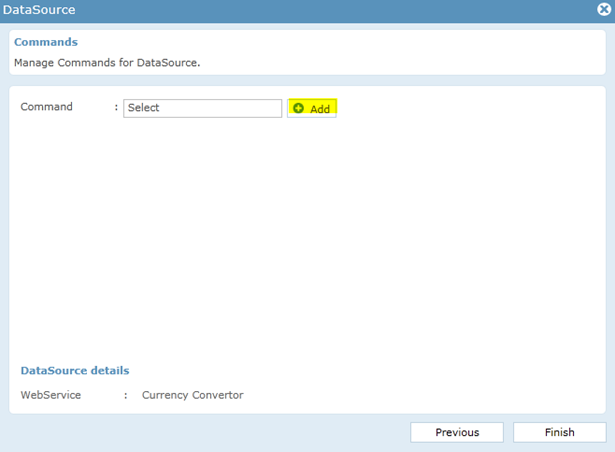
Click ‘Add’ button to add the Select command. DataSource operation in webservice can be defined only for ‘Select’.
Image17
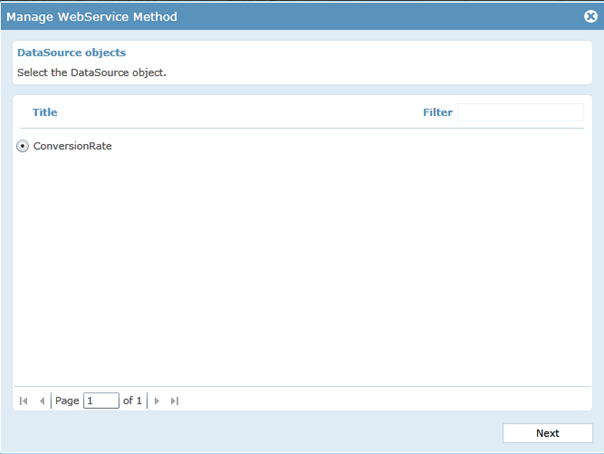
Select the DataSource object as ‘ConversionRate’. Click ‘Next’ to continue.

Image18
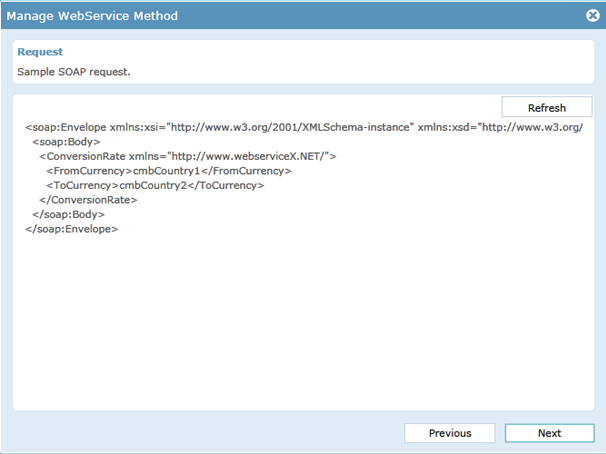
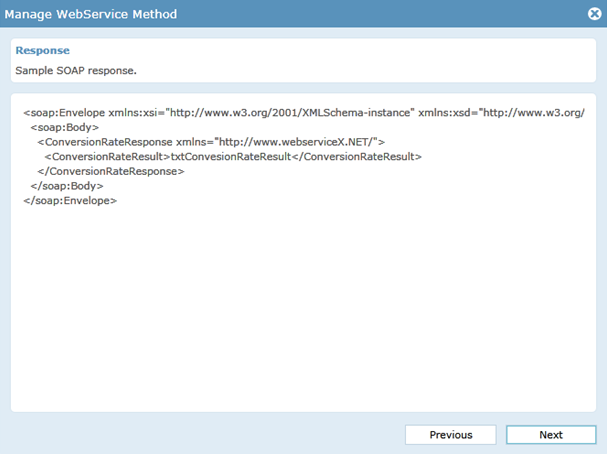
A sample SOAP request shows. Click ‘Next’ to continue.

Image19
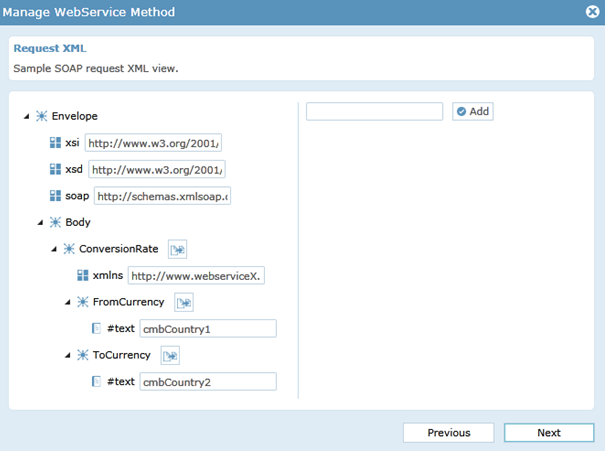
Enter the control name for the selected DataSource object for XML request. In the request XML view, give the ‘FromCurrency’ as ‘cmbCountry1’ combobox and ‘ToCurrency’ as ‘cmbCountry2’ combobox .Click ‘Next’ to continue.
Image20
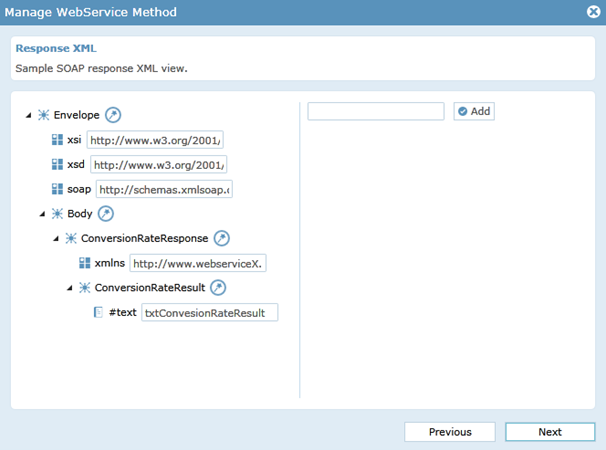
A sample SOAP response shows. Click ‘Next’ to continue.

Image21
In the response XML view, give the ‘ConversionRateResult’ as ‘txtConversionRateResult’ textbox. Click ‘Next’ to continue.
Image22
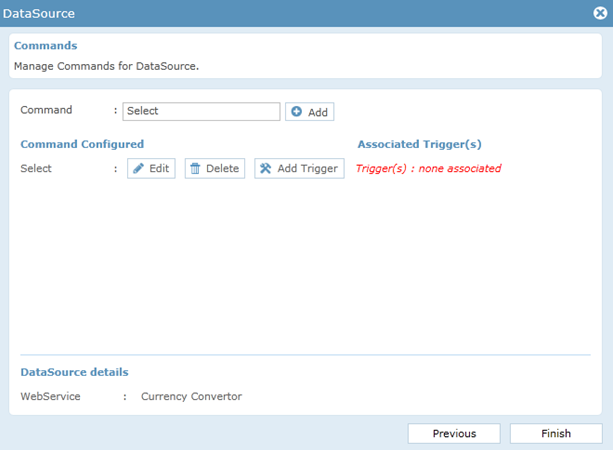
Data Source operation for ‘Select’ is now defined.

Image23
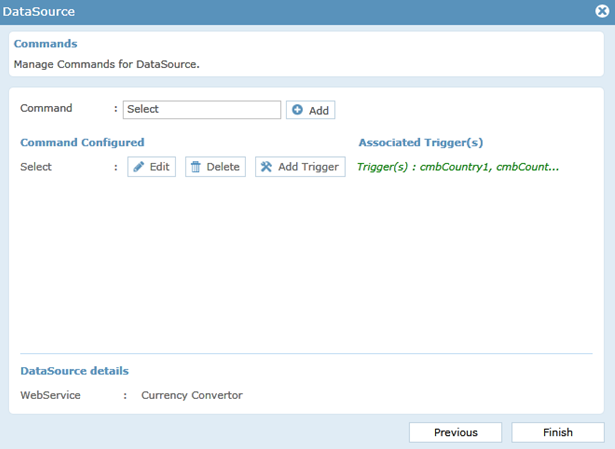
Once the Data source operation is defined, it is bound to a control or event that triggers its execution. It is given by ‘Add Trigger’ button. So that the corresponding Execute Command rules will be created with associated trigger.

Image24
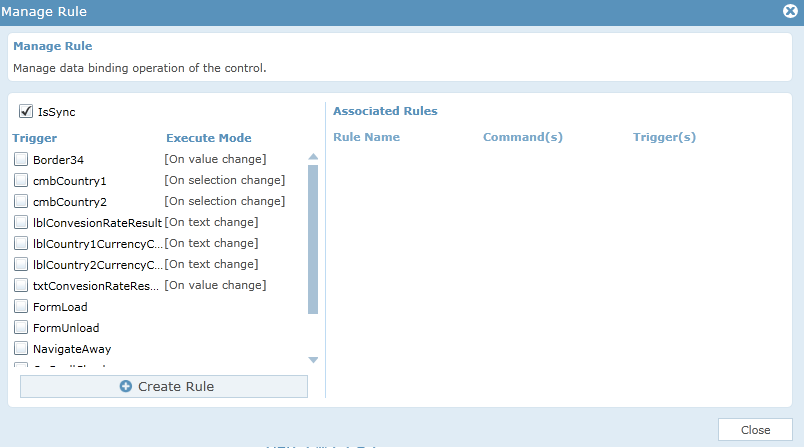
We can add the trigger by clicking the check box corresponding to the control.

Image25
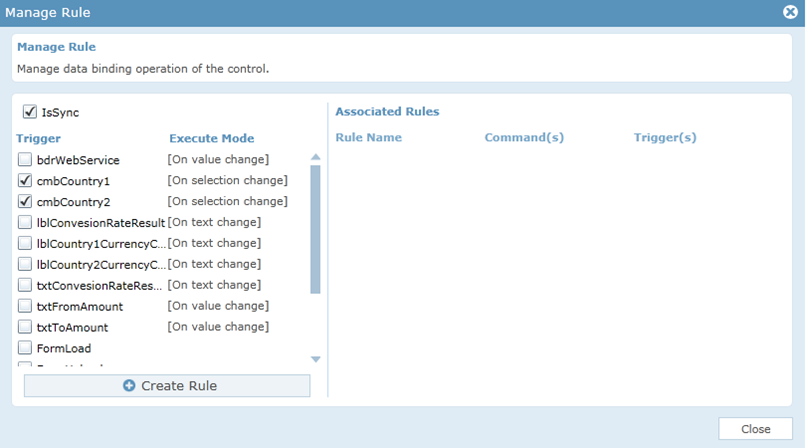
Click ‘Create Rule’ will automatically create the corresponding ExecuteCommand( ) rule for the select command associated with the trigger.

Image26
Image27
Click ‘Finish’ to save and close the data source configuration.

Rules

The rules section is the most powerful section in the AppForms. The rules can be configured using the Rules Engine. Following are the rules associated with the application.

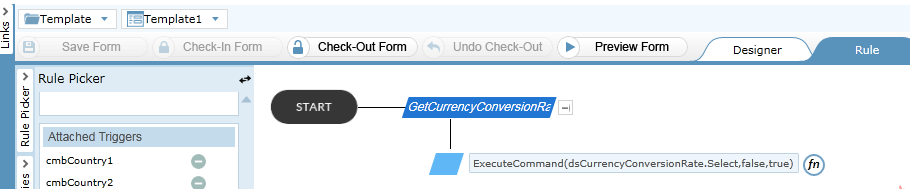
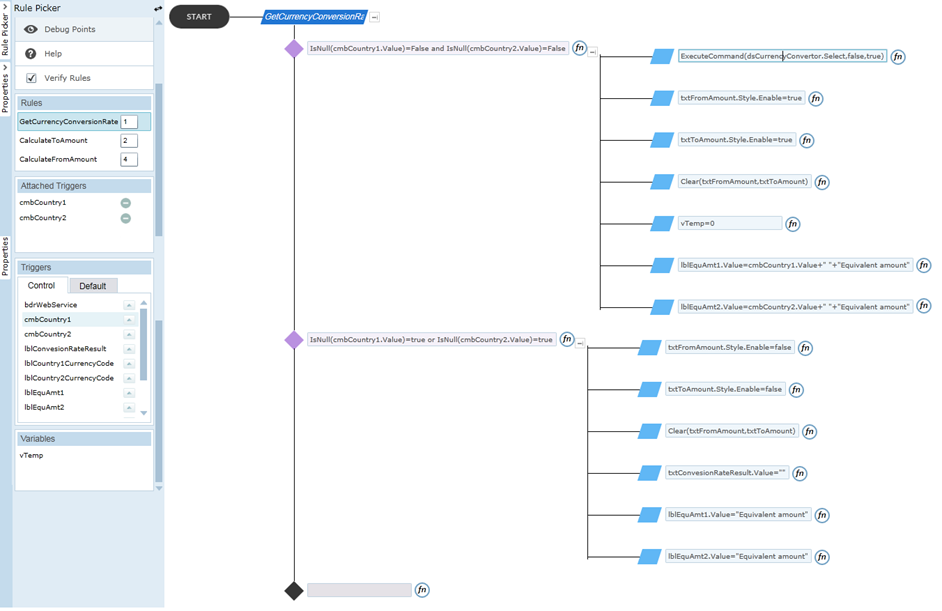
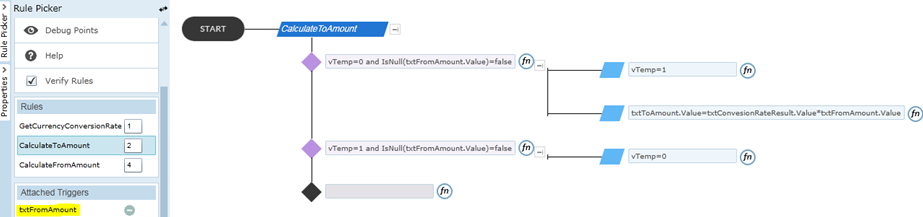
The rule named ‘GetcurrencyConversionRate’ is basically the DataSource select operation of webservice. Based on the two conditions shown in the figure, the textbox controls can be enabled/disabled and the values of ‘ConversionRateResult’ are populated from the webservice also fills the values of ‘Equivalent amount’ label controls on comboboxes (‘cmbCountry1’ and ‘cmbCountry2’) trigger. This process is converted into concise, yet readily understood rule expression statements that represent the underlying execution logic of the form as shown in the figure.

Image28

The rule is named ‘CalculateToAmount’ gives an equivalent amount of money in ‘txtToAmount’, which is the multiplicative amount of ‘txtConversionRateResult’ and the ‘txtFromAmount’ on ‘txtFromAmount’ trigger.

Image29

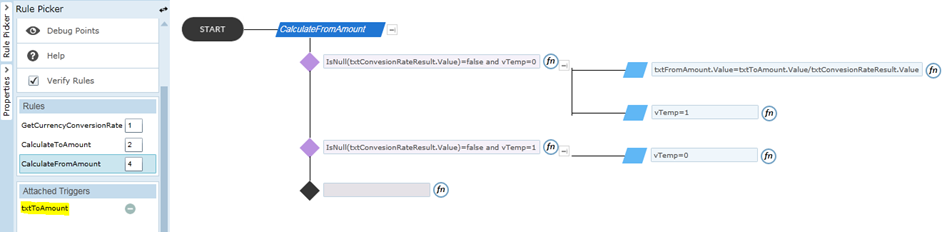
The rule is named ‘CalculateFromAmount’ gives an equivalent amount of money in ‘txtFromAmount’ which is the divided amount of ‘txtToAmount’ and ‘txtConversionRateResult’ on ‘txtToAmount’ trigger.

Image30

 How to use this template

Import Tenant

Following steps will explain about tenant import.

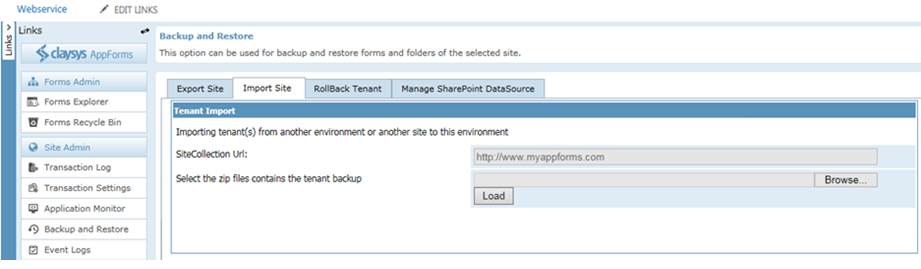
Open the ‘Backup and Restore’ option in AppForms in the destination site and click on the ‘import site’ tab.

Image31
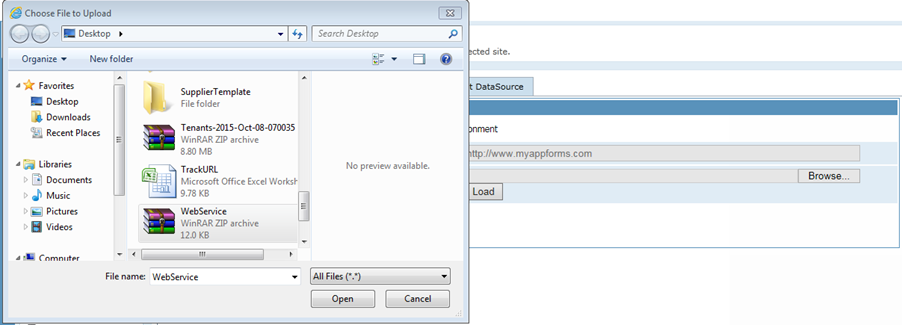
Select the backup file we had saved from the source site.Image32
Once the file is selected, click on the load button.

Image33
This will show you the different sites that were exported from the source site. If there are more than one site content saved, then you can map each site in backup file to different sites in the current site. Select the required site content that needs to be restored and select the destination site in the current site as shown below. Once we are done with the backup mapping, click on the next button to proceed with the import.

Image34
Now we will have to remap the sites we had used in the source website to the actual site in the target site. The dropdown will show you will the sites/sub sites to help you with the datasource mapping. Click ‘Next’ to continue.
Image35
Click ‘Import’ to continue.

Image36
This will import all the site content we had backed up from the source site and we are ready to work with the forms in the current site.

Image37
Create a Web Part Page

Forms can be embedded on any SharePoint page by using the ClaySys AppForms Web Part, to create a webpart page, follow these steps:

Click on Site Settings Wheel in the upper right corner of your site and then select “Site Contents Page”.

Image38

Select “Site Pages” or simply pages library on Site Contents Page.

Image39
Click on “New Wiki Page” to add new site page.

Image40

Give the New page name into the pop-up window and click ‘Create’ to add new page.

Image41
To add a new web part, click on the ‘Insert’ tab and then click on the ‘WebPart’ button. Then select Claysys -> Claysys HTML WebPart.

Image42
Click ‘Add’ button to add the Web Part.
Click on the ‘edit the Web part’ link to edit the page.

Image43
A new pop-up window appears and here we can configure the ClaySys AppForms by clicking on the ‘Configure’ button.

Image44

Pop-up appears with listed published forms. We can select the appropriate form by click on the form and add the form by clicking on the ‘Select’ button.Image45
Once the configuration is finished, click on the ‘Apply’ button to see the changes. Click ‘OK’ to continue.

Image46

Click ‘Save’ button to save the changes.

Image47

Below figure shows the form after Web Part configuration.

Image48

Get Started with our Appforms Development Services

Maintaining high availability and setup disaster recovery in ClaySys AppForms

ClaySys AppForms High Availability Configuration

c3
This blog will present the High Availability options available to deploy the ClaySys AppForms Solution onto an infrastructure, with the right operational procedures that can provide 24/7 ClaySys AppForms System Availability.

The High Availability Architecture described in this section, once combined with the right Operational Procedures and Resources, will ensure that Client Maintains a very high level of service uptime.

Note that, the Microsoft High Availability Technology Options enables seamless failover and load balancing, without needing manual intervention for executing the failover or transferring Network Traffic Load. But proper Operational Procedures need to be in place, to ensure appropriate testing, software maintenance etc.

To understand the ClaySys AppForms System High Availability Configuration, first we going to review on architecture for High Availability with the SQL Server Database and then we will review on High availability configuration for the ClaySys AppForms Application Servers.

ClaySys AppForms Database – High Availability

SQL Server 2008 64 bit (Std or Ent) will be installed and configured for the ClaySys AppForms Solution.

With SQL Server, Microsoft has two options available for maintaining a high availability configuration. They are SQL Server Failover Clustering and Database Mirroring.
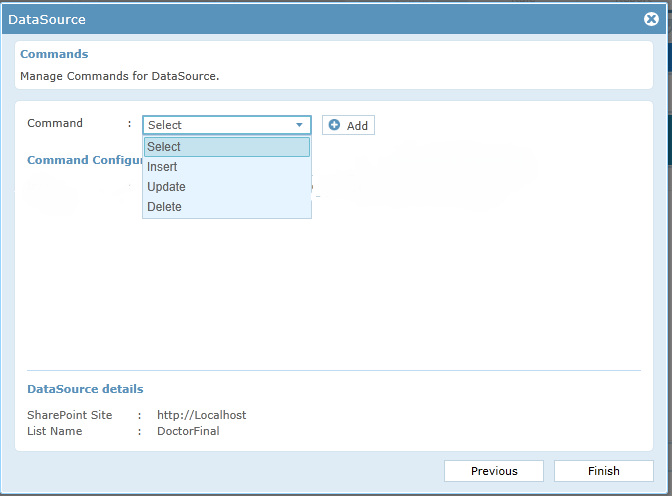
Failover clustering is a tried and tested technology that uses a shared storage (usually a SAN) between two or more SQL Server nodes that are on different physical servers.
There are two weaknesses with this approach, which are that the SAN can become a single point of failure, and that failing over from one node to another (E.g. For scheduled maintenance), can take one to two minutes on a busy cluster. This can make it much more difficult to achieve five nines availability, since just applying monthly Microsoft security patches onto each node, and then failing over will probably eat up the six minutes per year of down time with 99.999 availability.

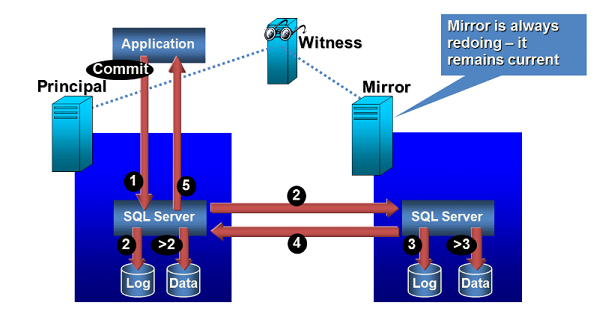
The alternative that is now becoming more and more popular is for organizations to use Database Mirroring instead of clustering. With database mirroring, you are mirroring at the database level and not the instance level. You will have a principal database and a mirror database, each running on a different server, with its own dedicated storage. This scenario eliminates the single point of failure of the shared storage, and also gives you the ability to failover in 10-15 seconds.

The only downside is that you will need twice the storage space. It also requires a third server to be the Witness server if you want to run in Synchronous mirroring mode with automatic failover. The witness server can run SQL Server Express Edition and can be a low-end server, which can help on the cost front. If the Witness Server goes down, then the only impact is, we have to manually manage the Failover from the Principal to the Mirror Server.

The presentation below presents the summary of how SQL Server Mirroring works and the schematic below gives a brief understanding as well:


SQL Server Mirroring 

c3
To understand how exactly mirroring works, please also go through the detailed documentation on the Microsoft website, using the link below:
https://msdn.microsoft.com/en-us/library/bb934127.aspx


ClaySys AppForms Application Server – High Availability

The ClaySys AppForms Application Server will be installed on Windows Server 2008 64 bit edition. We will be setting up a Network Load Balanced cluster of multiple ClaySys AppForms Application servers, to meet Scalability and High Availability requirements for the Client.

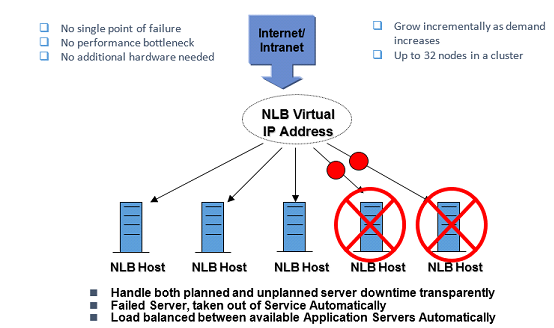
Network Load Balancing (NLB) is a way to configure a pool of machines so they take turns responding to requests.  It’s most commonly implemented in server farms with identically configured machines that spread out the load for a web application.  It can also be used for a firewall (ISA) farm, VPN access points etc.
Anytime you have TCP/IP traffic, that has become too much load for a single machine, but you still want it to appear as a single machine for access purposes, is when NLB becomes an appropriate fit.

NLB works in the following manner:

After you install NLB on a server, you add two or more machines to a NLB Cluster. The machines are configured with 2 IP addresses:  their own private unique one, and a second one that is shared by all the machines in the cluster.

The machines all run an algorithm that determines whose turn is next at responding to requests.  They also exchange heartbeats with one another, so they all know if one server goes down and won’t allocate any more requests to it.

You can configure how requests are allocated. You can set up affinity so that requests from one subnet will be responded to from Server A whenever possible, and that other subnets prefer Server B.  Also you could setup 80% of all incoming requests to be handled by Server A, with the rest going to server B.

There are a few other things you can do with affinity:

Single affinity: connections initiated by a given IP address are handled by the same server in the cluster until cluster membership changes.

No affinity: connections are load-balanced based on originating address and port. This is more efficient, as connections from the same client can be routed to several hosts.

VPN and IPSec affinity: vpn and ipsec sessions will be preserved even if cluster membership changes.

Class C affinity: useful when internet clients access the cluster through proxies that expose the same class-C addresses. Load balancing is based on the class-C subnet portion of the incoming address.

The presentation below presents the summary of how NLB works and the schematic below gives a brief understanding as well:


Network Load Balancing Schematic

c3


To understand how exactly NLB works, please also go through the detailed documentation on the Microsoft website, using the link below:
https://technet.microsoft.com/en-us/library/cc770625(WS.10).aspx

*Note: The combination of NLB and SQL Server Mirroring will ensure 24/7 High Availability for ClaySys AppForms Services. These technology options will have to be supported by Operational Processes that ensure the right resources are available for maintenance of the ClaySys AppForms Services, and for supporting the Microsoft High Availability options presented in this architecture. 

ClaySys AppForms Disaster Recovery Setup


c3

This section highlights how ClaySys AppForms Disaster Recovery can be setup at the Client, to ensure that a warm standby server infrastructure is being maintained at a separate Disaster Recovery Center.

So in the event of the ClaySys AppForms Services becoming unavailable form the primary ClaySys AppForms Hosting Service. There could be immediate transition of ClaySys AppForms Services to the Disaster Recovery Infrastructure.

ClaySys AppForms Disaster Recovery through Log Shipping

In this scenario, a Disaster Recovery (DR) Server Infrastructure will be maintained by the client at a separate DR site. The application servers will have the same version of the ClaySys AppForms Software installed for both the OS as well as ClaySys AppForms Application.
The DR is maintained in synch with the production ClaySys AppForms, by synchronizing the Database at the DR site with the database of the Production site in near real time.
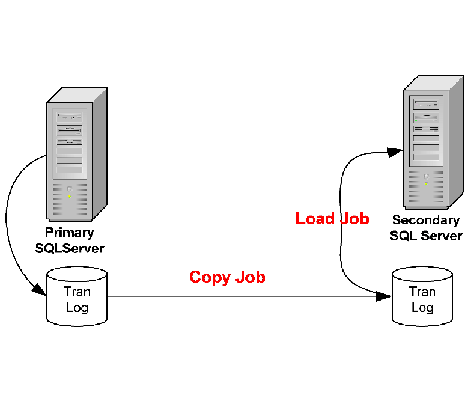
Log shipping is the process of automating the backup of database and transaction log files from a production SQL Server, and then restoring them onto a standby SQL Server at a DR site. The key feature of log shipping is that it will automatically backup transaction logs throughout the day (for whatever interval you specify) and automatically restore them on the standby DR SQL Server. This in effect keeps the two SQL Servers in synch. So should the production server fail, all you have to do is point the users to the new server, to resume services.
Note that there will always be the tail end of the SQL Database Log files from the Production server that will need to be restored onto the DR Server, if you want to prevent any data loss prior to resumption of services.

In case there is a catastrophic failure at the Production SQL Server environment, and there is no availability of the tail end of the Database logs, then the maximum risk of Data Loss is as of the last shipment of the transaction log files to the DR Server. Log shipping frequency can be set to minutes, to ensure a minimal data loss in such a scenario.

The schematic below shows how the SQL Transaction Logs from the Primary SQL Server (Production Environment) are backed up onto a Secondary SQL Server at the client DR Site:

c3 To understand how exactly SQL Server log shipping works, please also go through the detailed documentation on the Microsoft website, using the link below:

http://msdn.microsoft.com/en-us/library/ms187103.aspx


Get Started with our Appforms Development Services