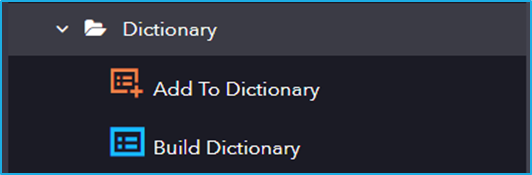
Dictionary includes activities for working with key-value pairs, allowing efficient storage, retrieval, and manipulation of data where each value is associated with a unique key.
The Dictionary category has the following sub activities:
Add To Dictionary: This activity is used to add key-value pairs to a dictionary.
Input Properties:
Dictionary– Specify the dictionary variable to which the key-value pairs will be added.
Key– Specify the key to be added to the dictionary.
Value– Specify the value to be associated with the given key in the dictionary.
IsOverwrite– Select this check box to overwrite the value if the key already exists in the dictionary.
Build Dictionary: This activity is used to create a new dictionary for storing keys and values.
Input Properties:
Build– Add the desired number of keys and their corresponding values to the dictionary.
Output Properties:
Dictionary– Stores the added key-value pairs in the dictionary variable.
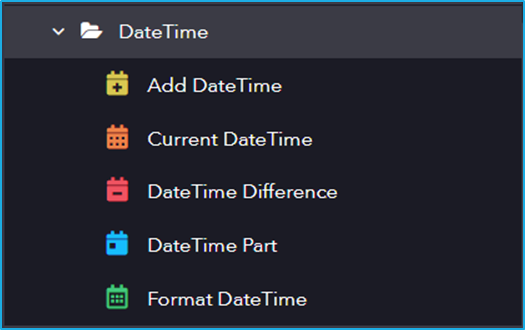
DateTime includes activities for manipulating and formatting date and time values, allowing you to perform operations such as calculating time differences, adding/subtracting dates, and formatting date/time outputs.
The DateTime category has the following sub activities:
Add DateTime: This activity allows the user to add a Date and Time by giving an interval specified by the user in the properties section.
Input Properties:
Interval– The time/date interval to add.
DateTime– Date time to which number is to be added.
Number– The number of intervals to add to the date. Positive values give future dates, while negative values give past dates.
Output Properties:
Added DateTime– The variable that stores the added DateTime value.
Current DateTime: This activity gets the Current Date Time of a Specified TimeZone.
Input Properties:
TimeZone– Select the standard time zone.
Output Properties:
Current DateTime– The variable that stores the standard time for the selected time zone.
DateTime Difference: This activity can be used to find the difference between the specified Start and End datetime.
Input Properties:
Interval– Select the interval to calculate the DateTime difference. Or Select the part to return for the DateTime difference (e.g., year, month, day).
StartDate – Specify the starting DateTime for the difference calculation.
EndDate– Specify the ending DateTime for the difference calculation.
Output Properties:
Date Difference– The variable that stores the calculated difference between two DateTime values.
DateTime Part: This activity is used to get a part of the date.
Input Properties:
Interval– Select the specific part of the DateTime argument to return (e.g., year, month, day).
DateTime– The DateTime from which the specified part is to be extracted.
Output Properties:
DatePart– The variable that stores the integer value of the DateTime part.
Format DateTime: This activity converts a specific date-time into any format of the user’s choice in the form of an output string variable.
Input Properties:
Value– Enter the DateTime value to be formatted.
Format– Select the desired DateTime format.
Output Properties:
Formatted DateTime– The variable that stores the formatted DateTime.
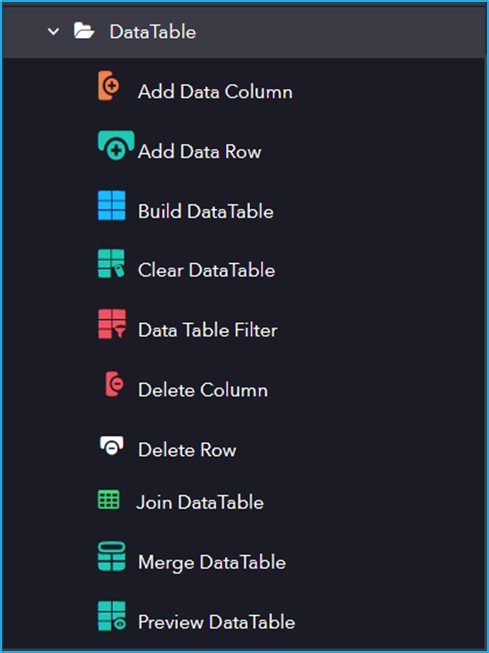
DataTable works with tabular data structures within your automation workflows, providing tools to create, modify, and query DataTables for efficient data handling.
The DataTable category has the following sub activities:
Add Data Column: This activity adds a Column to a specified Data Table.
InputProperties:
Datatable : The DataTable variable to which the user want to add columns.
ColumnName: Specifies the name of the new column to be added.
Add Data Row: This activity adds a Row to a specified Data Table.
InputProperties:
Datatable : The DataTable variable to which you want to add rows.
Items: Specifies an array of new rows to be added to the DataTable.
Build DataTable: This activity Allows users to build and customize a datatable.
InputProperties:
Build: Allows to customize a table.
Output Properties:
Datatable: Stores the added information in the DataTable.
Clear DataTable: This activity clears all the data from a specified DataTable.
InputProperties:
Datatable: The DataTable variable to be cleared.
Data Table Filter: This activity is used to filter a datatable by including/excluding specific rows/columns according to the given rule.
InputProperties:
Options: The Data Table Filter Window allows to customize the table to filter.
Datatable: The DataTable variable to be filtered.
Output Properties:
Datatable: The resulting filtered DataTable variable.
Delete Column: This activity deletes particular columns from a specified datatable.
InputProperties:
Datatable: The DataTable variable from which you want to delete column.
ColumnName: The name of the column to delete.
ColumnIndex: The index of the column to delete.
Delete Row: This activity is used to Delete particular rows from a specified DataTable.
InputProperties:
Datatable: The DataTable variable from which you want to delete row.
RowIndex: The index of the row to delete.
Join DataTable: This activity is used to combine rows from two datatable by using values common to each other, according to a Join rule.
InputProperties:
Join Wizard: Enables joining of two tables.
Output Properties:
Datatable: It stores the two datatable after joining common information in the datatable variable.
Merge DataTable: This activity is used to merge a specified datatable with the current datatable.
InputProperties:
Destination: Specify the DataTable into which the data should be merged.
MissingSchemaAction : Specifies the action to take when merging the two datatables.
Source: The DataTable object to be added to the destination Datatable.
Preview DataTable: This activity lets the user view all the values for all the rows and columns in a DataTable.
InputProperties:
DataTable : A DataTable variable that stores the added information in the Build DataTable window.
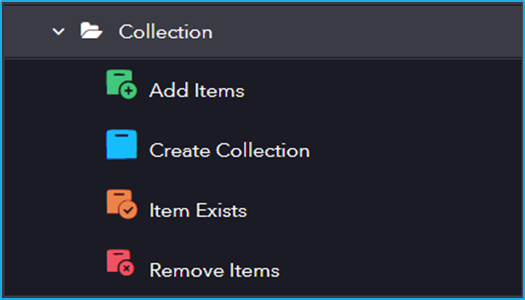
Collection includes activities for managing and manipulating data structures such as lists, dictionaries, and arrays to store and process multiple values efficiently.
The Collection activity has the following sub activities:
Add Items: This activity is used to add an array of items to a specified collection.
Input Properties:
Collection– The variable that holds the collection items. Or Variable storing collection items.
Items– Array of items added to the collection. Or Array of items in the collection.
Create Collection: This activity is used to create a new collection of an ArrayList data type.
Output Properties:
Collection– The variable that holds the collection items. Or Variable storing collection items.
Item Exists: This activity is used to check if the specified item exists in the collection or not.
Input Properties:
Collection– The variable that holds the collection items. Or Variable storing collection items.
Items– Array of items to check in the collection.
Output Properties:
Exists– Boolean variables which indicate whether the array of items exists or not.
Remove Items: This activity is used to delete an array of items from a collection.
Input Properties:
Collection– The variable that holds the collection items.
Items– Array of items to remove from the collection.