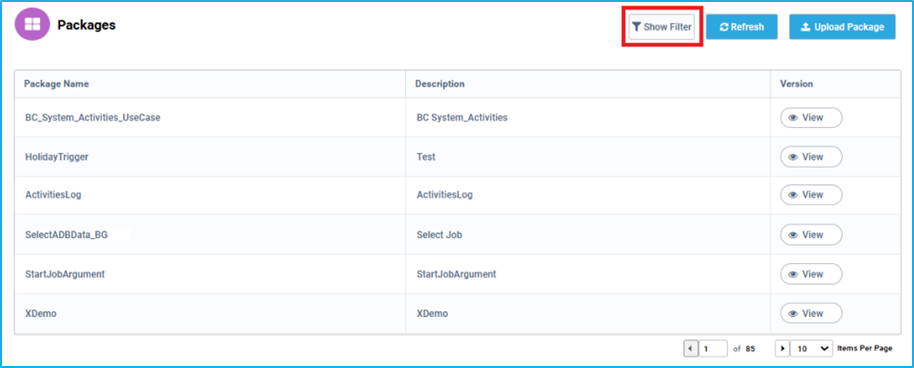
Using the ‘Show filter’ option, the user can filter Packages based on the package name.
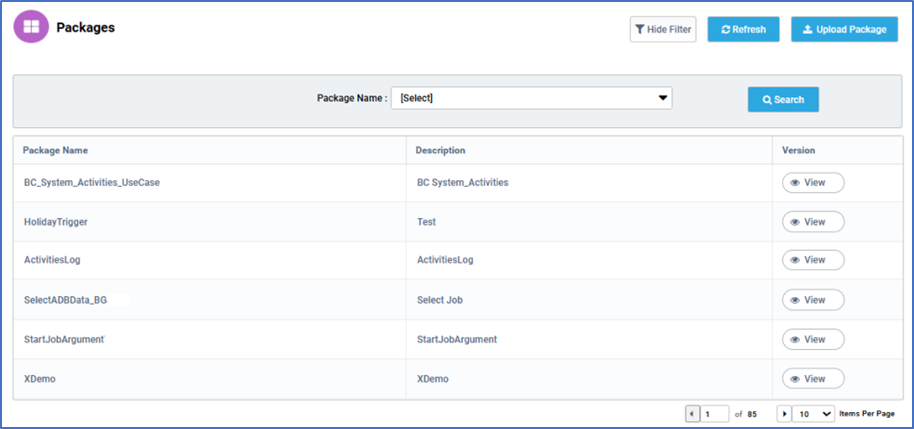
The “Search” button can be clicked after selecting the package using the dropdown.
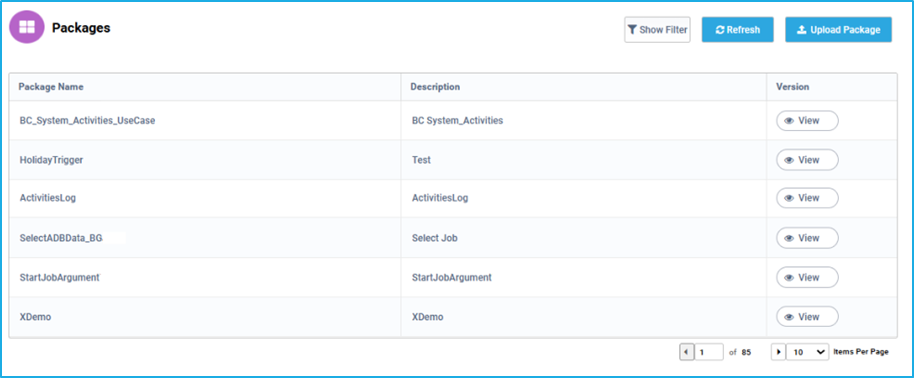
The ‘Refresh’ button helps to reload the packages tab with the latest details.
Using the ‘Show filter’ option, the user can filter Packages based on the package name.
The “Search” button can be clicked after selecting the package using the dropdown.
The ‘Refresh’ button helps to reload the packages tab with the latest details.
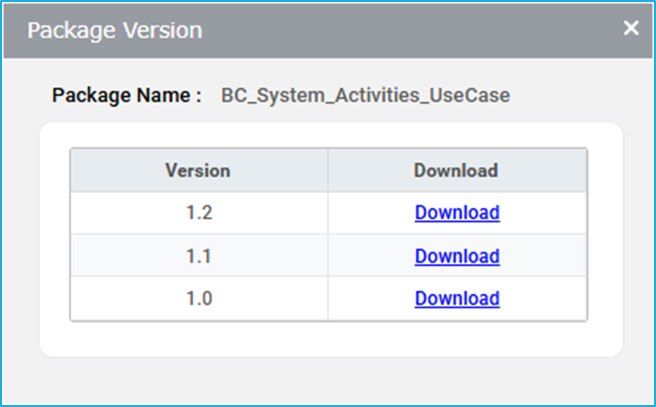
Package can be migrated from one environment to another and it is possible to download any specific version.
Steps to download a package from the Bot Manager:
In Genie Studio, a package represents a fully developed project ready for deployment, encapsulating all its functionalities and configurations. Within the packages tab, users can access a repository of published RPA Genie projects, facilitating seamless job execution. The platform further streamlines workflow by enabling effortless migration of packages across environments, eliminating the need for redeveloping projects from scratch. Package versions evolve iteratively with each republishing cycle in Studio, ensuring that users always have access to the latest enhancements and fixes. When downloading a specific package version, the file is saved locally with the recognizable “.geniepack” extension, consolidating organizational resources for future utilization.
The Packages tab lists all the RPA Genie projects that were published through studio. The published projects will be reflected initially in this tab in the form of packages along with the name, version and description for ease of access. With the help of this tab, users would also be able to download or upload packages easily. These packages must be converted to processes in order to be run through the Bot Manager and Copilot.
The view button next to each package displays the version numbers corresponding to the package. Each time a project has been modified and republished in studio, a new version for the package will be available in this window.
The “Show Filter” button helps to filter the machines based on the Machine’s name and status.

The “Search” button can be clicked after entering the required data in the respective field(s).
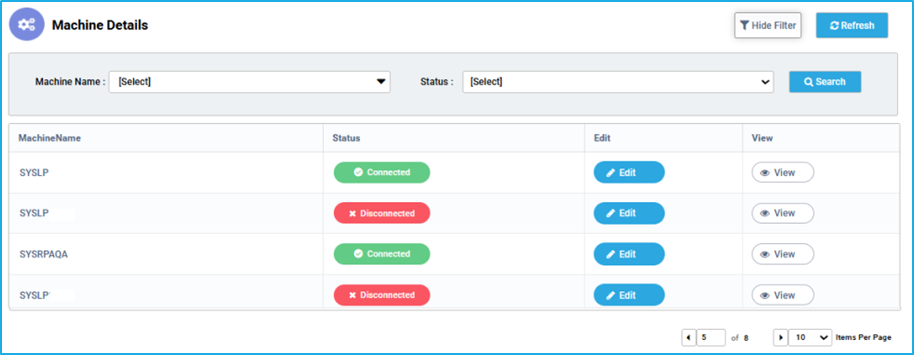
The “Refresh” button, helps to reload the Machine Details window so that the latest details can be viewed.
Machine is the physical or virtual platform where the robot runs such as a server machine. It provides the necessary environment for the robot to execute its tasks.
To access the Machines window, the user has to select the ‘Machines’ by hovering the ‘Robots’ tab of the Bot Manager. This tab shows the names of the machines and their current statuses. The Machine can be either in one of the states given below:
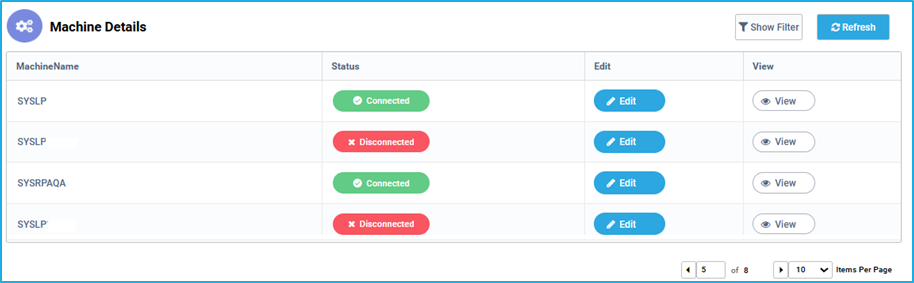
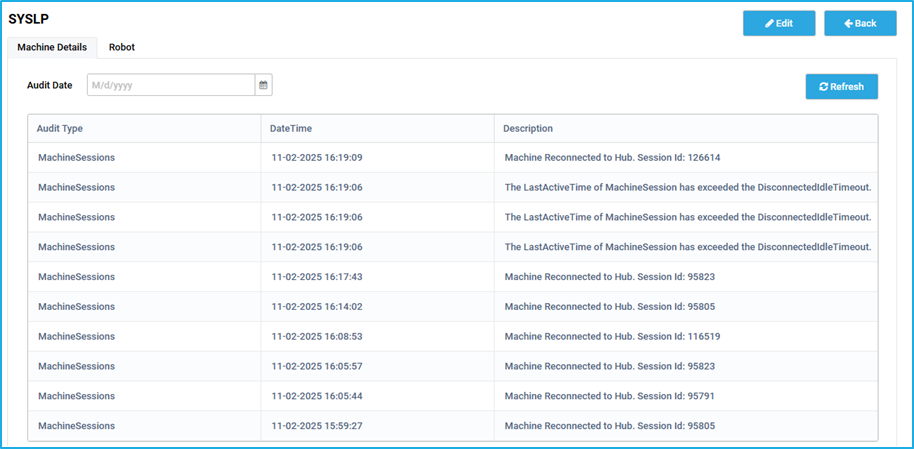
The user have the ability to edit the machine and view details of a particular machine.

The “Show Filter” button helps to filter the robot based on the Robot Name, Machine Name, Status and Tags.
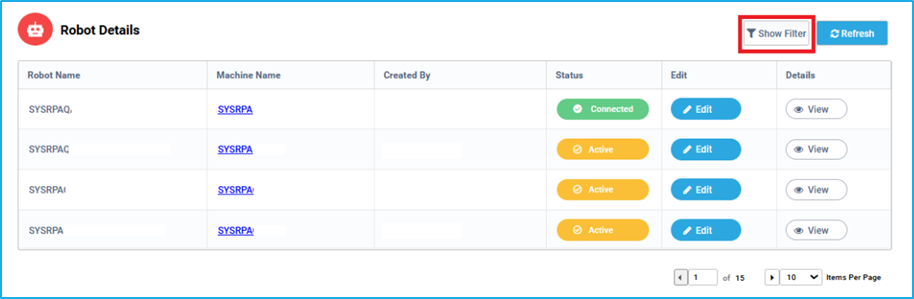
The “Search” button can be clicked after entering the required data in the respective field(s).
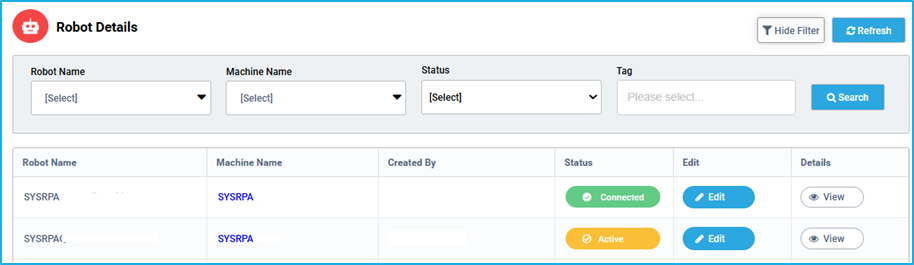
The “Refresh” button helps to reload the Robots Details window so that the latest robot details can be viewed.
The Robot tab displays a table containing the Robot Details such as the Robot name, Machine Name, Created By, Status of each robot, Edit, and to view details.
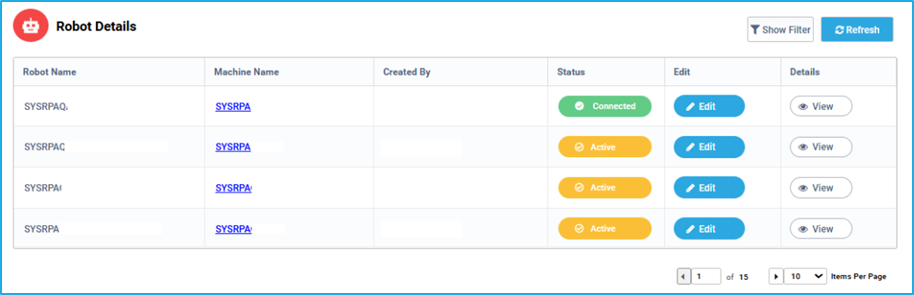
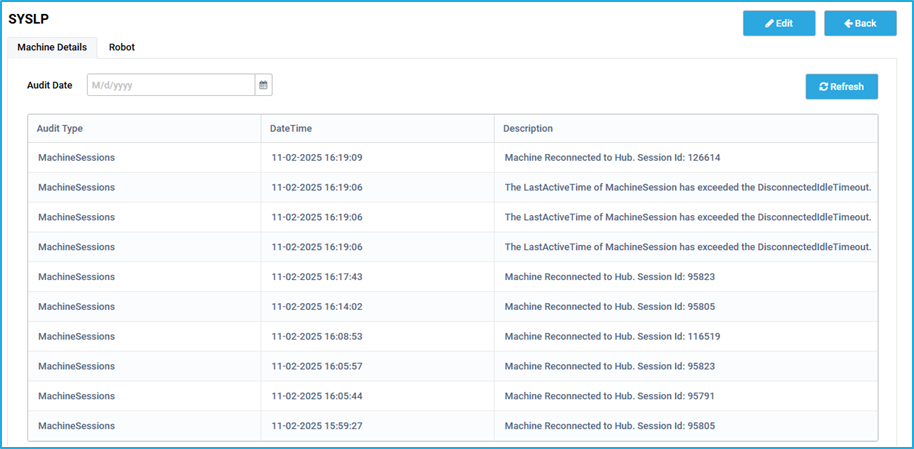
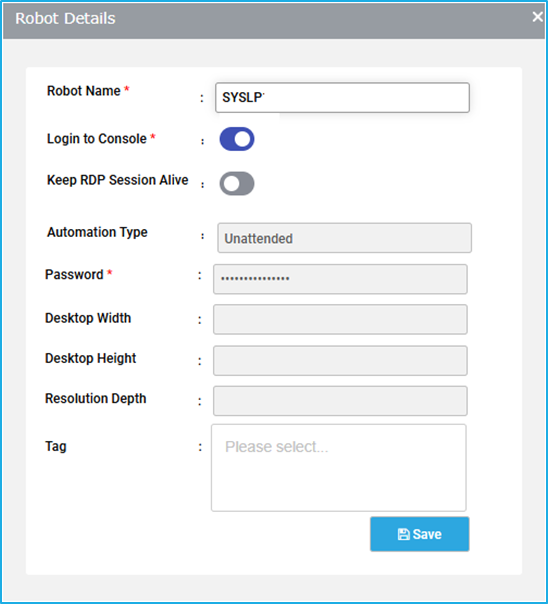
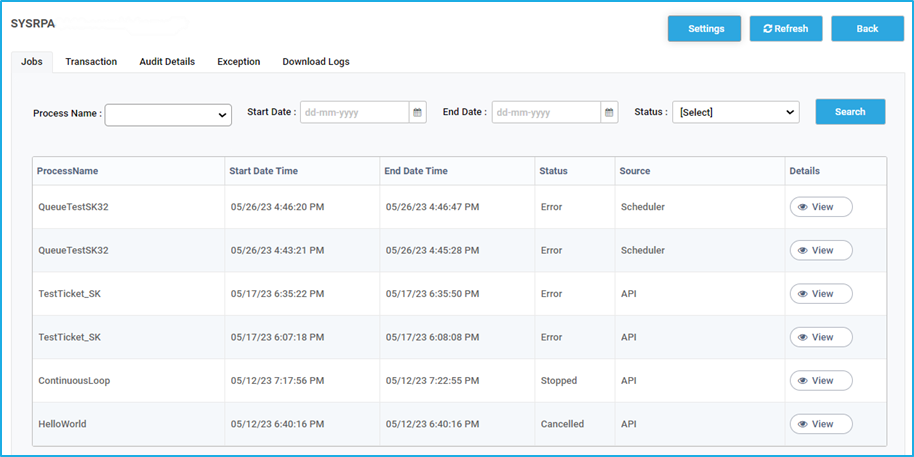
A Robot is an execution agent that operates automation processes developed in Genie Studio. For development purposes, a robot integrated with the Genie Studio can be used and for production purposes, the bot can be managed using the Genie Copilot. By using Copilot, a user can manage the BOT either locally or they can manage the BOT from a centralized server by connecting the Copilot to the BOT Manager.
On clicking the “Show Filter” button, the fields such as Robot, Process, Status, Start Date and End Date will appear as shown in the below image:
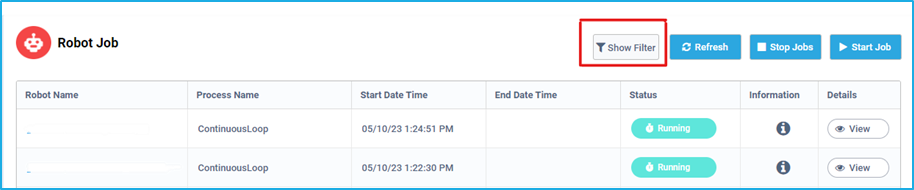
It also consists of a search button, through which the user can search for a job quickly based on the specified robot, process, status, start and end date time, or a combination of them.
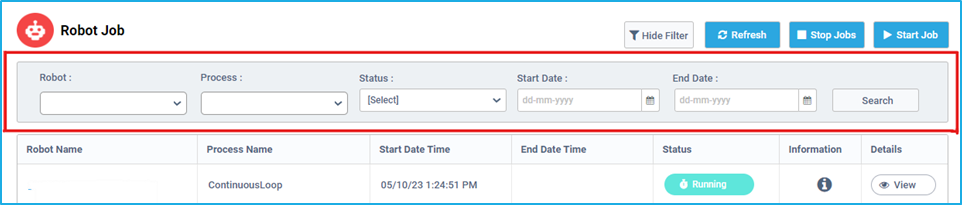
The “Refresh” button helps to reload the Robot Job window so that the user can see the latest Jobs details.